Creating a shortcut for quick access to client settings
In the Keenetic mobile app, you can add a shortcut to your home screen for quick access to client settings. This will reduce the time, number of taps and number of steps required to navigate through the app’s menu when accessing client settings.
Let’s say you frequently visit the settings screen for a particular client to manually enable or disable certain options (for example, to activate WoL, set up a schedule or change the access policy). In this case, add a shortcut to your desktop so you can simply click it to open the client settings screen in the app, without having to navigate through the menu options each time.
Launch the Keenetic app (the example in this article is for Android), go to the settings for the relevant device and, in the Network clients section, tap on the client entry.
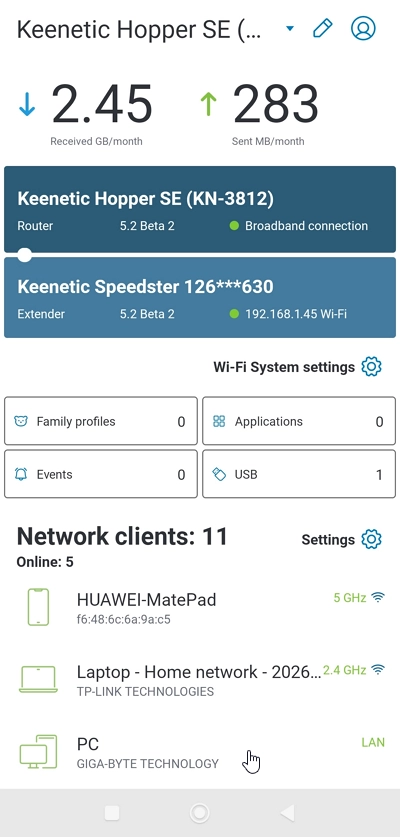
On the client settings screen, tap Add to Home Screen.
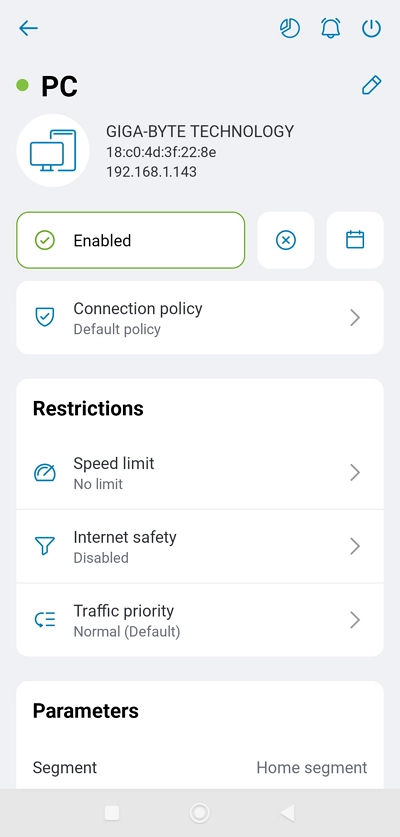
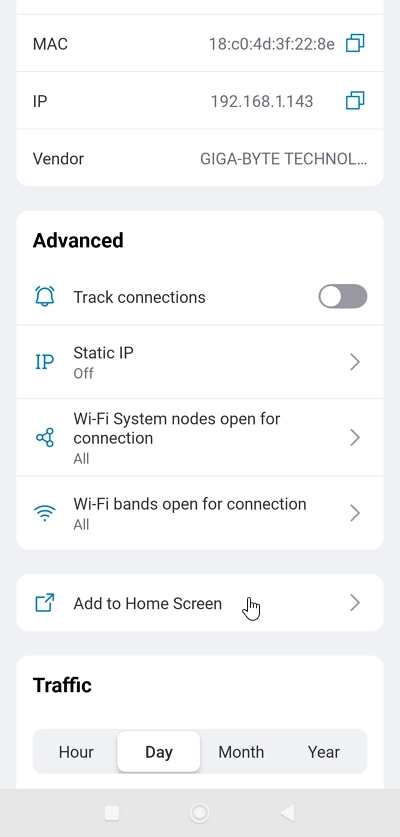
A shortcut will appear on your mobile device’s home screen to quickly access the client settings in the Keenetic app. For example: