Resetting the system settings and admin password
Sometimes, you may need to restore your Keenetic device to factory settings, i.e., reset the user settings to factory defaults. For example, if you want to reconfigure your router (delete all user settings) or have lost/forgotten your password to access the web interface.
Important
A factory reset will erase all user settings.
After resetting, you will need to configure the router to connect to the Internet from scratch. Before resetting, make sure that you have all the information you need to configure the connection. If you don't know what settings to use to connect to the Internet, contact your ISP for that information.
Regardless of the current operating mode, the device will enter Router Mode after resetting to factory defaults. This only applies to models without a hardware mode switch on the case.
Tip
We recommend you temporarily disconnect all network cables from the Keenetic device when resetting.
Before performing a reset, save the configuration file (startup-config file) according to the instructions Saving the startup-config configuration file.
You can restore the factory settings in the following ways:
Using the Reset Button
This way of restoring the factory settings can be used when you cannot connect to the router's web interface (for example, if you cannot open a web interface page or have forgotten your password).
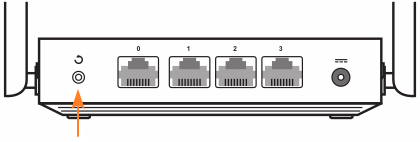
Your device has a Reset Button on it. You can find it on the same side as the rest of the ports (the button's location varies by model).
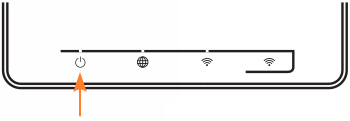
It is important to pay attention to the Status LED (leftmost) during the reset process, which shows the device state.
To reset your Keenetic to the factory defaults, proceed as follows:
Turn on the router's power and wait for the device to boot fully.
Press the Reset button using a sharp, thin object (e.g. a paperclip), hold it in until the Status LED on the front panel starts flashing frequently (usually it takes
10 to 12seconds), and then release the button.After that, the router will restart with the default settings (factory defaults).
Important
While holding down the Reset Button, it is important to wait until the Status LED starts flashing. If you release the button before this moment, Keenetic will reboot without resetting the configuration.
Do not hold down the Reset button for more than
30 seconds, as this will bring the device into emergency recovery mode during reboot. It will wait for the firmware image file to be transferred via TFTP.From the web interface
Go to the General System Settings page. Press the Reset all settings button to delete all user settings in the System Reboot section.
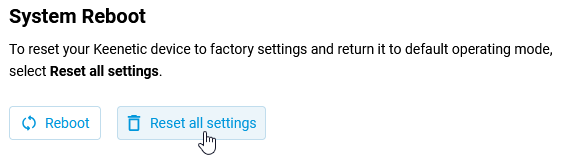
In the Deleting Custom Settings window that appears, enter the word
RESET(in capital letters) in the Confirm settings reset field and click Delete settings button.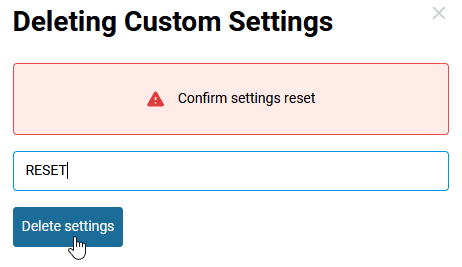
After that, the router will reboot with the default (factory) settings.
Note
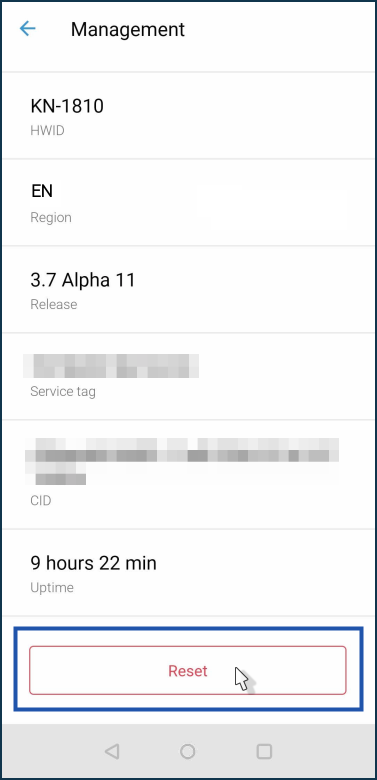
You can reset your router through the Keenetic mobile app. To do this, establish a connection with the router within the home network and run the application.
Do not perform a factory reset through the app on a remote device, as you will lose remote access to it after this procedure!
In the Keenetic app, in the router settings, go to the Management menu and at the bottom of the screen, click Reset.