System Security
From version KeeneticOS 5.2 the router’s web interface now includes a System Security page displaying system events in the security log, settings for protecting network services against brute-force attacks, and management of protection against DoS attacks.
You can configure protection for your device’s services against malicious activity in the web interface under the Management → System Security menu on the System Security page.
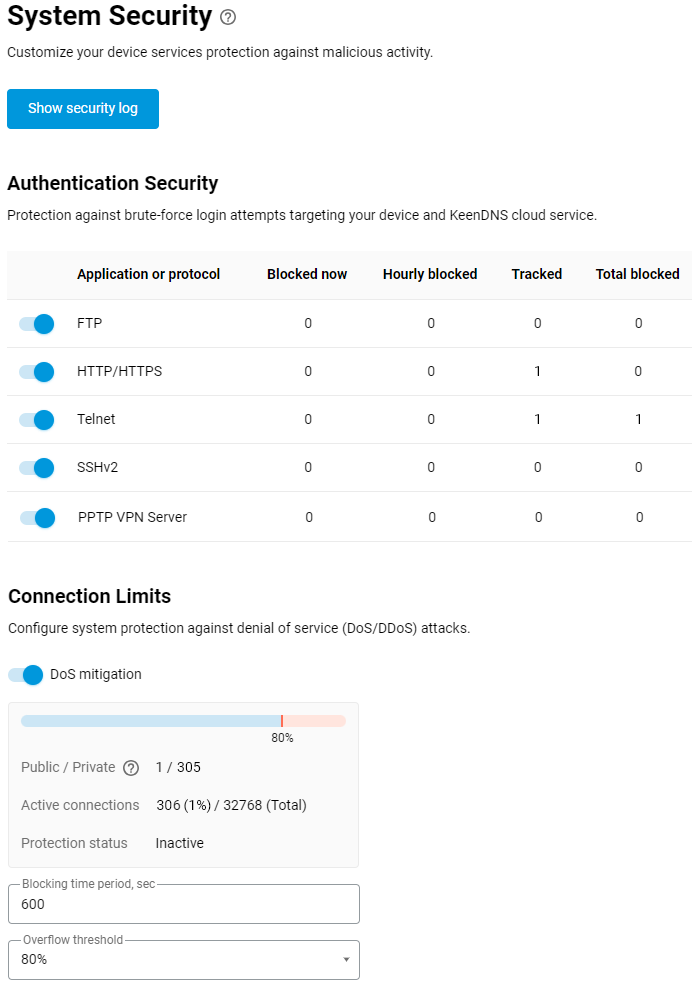
Management → System Security
This page contains two sections: Authentication Security and Connection Limits.
Authentication Security
In this section, you can enable or disable protection against brute-force password attacks on your device for the following applications and protocols: FTP, HTTP/HTTPS, Telnet, SSHv2 and the PPTP VPN server. By default, this protection is enabled on the router. In addition, a table is provided showing a summary of the statistics: Blocked now, Hourly blocked, Tracked, Total blocked.
If you click on an application or protocol entry, a window will appear where you can change the values for the parameters Failed attempt threshold, Lockout duration and Failed attempt track Interval.
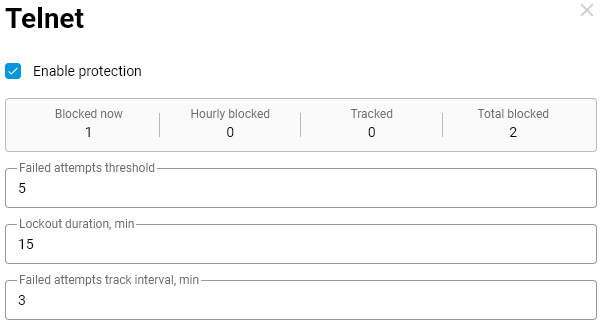
Failed attempt threshold — the number of attempts to enter an incorrect password; possible values range from 4 to 20 attempts (default 5 attempts);
Lockout duration — the time, in minutes, for which the IP address is blocked; possible values range from 1 to 60 minutes (default: 15 minutes);
Failed attempt track Interval — the period of time, in minutes, during which incorrect attempts must occur before the counter is reset; possible values range from 1 to 10 minutes (default: 3 minutes).
For example, with the default settings, the following will happen: if someone enters the router’s login credentials incorrectly 5 times within 3 minutes, the IP address from which the connection was made will be blocked for 15 minutes.
Connection Limits
In this section, you can enable or disable protection against DoS attacks and configure additional settings to protect the system against denial-of-service (DoS/DDoS) attacks. DoS mitigation is enabled by default.
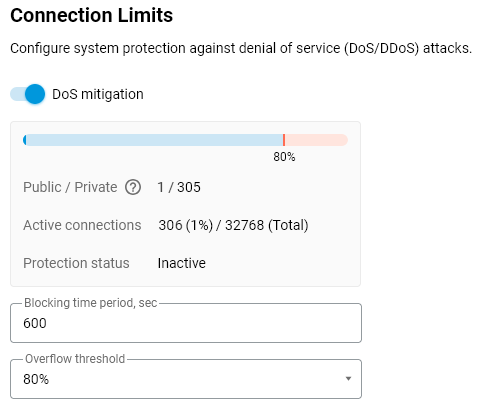
Additional information displayed includes the Protection status and the number of current Active connections, broken down into External and Internal (External – connections established from outside; Internal – connections established from within your network).
Please note that in the Protection status line, the value Inactive means that protection against DoS attacks is currently inactive. The status will be Active only when the protection is triggered, which occurs when the set Overflow threshold for connections is exceeded.
You can manually change the values for the Blocking time period and Overflow threshold parameters.
Blocking time period — the duration, in seconds, for which the conntrack active connections table is blocked; possible values range from 60 to 3600 seconds (default: 600 seconds);
Overflow threshold — a percentage of the maximum number of connections (based on the size of the conntrack active connection table) from public interfaces; possible values range from 50 to 90 per cent (default 80 per cent). If the active connection table exceeds the specified threshold, the protection mechanism is triggered.
Important
The settings for configuring protection against DoS attacks are intended for experienced users.
Each device model has its own default settings, which are determined by its performance and hardware capabilities. It is recommended that you use the values specified by the manufacturer. Change these settings with caution, as an incorrect configuration could cause the device to malfunction.
If the router logs contain messages about the conntrack table overflowing or about overflow protection being triggered, this may indicate virus or trojan activity on the local network or a DDoS attack from the internet (if the router has a public WAN IP address).
Security Log
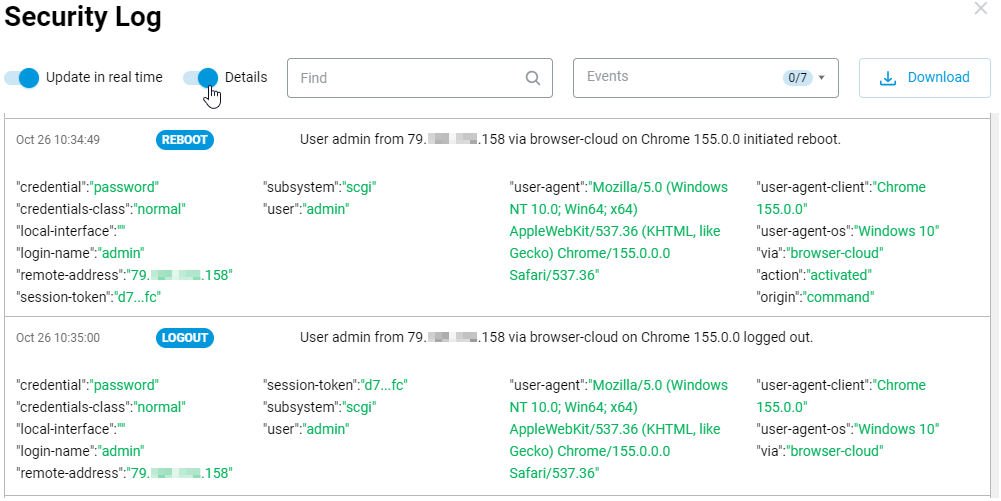
To view the security logs, click the Show security log button. The Security Log page will appear, displaying events relating to user actions on the router: Boot, Reboot, Shutdown, Login, Logout, Configuration, Other. By default, the events in the log are updated in real time.
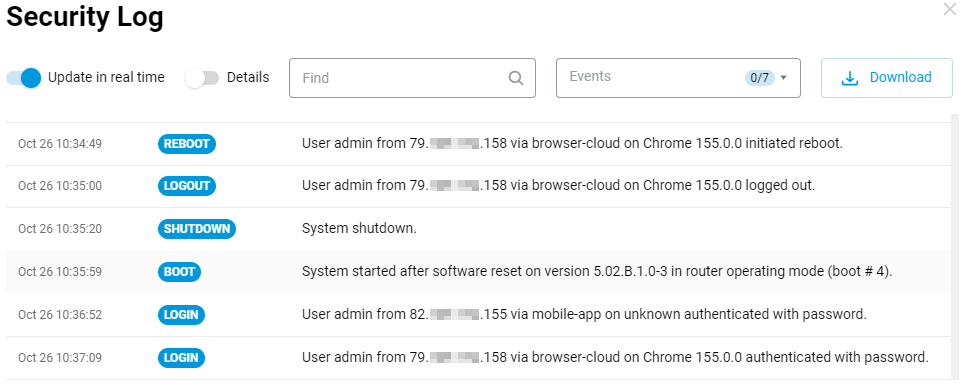
If you click an event entry on the Security Log page, additional information will appear describing the authentication sessions. For example, the login-name and credential parameters are needed to identify who is requesting the data, whilst remote-address, session-token and user‑agent help determine who connected from which host and to identify suspicious activity.
If you enable the Details option, additional information will be displayed for all log events.