Managing a router from different accounts with the Keenetic app
The Keenetic mobile app allows you to co-manage sites across different accounts and mobile devices.
 |
 |
 |
Important
When you share control of the router, you delegate authority with administrator privileges. Do not delegate access to people who might compromise the operation of the device, Internet connection, or application.
To share your router's management via the Keenetic mobile app, add a manager to whom you will delegate the management rights. If configured correctly, the router will automatically appear for management on the manager's device.
Setting up access to sites must be done by the administrator. Do not add or remove available sites in the manager account. If you delete a site in one account, it will become unavailable in all other accounts used for shared management.
Here is an example. Suppose you want to share your router with someone else. Ask him to install the Keenetic mobile app on his mobile device, create his own account in it, and give you the e-mail address that was given during account registration. This account must be authorized in the Keenetic app at the time of adding the manager.
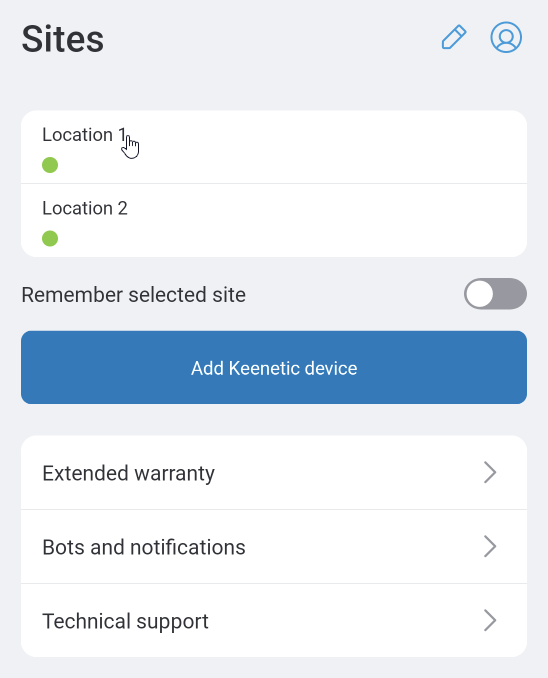
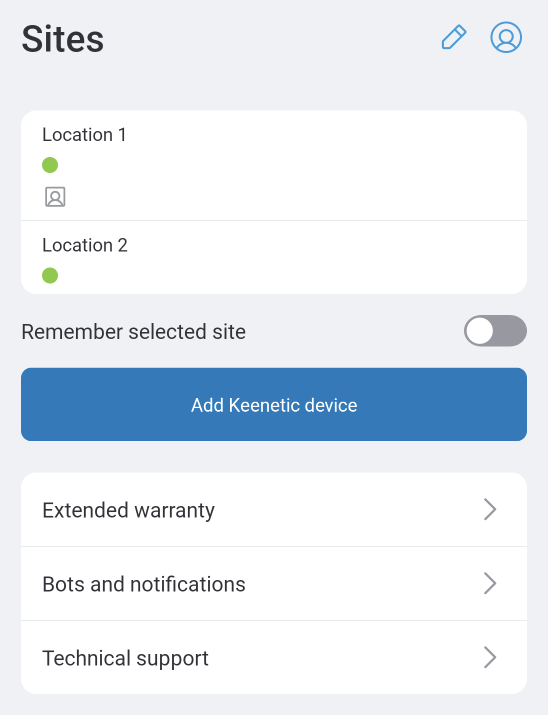
On the Sites screen, click the site you want to grant management access to another person.
 |
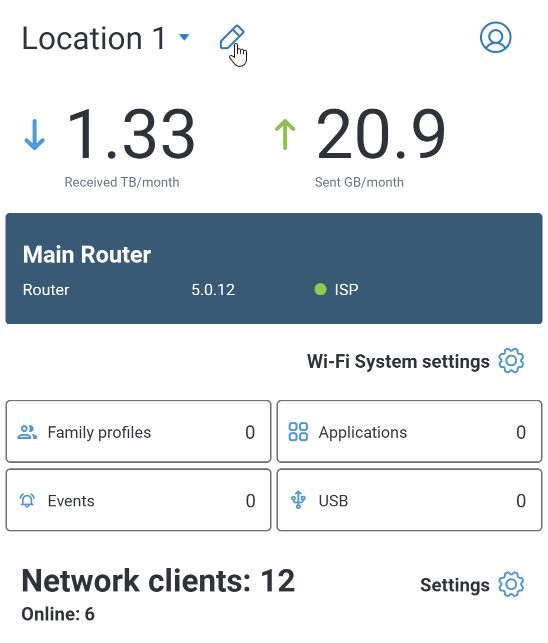
Next, on the site page, tap the edit icon  ('pencil') at the top.
 |
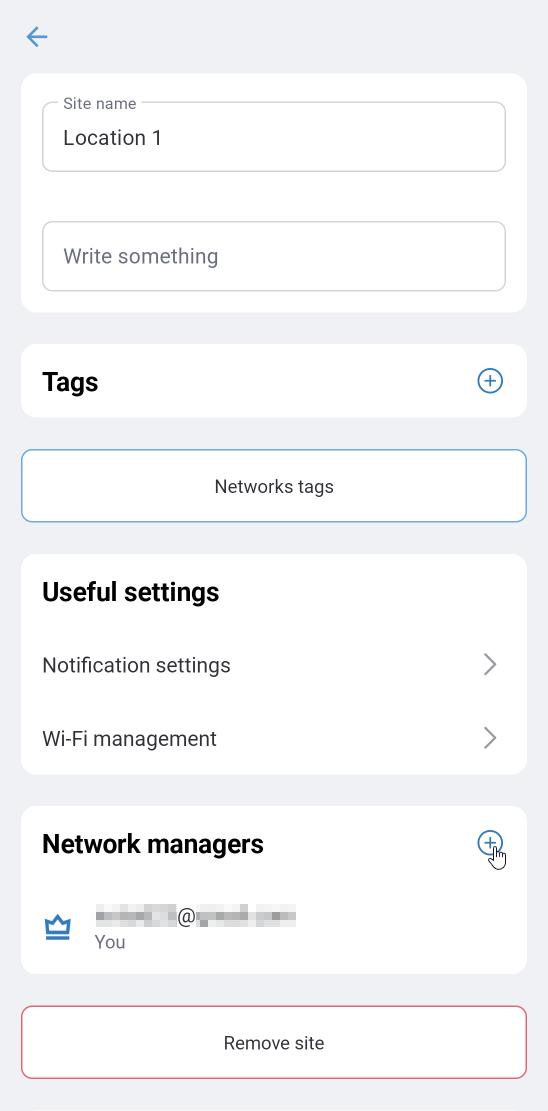
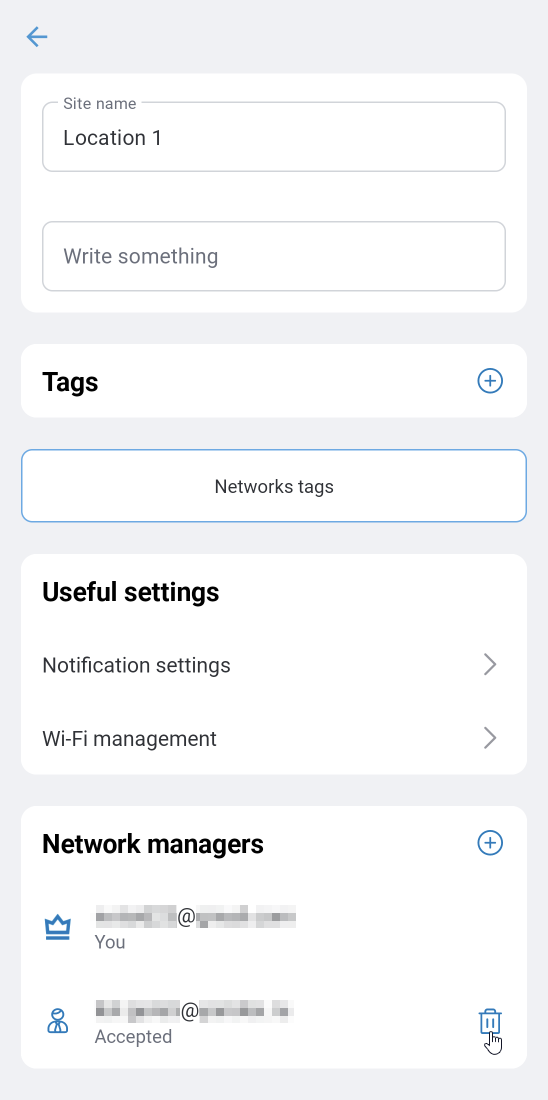
In the Network managers section, click + to add an account that will be granted access to the router.
 |
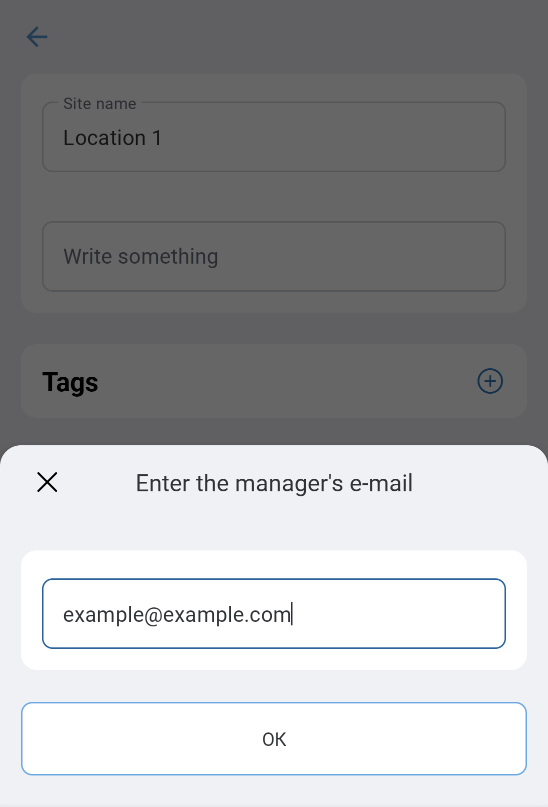
Enter the e-mail address of the account you want to grant access to for co-management of this site. The account associated with this e-mail address must have been logged in at least once in the Keenetic app or on the Keenetic Cloud web portal.
 |
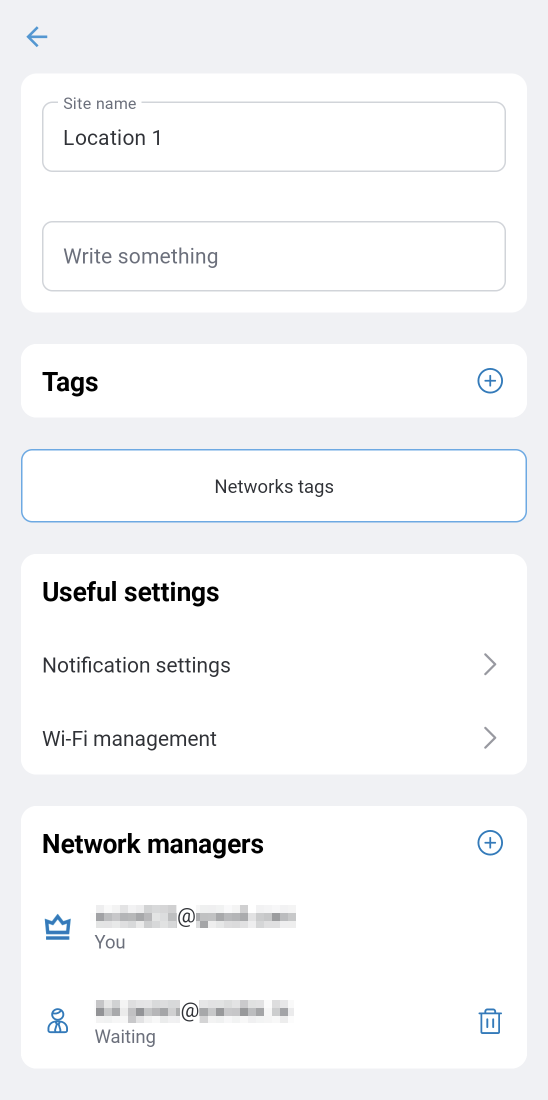
After adding the account, it will appear in the Managers section with the Waiting status.
 |
To confirm the e-mail address, the following message will be sent to the specified e-mail address:
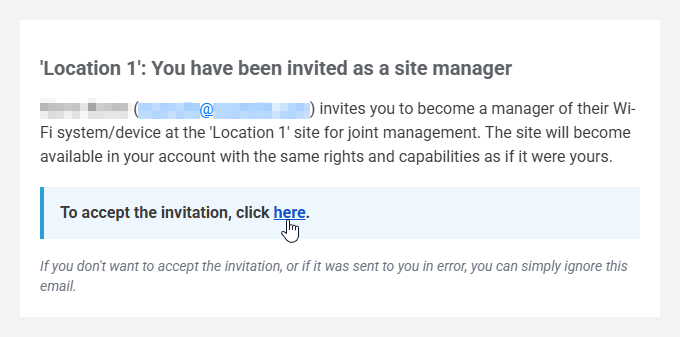
To accept the invitation, click the link to confirm your e-mail.
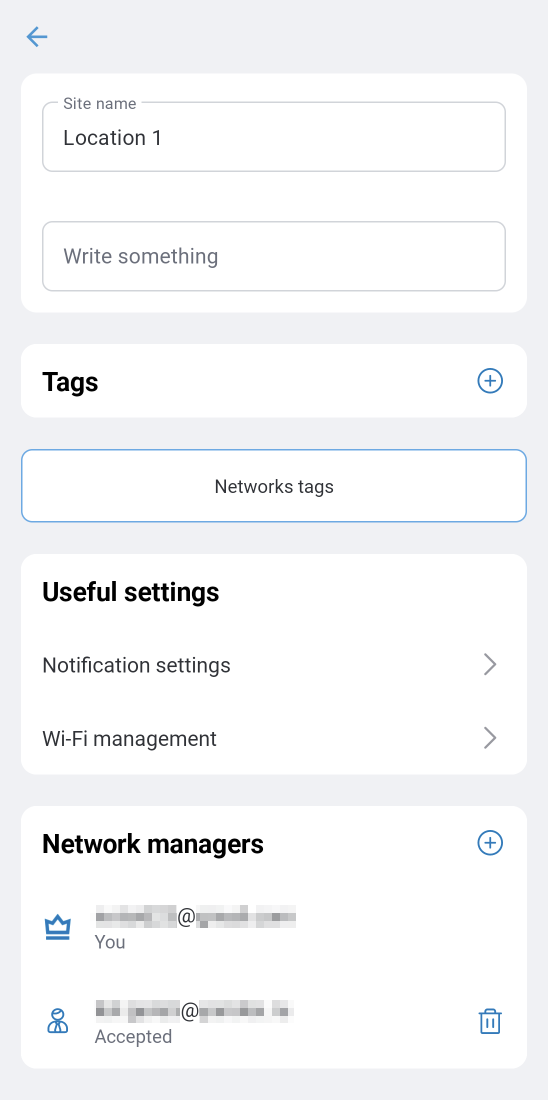
After that, the manager's account status will change to Accepted.
 |
 |
The site with the router will appear automatically on the manager's mobile device. The management will be available in the Keenetic app and on the Keenetic Cloud web portal.
To remove a manager, go to the location management settings, click on the  icon, and access to the router will be denied to them.
 |
Note
You can manage a router from different mobile devices under one account, but this is not the recommended method (we recommend adding a manager to give access to another user).
If you use different accounts, keep in mind that when you add a router (via the Add Keenetic device button) to a new account, the router binding is removed from the old account. You can use this mechanism if, for some reason, you can't connect to your previously configured account. In this case, create a new account for the app, add the router to it, and it will be automatically removed from the old account.