Family profiles (parental controls)
On the Family profiles screen, you can create and manage individual groups of connected devices in the Keenetic app.
This is especially useful for establishing parental controls. By creating a separate child's profile, you can add the devices you want to control (it can be mobile smartphones, tablets, or desktop computers), set a schedule for them (specify the allowed intervals of time during the day or certain days), enable Internet safety service, which blocks access to materials for adults, malicious and fraudulent sites.
When parents are not at home, they can observe what is happening on their home network through a mobile application (the family profile settings show the traffic from the devices included in this profile) and, if necessary, quickly (with one switch) deny Internet access.
Let's take a look at an example of creating a family profile.
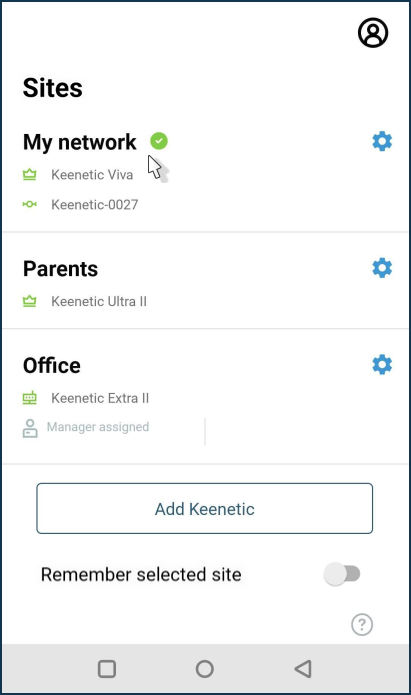
Start the application, and on the Sites screen, tap on the site for which you want to set up the profile.
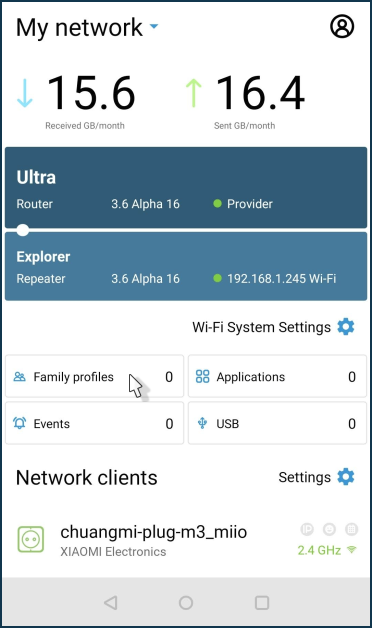
Tap to Family profiles.
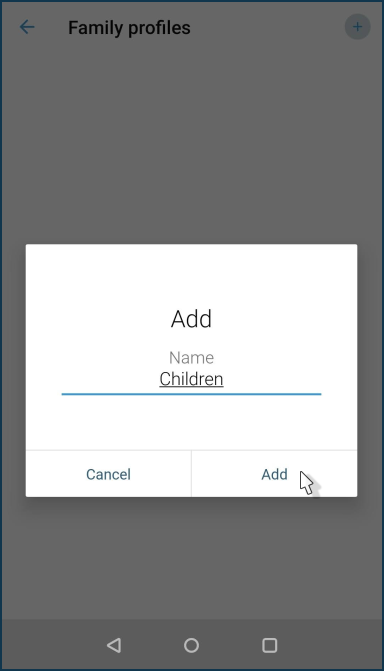
To create a new profile, click on the + icon in the upper right corner of the screen and name it.
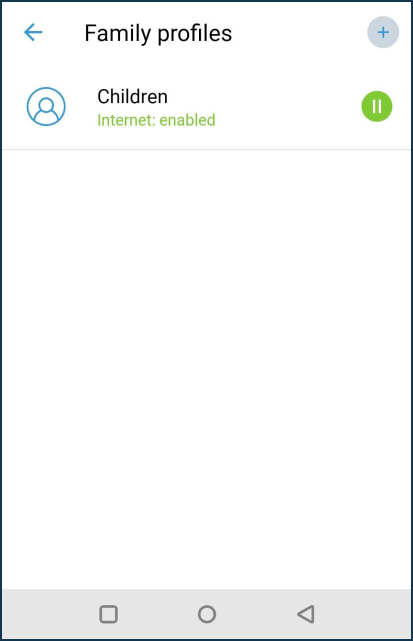
In our example, a family profile named Kids has been created. Click on the name of the created profile to proceed to its setting.
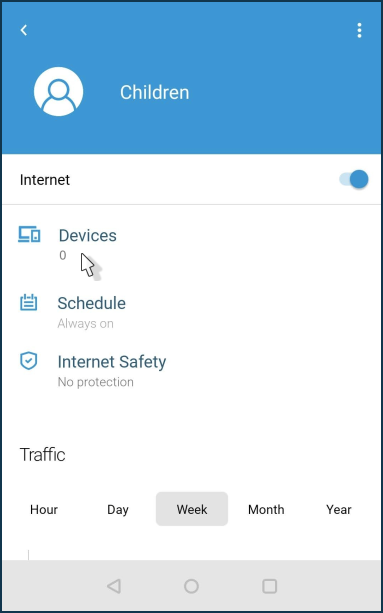
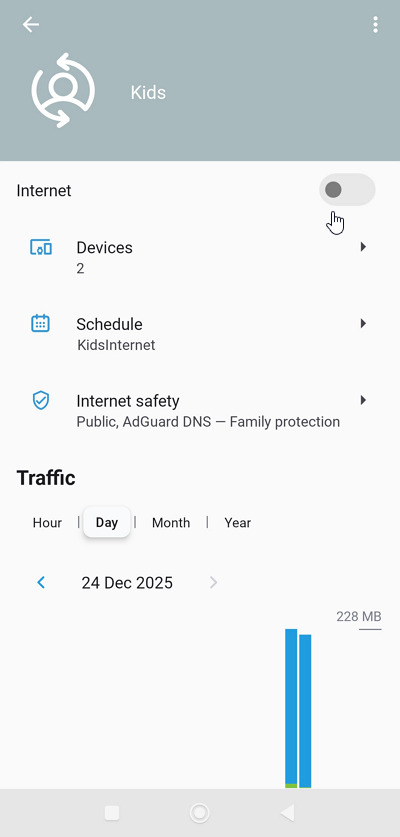
In the family profile, you can add devices, create a working schedule, enable an Internet safety service and view the traffic statistics for this group.
Click on Devices.
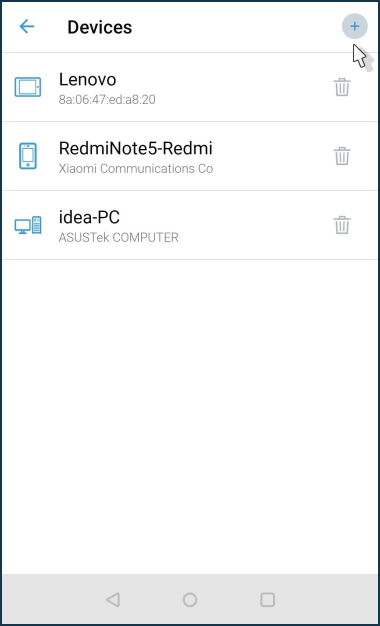
Click on the + icon in the upper right corner of the screen and add the devices to the profile (in this example, we have two devices — a smartphone and a tablet).
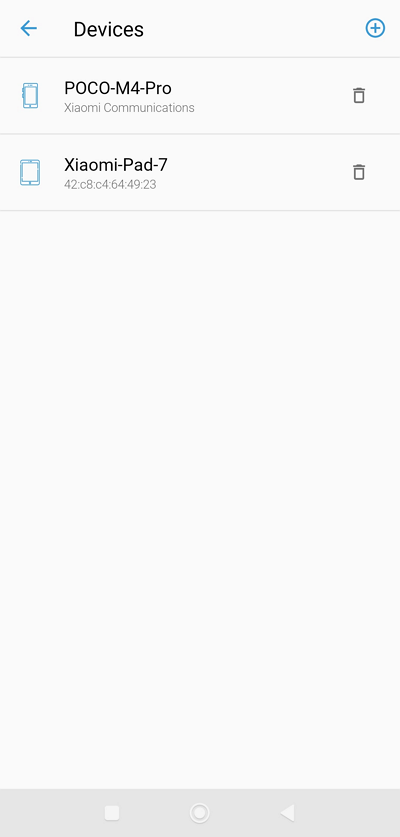
You can later remove devices from your profile or add new ones to it.
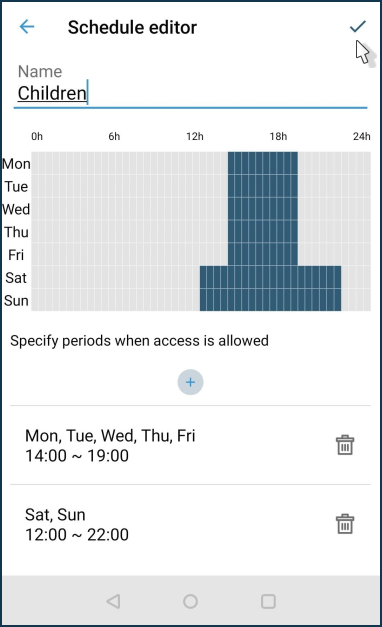
Click on Schedule to set the time intervals or days of the week when Internet access will be allowed.
In our example, we have created one schedule with named KidsInternet for access to the Internet on weekdays (Mon - Fri) from 18:00 to 20:00 and on weekends (Sat, Sun) from 17:00 to 18:00 and 20:00 to 22:00.
Click on Internet safety to enable one of the Internet safety services. You can use one of the suggested content filtering services.
In the family profile settings, click on Internet safety and then on Settings. Set the Filter mode to Public.
In the Default content filtering profiles section, you can select a profile that will be applied to all clients in the network segment.
In the Preset profile section, specify the profile that will be applied to all devices included in the family profile. In our example, we use the AdGuard DNS service with the strict Family protection profile.
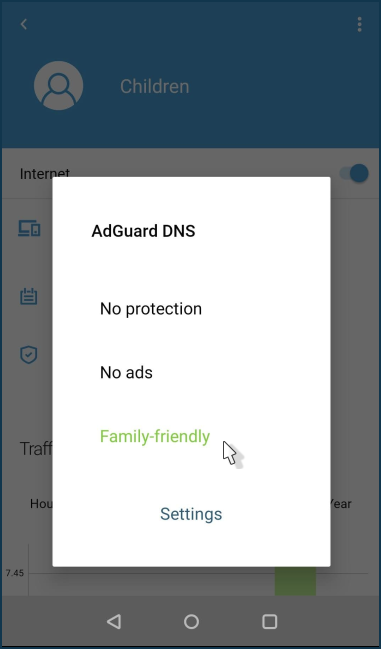
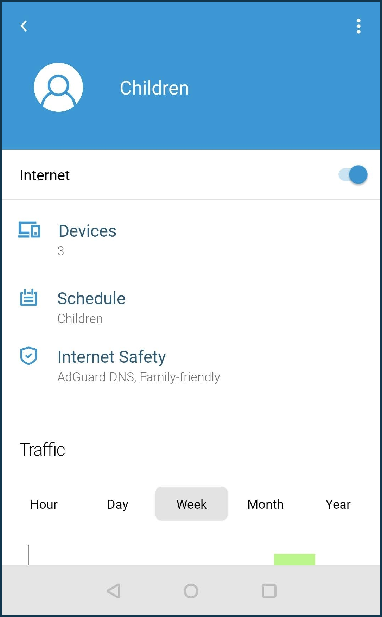
We have created and configured a family profile for Kids, where we have added the necessary devices, created a work schedule (specified the hours and days of the week when children are allowed to access the Internet) and enabled a service for safe work on the Internet and to block access to adult websites.
The profile screen displays the volume of received and sent traffic of the devices included in the current profile. Traffic can be filtered out in an Hour, Day, Month, Year.
On the Family profiles screen, you can quickly, with one switch, deny Internet access to all devices in your current profile. Click on the play icon to suspend the profile.
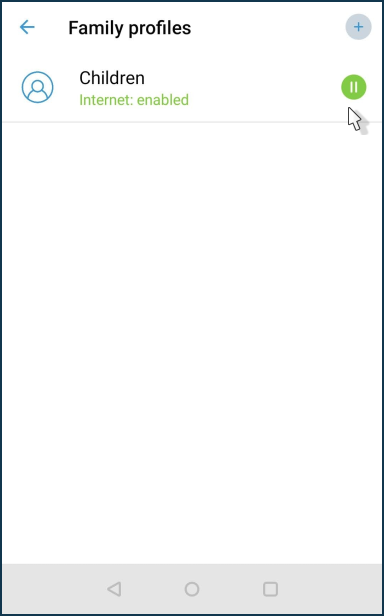
Clicking on the pause icon will activate the profile again.
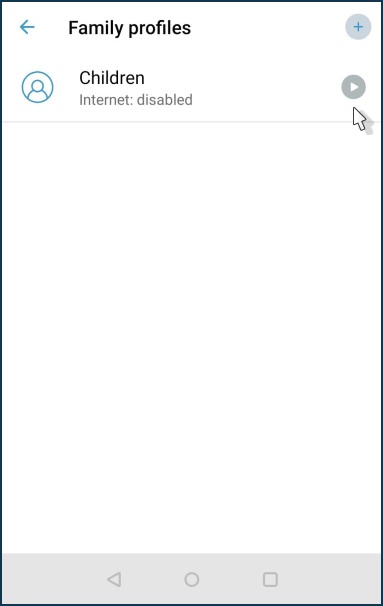
You can also turn on or off the internet from the profile settings screen using the Internet toggle.
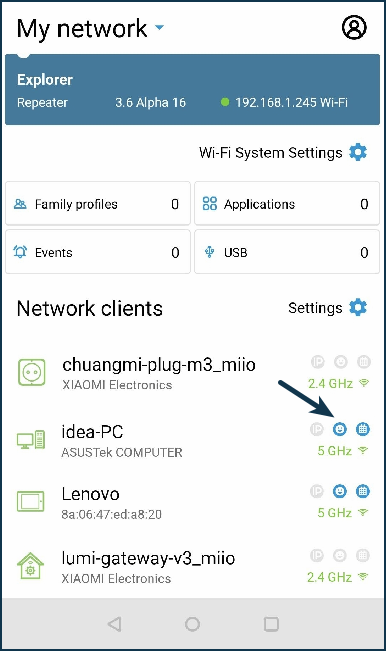
For devices added to the family profile, a smiley face icon  will appear in the Network clients list.