Setting up notifications for turning on/off a specific home network device
Using the Keenetic app, you can set up notifications on your phone about a specific device connecting to or disconnecting from your home router network.
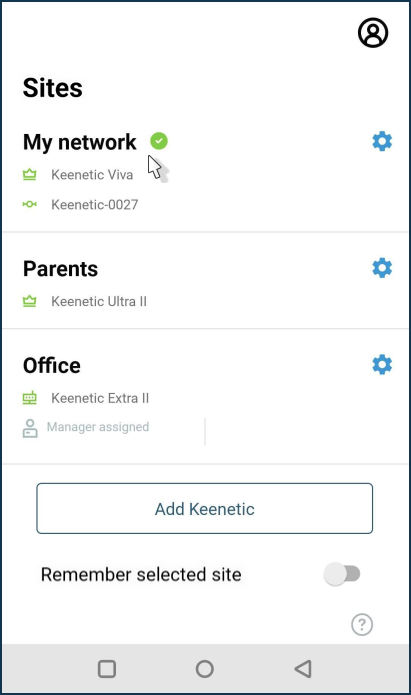
Launch the app and select the required network from the Sites screen.
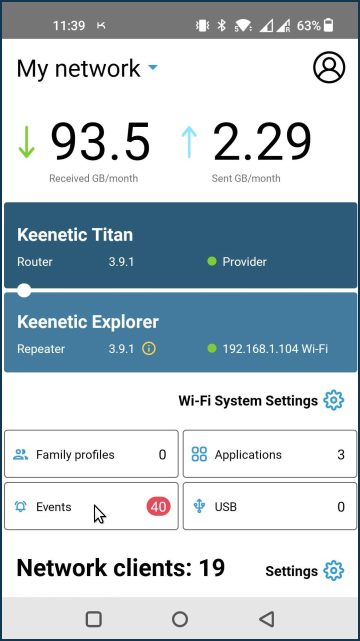
On the network settings screen, tap Events.
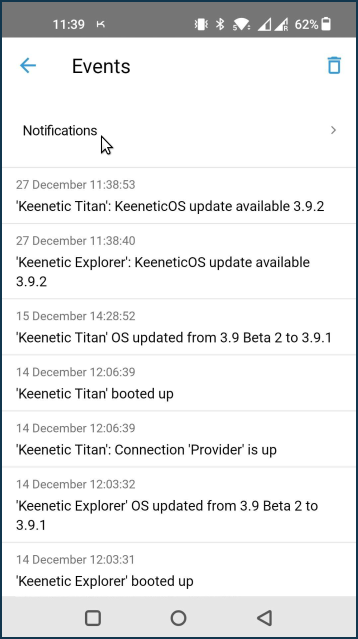
Tap Notification settings.
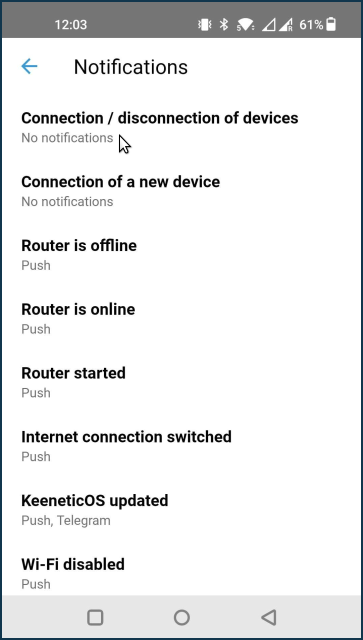
On the Notification settings screen, tap on the event you want to be notified about. In our example, this is Connection / disconnection of network clients.
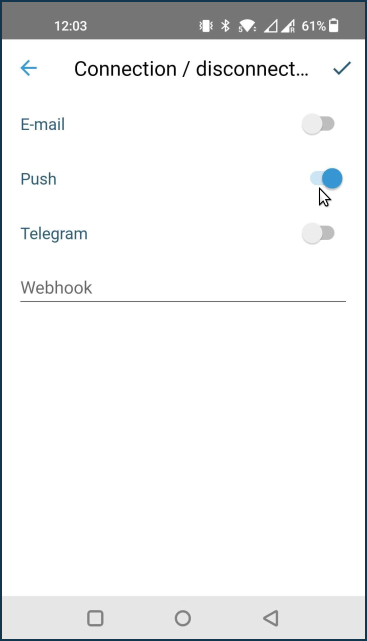
Select the means of receiving notifications and save the setting. In our example, push notifications are enabled.
Important
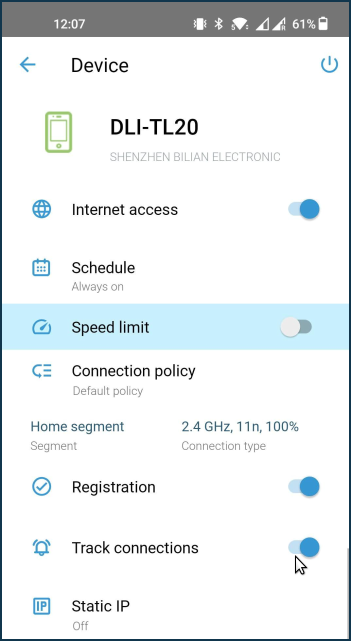
In order to receive notifications about client connections and disconnections, it is necessary not only to select the notification method on the Notification settings screen, but also to enable the Track connections option in the specific device's card.
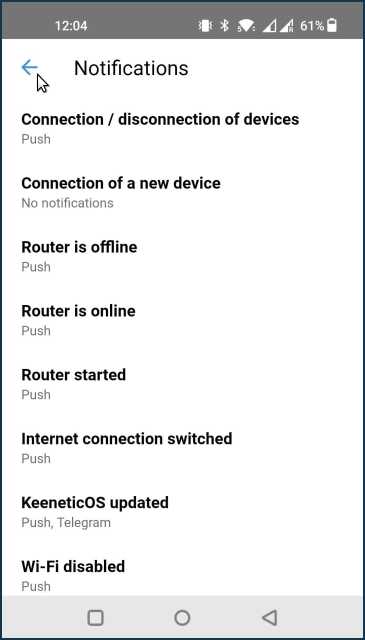
Exit the Notification settings menu.
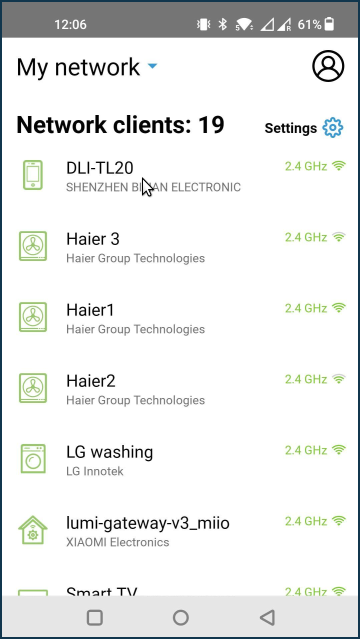
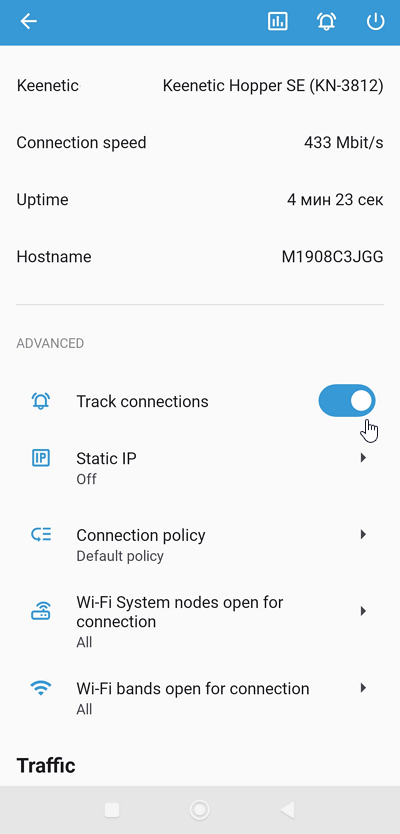
Go to Network clients section and tap on the required device. In our example, it is a smartphone named M1908C3JGG.
From the device options screen, activate the Track connections option.
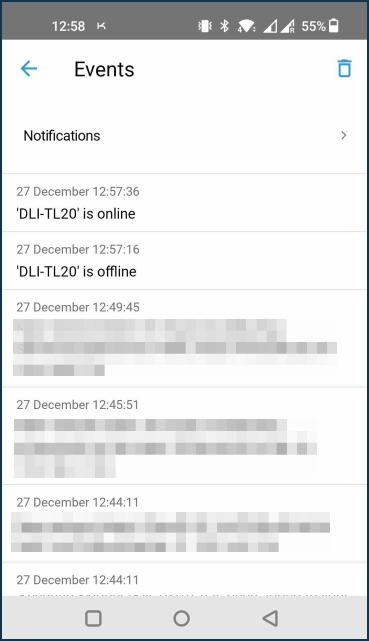
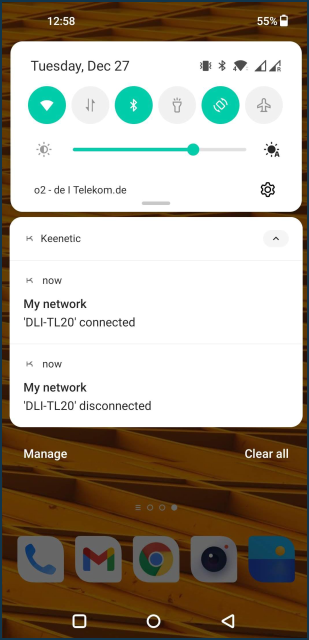
When push notifications are enabled, they will be sent to your mobile device on which the Keenetic app is installed. For example:
The Events screen keeps a log of completed notifications.