Setting up printing from the Guest network
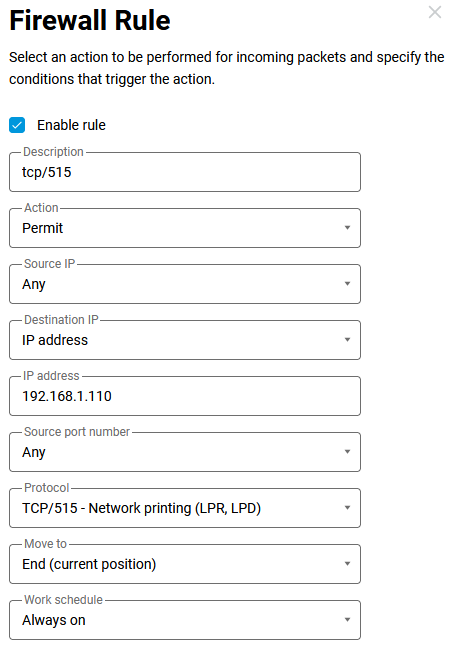
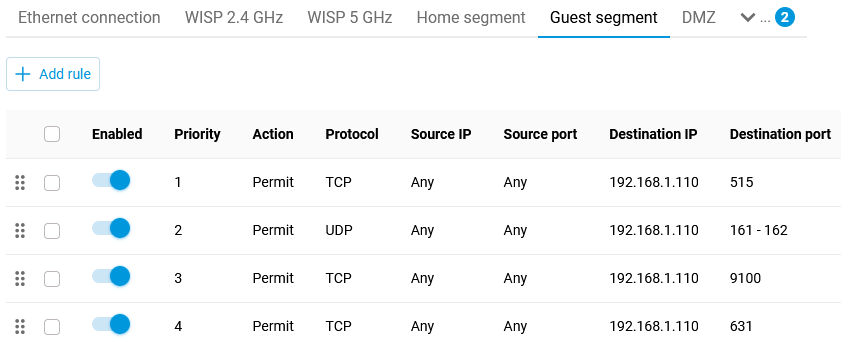
Let's assume that your Keenetic router has Home and Guest Wi-Fi segments configured. A network printer is connected to one of the Home network ports via an Ethernet cable. To print, you need to provide access to the printer from the Guest network. To achieve this, you need to create permissive firewall rules for the Guest network interface in the router settings for access via the following ports:
UDP 161-162 — these ports are needed for mobile devices to connect, otherwise they will not be able to correctly identify the printer model and select the correct driver (these ports are not needed for printing itself);
TCP 515 — LPR (Line Printer Remote) and LPD (Line Printer Daemon) network printing;
TCP 9100 — JetDirect, RAW network printing;
TCP 631 — IPP (Internet Printing Protocol) network protocol.
Important
This method is only relevant for network printers that are connected to the router via Ethernet or Wi-Fi.
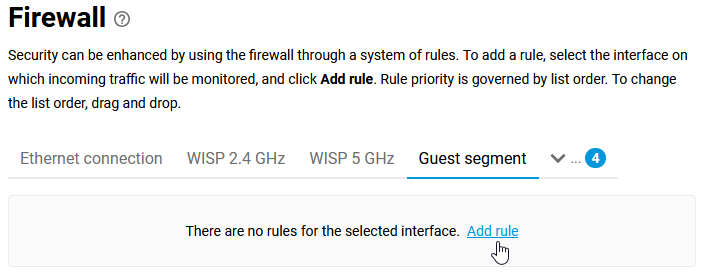
In our example, a network printer is connected to the router's Home segment and has a static IP address of 192.168.1.110.
Note
If the printer is connected to the Keenetic router via a USB port, then to be able to print from the Guest network, enable the Access the applications running on your Keenetic device option in the Guest segment settings (you can do this on the My Networks and Wi-Fi screen on the Guest segment tab in the IP Settings section).
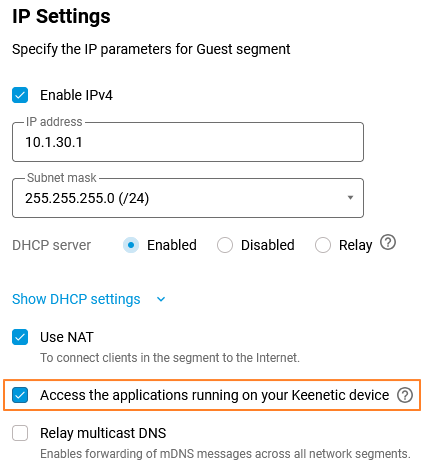
Important! When you enable Access the applications running on your Keenetic device (disabled by default), access to all router services and functions from the Guest segment will be allowed. Do not enable this option in the Guest segment unless necessary, as it is unsafe for your Home network.