Setting notifications from your Keenetic
With the Keenetic mobile application, you can set up notifications to receive information about events on the router in a way that suits you best. For example, you can receive notifications about changes in the status of your router (online/offline) or when the router switches to a backup connection.
The following alerts are currently available:
Connecting/disconnecting network devices
A new device on the network
The Keenetic device is offline
The offline alert comes when no signals are received from the router to the cloud server. For example, it may be because the Internet is unavailable (no connection to the Keenetic Cloud server), the server waits for
10 minutesand then generates a notification.The Keenetic device is online
The online alert is received when a signal message from the router appears on the server after the Keenetic Offline event has been triggered. It is generated by the server as soon as the first signal message is received.
The device has been booted up
The router has been turned on/rebooted.
The Internet connection has switched
The alert comes when the WAN connection on the router is changed. For example, switching from the main to the backup channel and vice versa.
KeeneticOS has been updated
The notification comes when the KeeneticOS version on the router is changed.
Wi-Fi off / on
The status of the family profile has changed
Activating/deactivating the Internet for a family profile.
System notifications:
Notifications about incoming SMS for models with a built-in 4G modem (for routers with KeeneticOS version
3.7and higher)
Security notifications (cannot be disabled):
Incorrect Keenetic device password entered to access from the Cloud
A manager has been added to the location
A manager has been removed from the location
Change of encryption key on Keenetic device
A new user has been added to a Keenetic device
You can receive notifications in the following ways:
To an e-mail address
By push notifications (from the Keenetic application on a mobile device)
In the Telegram messenger
Install the Keenetic mobile application and add your device by following the instructions:
 |
 |
 |
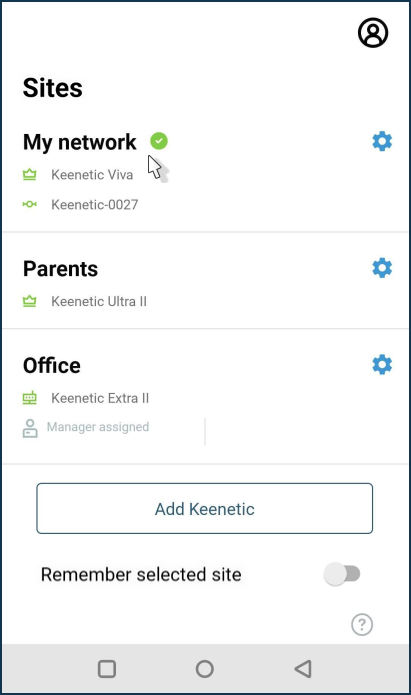
Launch the app, and on the Sites main screen, select the network.
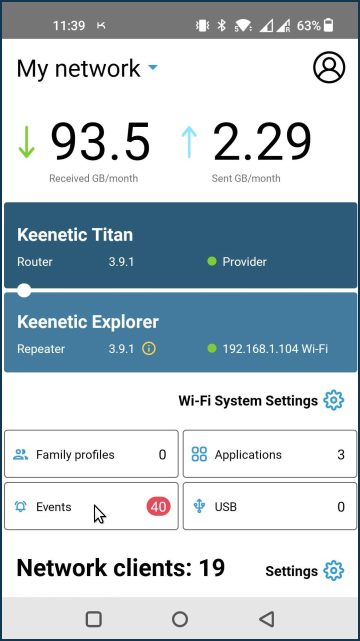
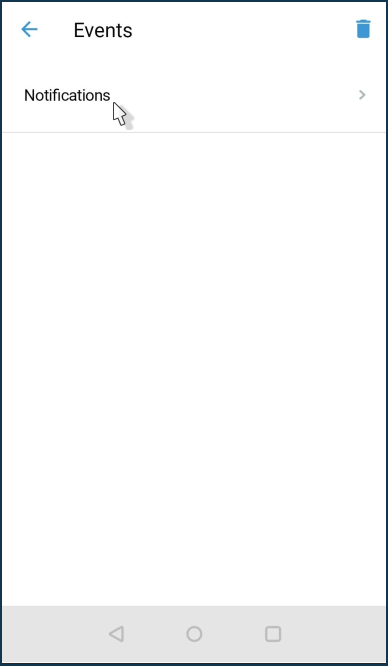
Click on Events > Notification settings.
Select the events for which you want to be notified.
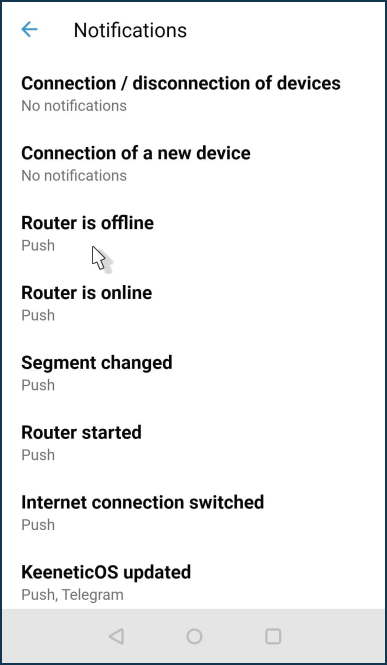
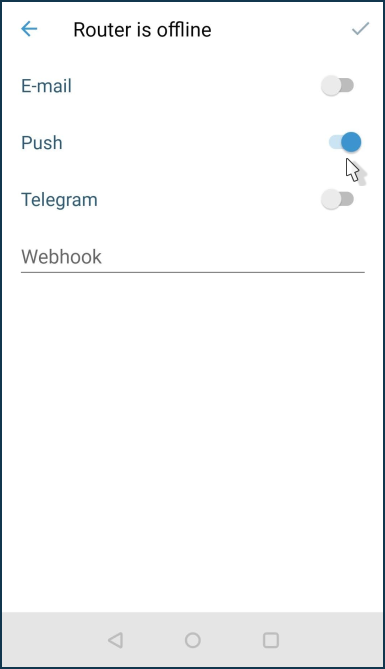
Please tap on the events that you want to be notified of when they occur. Select the notification methods. Tap a checkmark in the upper right corner of the screen to save the setting.
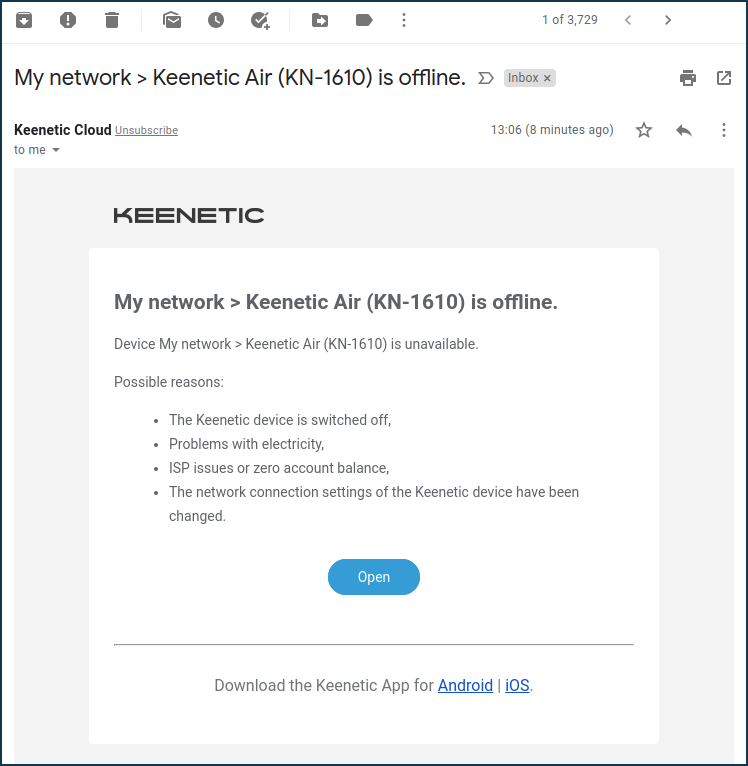
When you enable e-mail notifications, you will receive e-mails to the address you specified when registering your account. For example:
Tip
If you want to set up notifications to different e-mail addresses, you must first create accounts for these addresses on Keenetic Account and then add them as Location Managers.
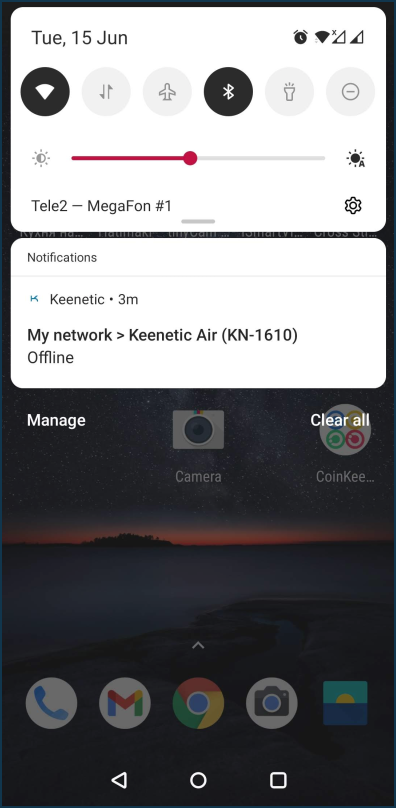
When push notifications are enabled, they will arrive at your mobile device, where the Keenetic application is installed. For example:
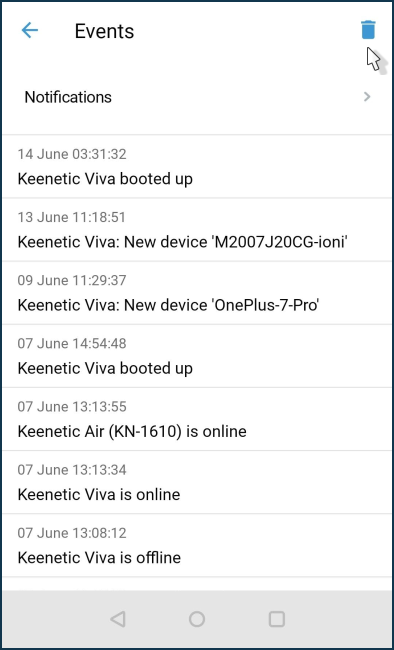
The Events screen keeps a log of completed notifications. To clear the log, press the icon  in the top right corner of the screen.
Configuring Telegram notifications
To set up notifications via Telegram Bot (https://t.me/KeeneticNotifierBot), mark the required notifications first.
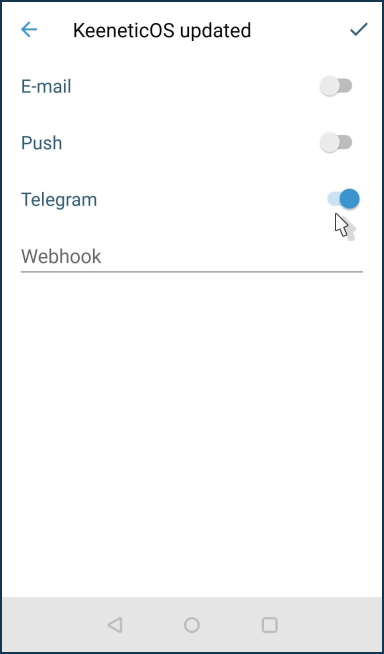
And then generate a unique code by clicking Connect.
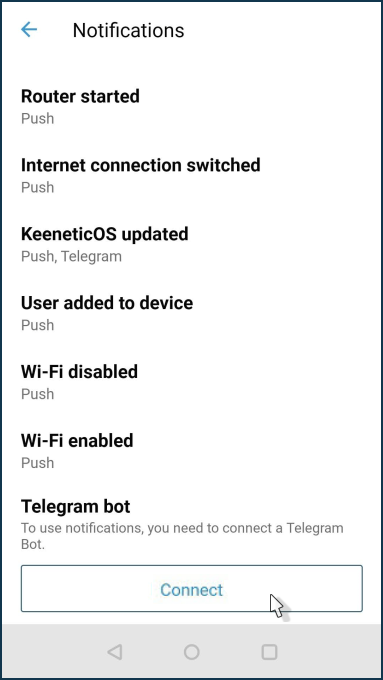
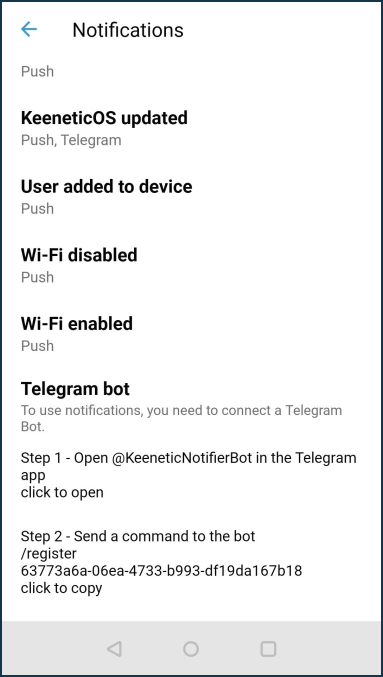
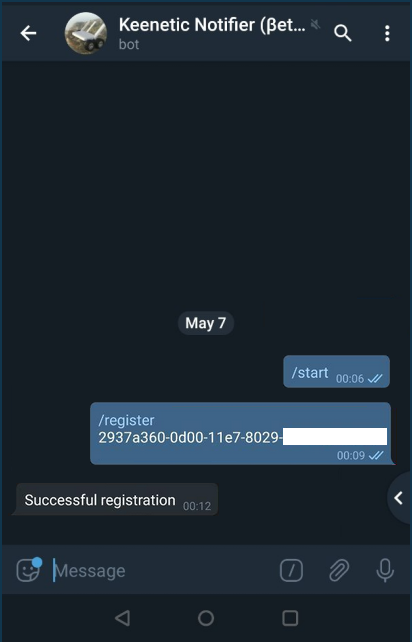
Then go to the https://t.me/KeeneticNotifierBot settings and register the obtained code. Copy the command /register [telegram-code] to the clipboard and then send it to the bot.
If you are successfully connected, you will see a confirmation message about the registration Account connected to bot.
Important
If you get an invalid code message when registering the key, be sure to run the /unregister command and then register again. Also, make sure you copy the code without any extra characters, such as spaces.
Check the notifications afterwards.
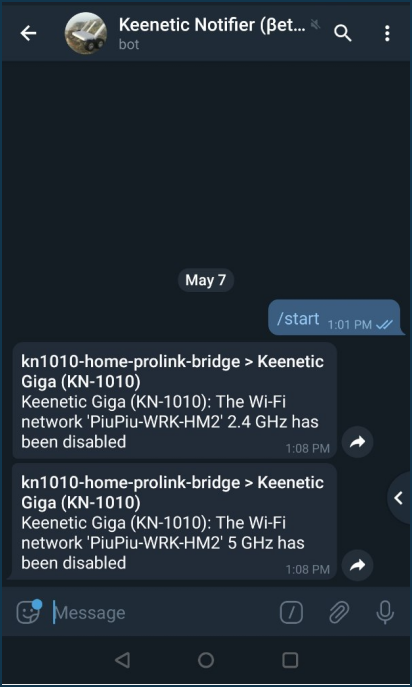
Note
If you want to make events come to your computer and be displayed in the system tray (notification area) of your Windows operating system, install the Telegram Desktop app on your PC. Event notifications will appear directly on top of open windows. In Telegram, this feature is enabled by default, and notifications appear in the lower right corner of the screen.