Gestione di un router da account diversi con l'app Keenetic
L'Keenetic app mobile consente di co-gestire i siti tramite account e dispositivi mobili diversi.
 |
 |
 |
Importante
Quando si condivide il controllo del router, si delega l'autorità con privilegi di amministratore. Non delegare l'accesso a persone che potrebbero compromettere il funzionamento del dispositivo, della connessione a Internet o dell'applicazione.
Per condividere la gestione del tuo router tramite l'app mobile Keenetic, aggiungi un gestore a cui delegherai i diritti di gestione. Se configurato correttamente, il router apparirà automaticamente per la gestione sul dispositivo del gestore.
L'impostazione dell'accesso ai siti deve essere eseguita dall'amministratore. Non aggiungere o rimuovere i siti disponibili nell'account del gestore. Se si elimina un sito in un account, questo diventerà non disponibile in tutti gli altri account utilizzati per la gestione condivisa.
Ecco un esempio. Supponiamo di voler condividere il router con un'altra persona. Chiederle di installare l'Keenetic app mobile sul proprio dispositivo mobile, creare un proprio account al suo interno e fornire l'indirizzo e-mail indicato durante la registrazione dell'account. Questo account deve essere autorizzato nell'app Keenetic al momento dell'aggiunta del gestore.
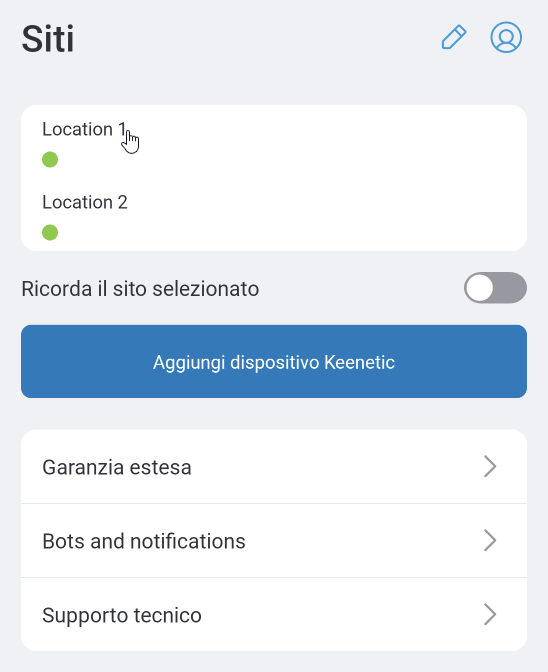
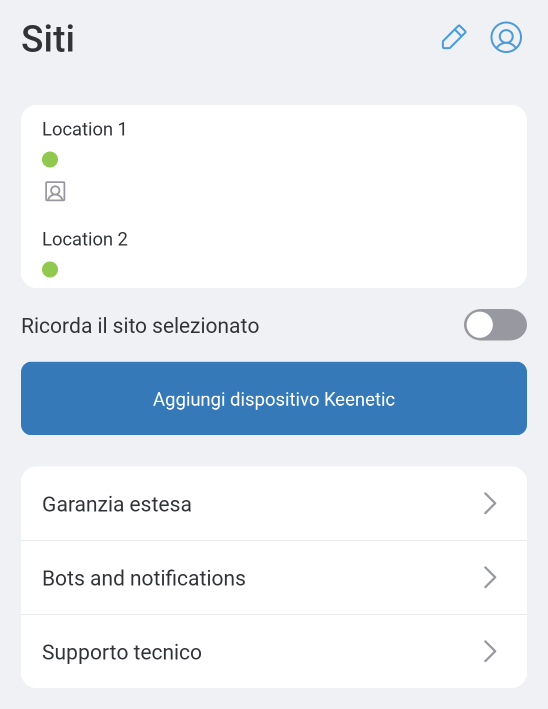
Nella schermata Siti, fare clic sul sito per il quale si desidera concedere l'accesso di gestione a un'altra persona.
 |
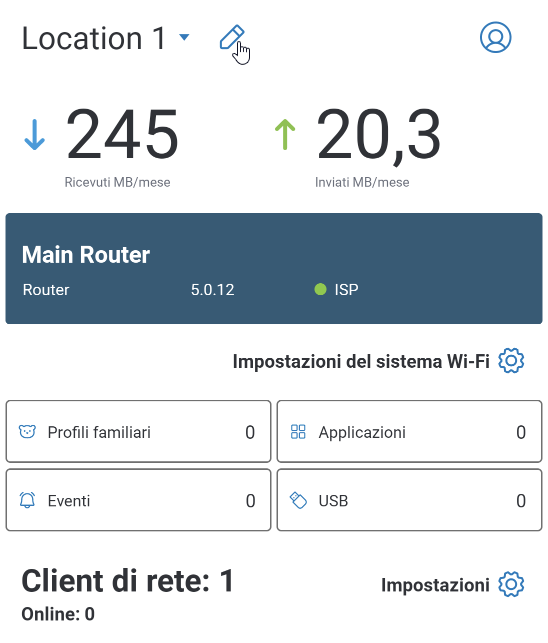
Successivamente, nella pagina del sito, toccare l'icona di modifica  ('matita') situata in alto.
 |
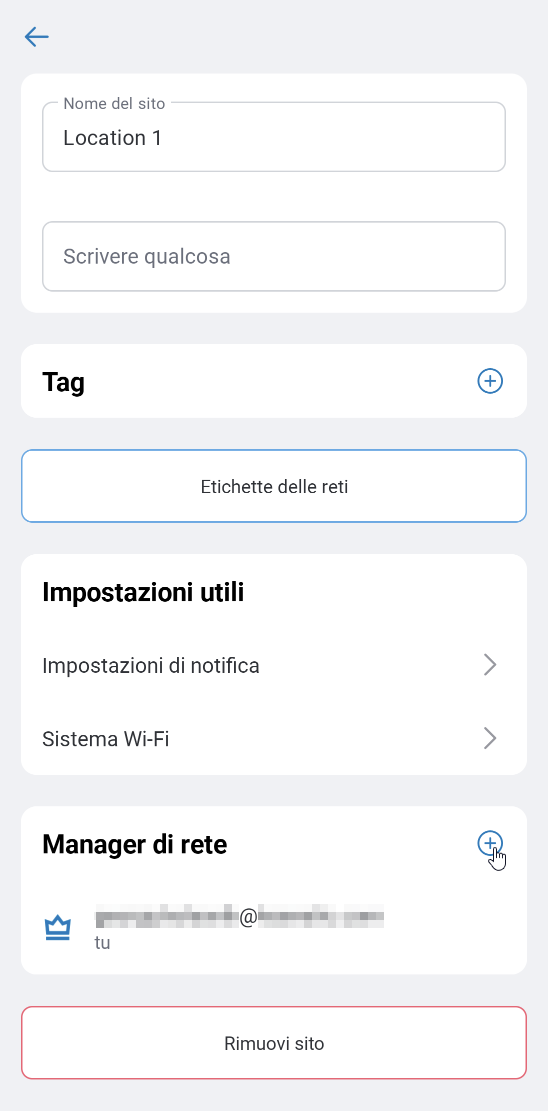
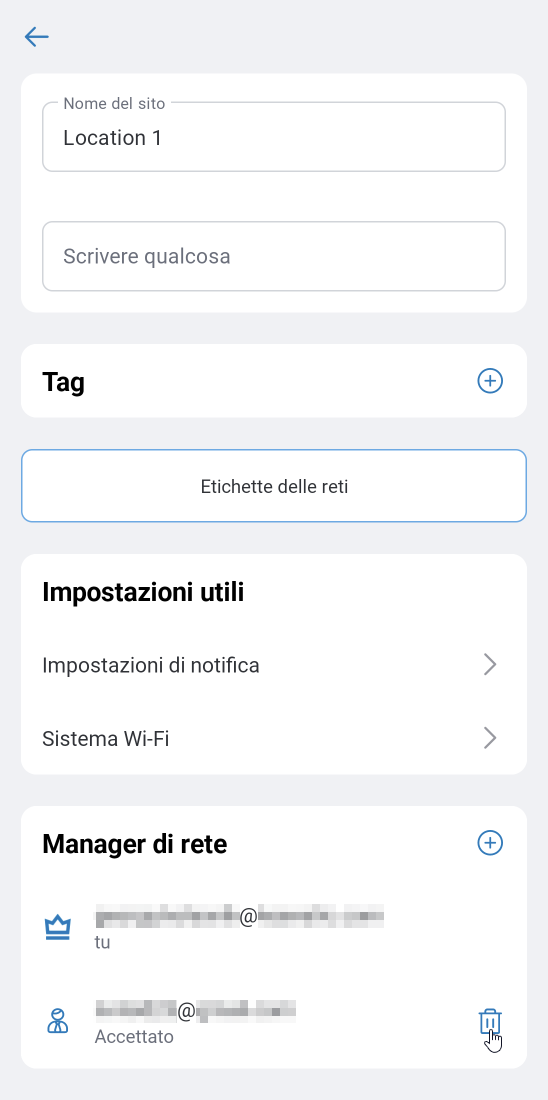
Nella sezione Gestori di rete, fare clic su + per aggiungere un account a cui verrà concesso l'accesso al router.
 |
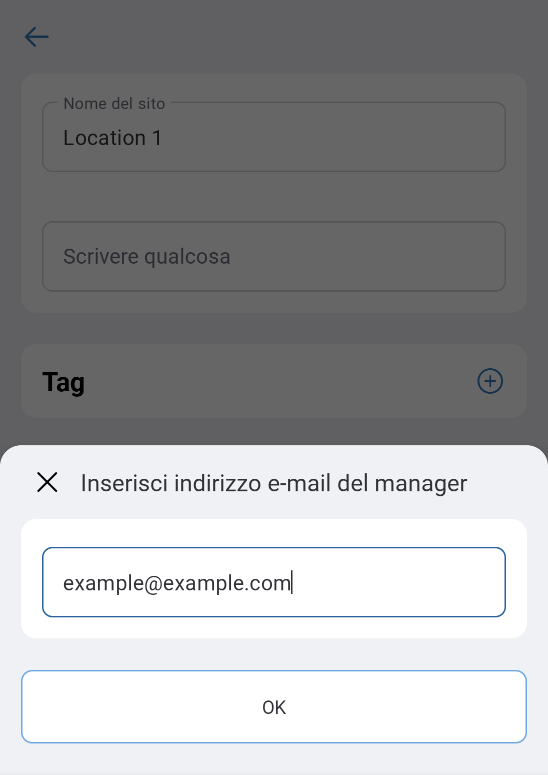
Inserire l'indirizzo e-mail dell'account a cui si desidera concedere l'accesso per la co-gestione di questo sito. L'account associato a questo indirizzo e-mail deve aver effettuato l'accesso almeno una volta nell'Keenetic app o nel portale Web correlato a Keenetic Cloud.
 |
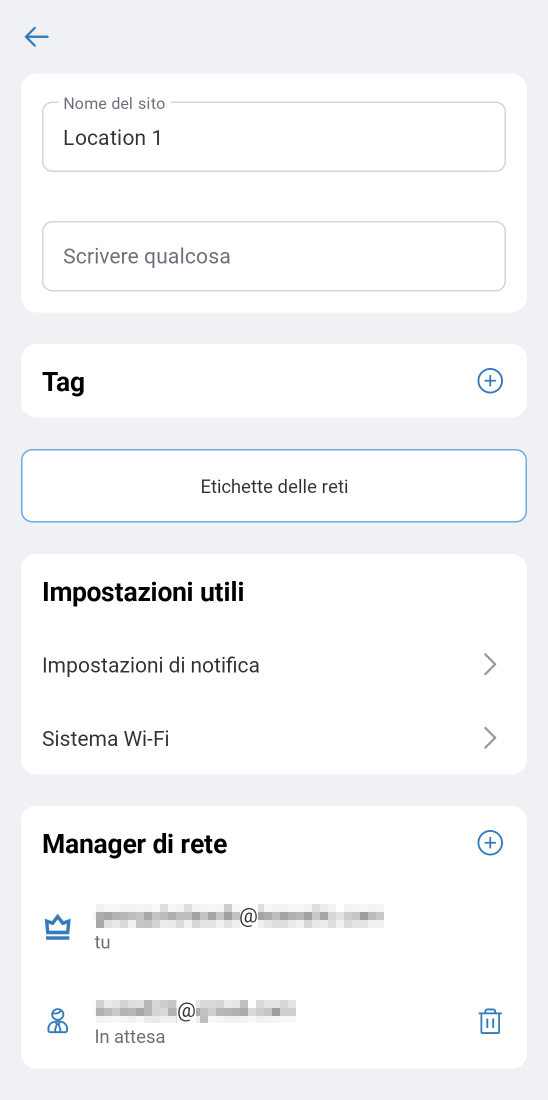
Dopo aver aggiunto l'account, questo apparirà nella sezione Gestori con lo stato In attesa.
 |
Per confermare l'indirizzo e-mail, verrà inviato il seguente messaggio all'indirizzo e-mail specificato:
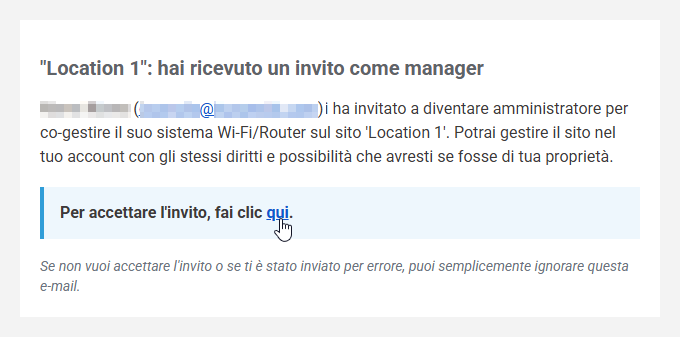
Per accettare l'invito, fare clic sul collegamento per confermare l'e-mail.
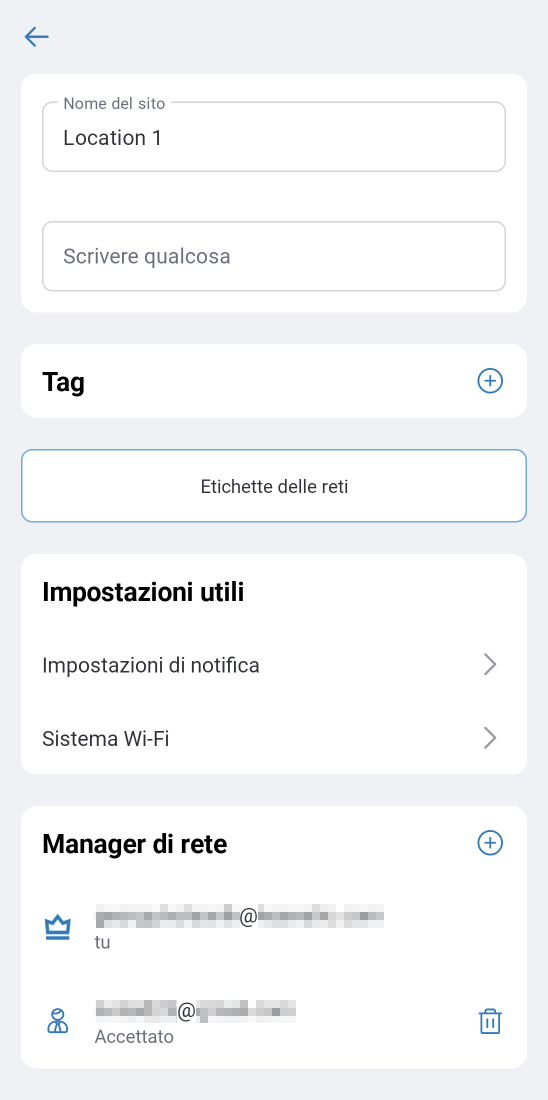
Dopodiché, lo stato dell'account del gestore cambierà in Accettato.
 |
 |
Il sito con il router apparirà automaticamente sul dispositivo mobile del gestore. La gestione sarà disponibile nell'Keenetic app e nel portale Web correlato a Keenetic Cloud.
Per rimuovere un gestore, andare alle impostazioni di gestione della posizione, fare clic sull'icona  e l'accesso al router verrà negato a tale utente.
 |
Nota
È possibile gestire un router da diversi dispositivi mobili con un unico account, ma non è il metodo consigliato (si consiglia di aggiungere un gestore per dare accesso a un altro utente).
Se si utilizzano account diversi, tenere presente che quando si aggiunge un router (tramite il pulsante Aggiungi dispositivo Keenetic) a un nuovo account, il collegamento del router viene rimosso dal vecchio account. È possibile utilizzare questo meccanismo se, per qualche motivo, non si riesce a connettersi all'account precedentemente configurato. In questo caso, creare un nuovo account per l'app, aggiungere il router a tale account e questo verrà automaticamente rimosso da quello precedente.