Impostazione delle notifiche per l'accensione/spegnimento di un dispositivo specifico della rete domestica
Utilizzando l'app Keenetic, è possibile impostare notifiche sul telefono per la connessione o la disconnessione di un dispositivo specifico dalla rete del Router domestico.
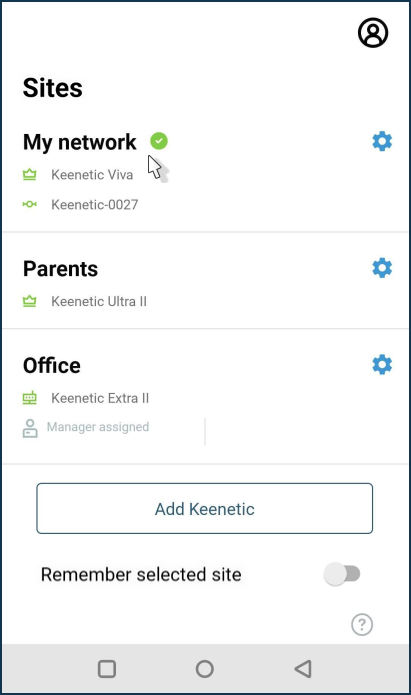
Avviare l'app e selezionare la rete desiderata dalla schermata Siti.
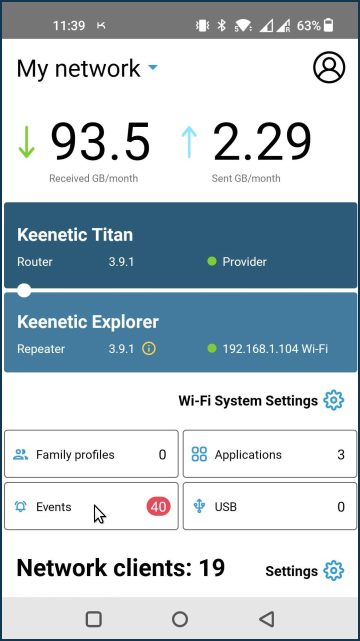
Nella schermata delle impostazioni di rete, toccare Eventi.
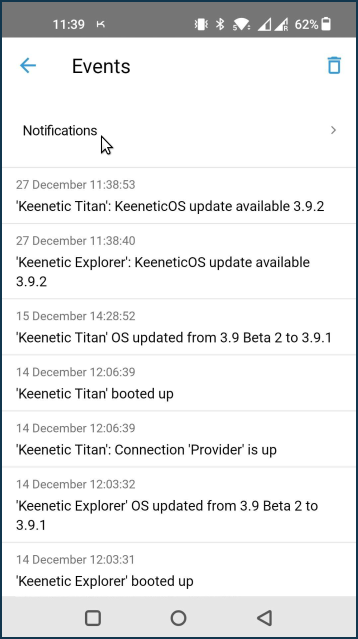
Toccare Impostazioni notifiche.
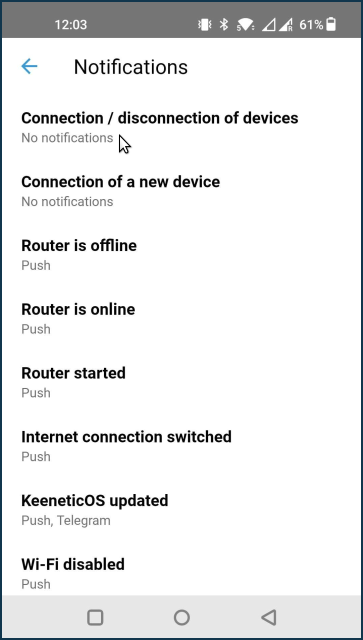
Nella schermata Impostazioni notifiche, toccare l'evento per cui si desidera ricevere notifiche. Nel nostro esempio, si tratta di Connessione/disconnessione dei client di rete.
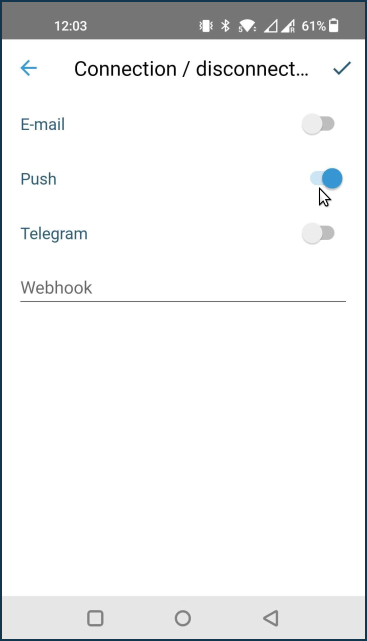
Selezionare la modalità di ricezione delle notifiche e salvare l'impostazione. Nel nostro esempio, le notifiche push sono abilitate.
Importante
Per ricevere le notifiche sulle connessioni e disconnessioni dei client, è necessario non solo selezionare il metodo di notifica nella schermata Impostazioni notifiche, ma anche abilitare l'opzione Traccia connessioni nella scheda dello specifico dispositivo.
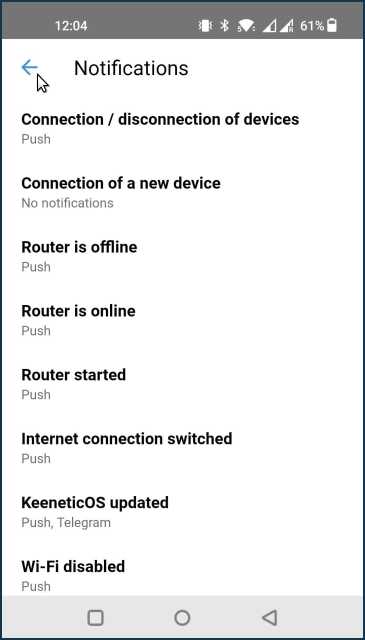
Uscire dal menu Impostazioni notifiche.
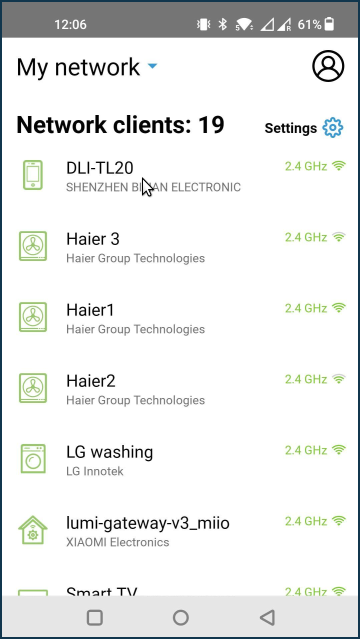
Andare alla sezione Clienti di rete e toccare il dispositivo desiderato. Nel nostro esempio, si tratta di uno smartphone denominato M1908C3JGG.
Dalla schermata delle opzioni del dispositivo, attivare l'opzione Traccia connessioni.
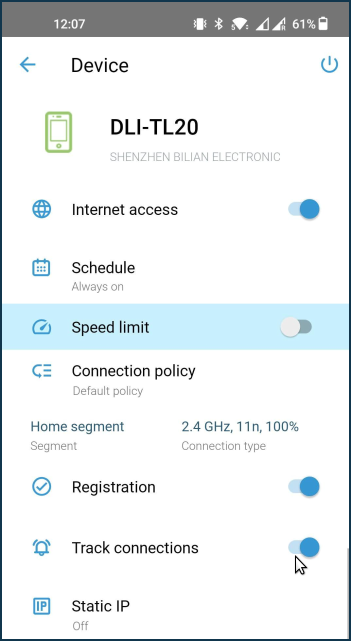
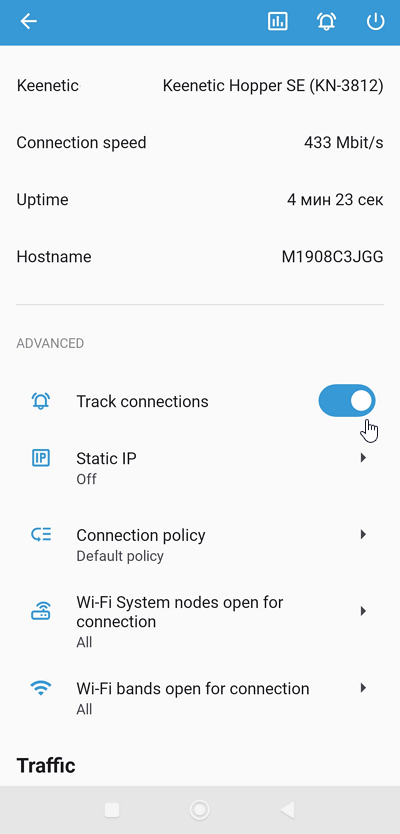
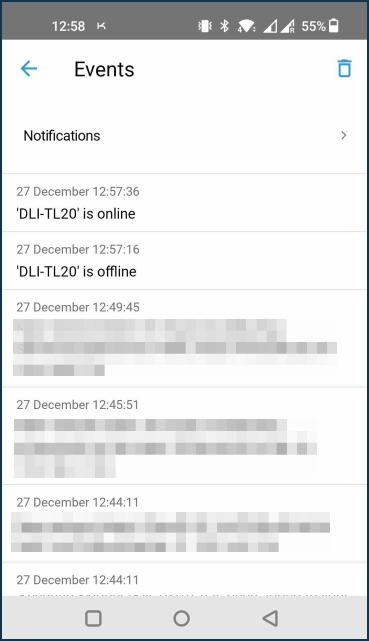
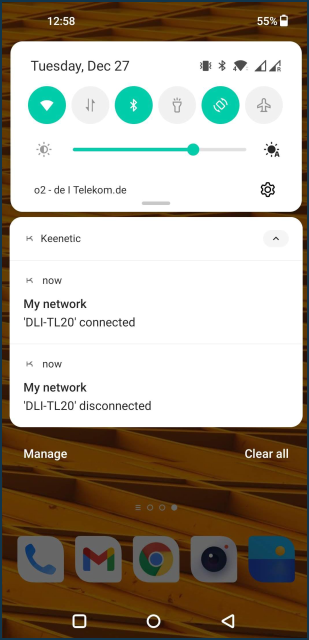
Quando le notifiche push sono abilitate, verranno inviate al dispositivo mobile su cui è installata l'Keenetic. Ad esempio:
La schermata Eventi mantiene un registro delle notifiche completate.