Aggiornamento di KeeneticOS dall'applicazione mobile
Rilasciamo aggiornamenti regolari, che rendono il sistema operativo del tuo Keenetic più veloce, più funzionale e più sicuro. Si consiglia di utilizzare la versione più recente di KeeneticOS. È possibile aggiornare KeeneticOS alla versione più recente tramite l'app mobile Keenetic.
Importante
Per aggiornare KeeneticOS alla versione più recente disponibile, il router deve essere connesso a Internet.
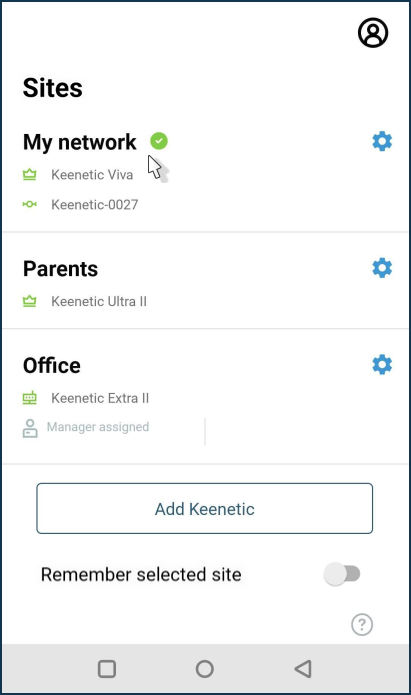
Avvia l'applicazione. Nella schermata Siti, seleziona la rete a cui desideri connetterti.
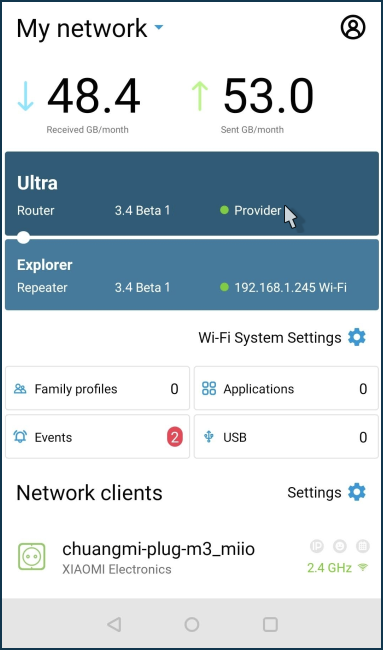
Assicurati che il tuo router sia accessibile e operativo. Se è disponibile un aggiornamento, un'icona ! appare accanto al numero della versione attualmente installata. Tocca il nome del router per accedere alle sue impostazioni.
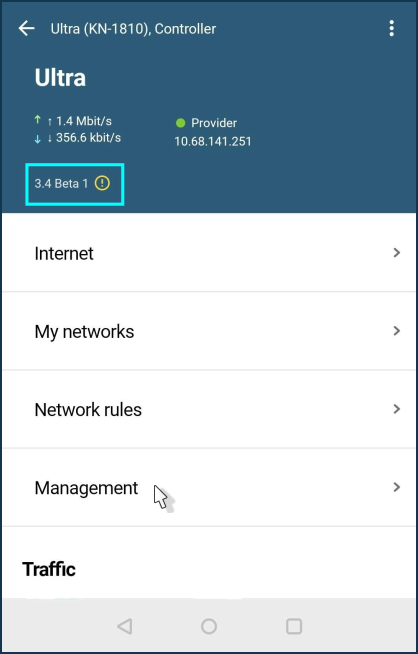
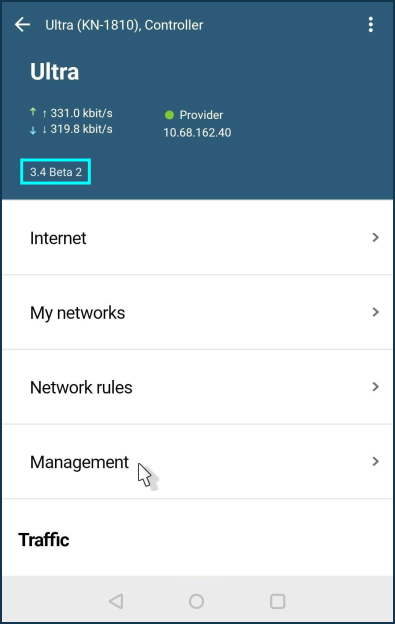
Fai clic sul numero di versione per accedere alla schermata KeeneticOS. È anche possibile accedere a questa schermata facendo clic sul menu Gestione e quindi su KeeneticOS.
Nella schermata KeeneticOS vengono specificati la versione corrente, il canale di aggiornamento e lo stato di disponibilità dell'aggiornamento. Se è disponibile un aggiornamento, fai clic sul pulsante Installa l'aggiornamento.
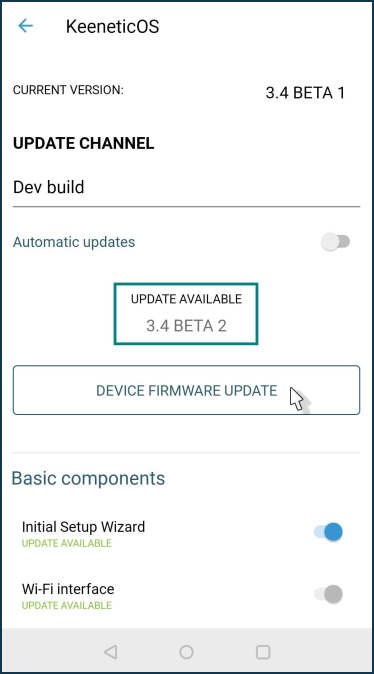
Se necessario, puoi modificare manualmente il canale di aggiornamento di KeeneticOS (ad esempio, per installare una versione di anteprima o una build di sviluppo). Per farlo, tocca il nome del canale di aggiornamento e seleziona quello desiderato.
Sono disponibili
quattro canali di aggiornamento:Canale principale (Consigliato): gli aggiornamenti di questo canale sono stati completamente testati e sono consigliati per tutti gli utenti. Viene aggiornato circa ogni due mesi.
Canale anteprima: seleziona il canale Anteprima per essere tra i primi a provare gli ultimi aggiornamenti, i miglioramenti delle prestazioni e le nuove funzionalità con un rischio minimo. Le versioni di anteprima vengono pubblicate due volte al mese.
Canale sviluppo: il canale Sviluppo viene aggiornato settimanalmente e mostra alla nostra community a cosa stiamo lavorando in questo momento. Le versioni di sviluppo potrebbero essere meno rifinite.
LTS: Supporto a lungo termine. Gli aggiornamenti in questo canale includono solo correzioni di sicurezza, senza l'aggiunta di nuove funzionalità.
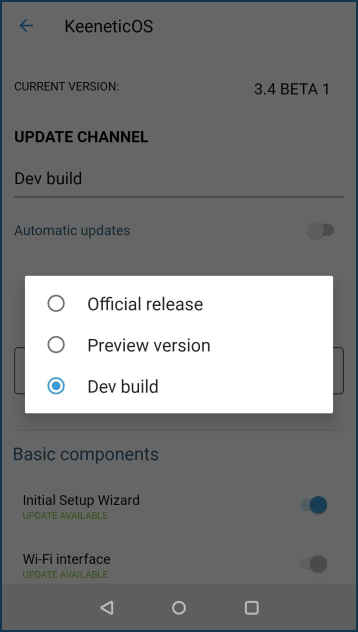
Fai clic sul pulsante Aggiorna per avviare il processo di aggiornamento del dispositivo. Prima dell'aggiornamento, si consiglia di effettuare un backup del sistema operativo e delle impostazioni del dispositivo.
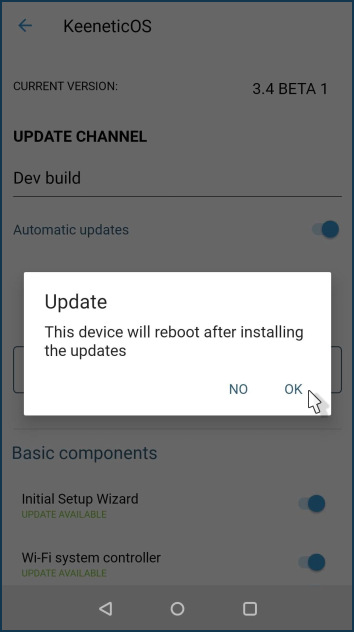
Importante
Il router si riavvierà durante l'aggiornamento del sistema operativo. Di conseguenza, la connessione al router verrà persa per alcuni minuti ma sarà ripristinata dopo il riavvio del dispositivo.
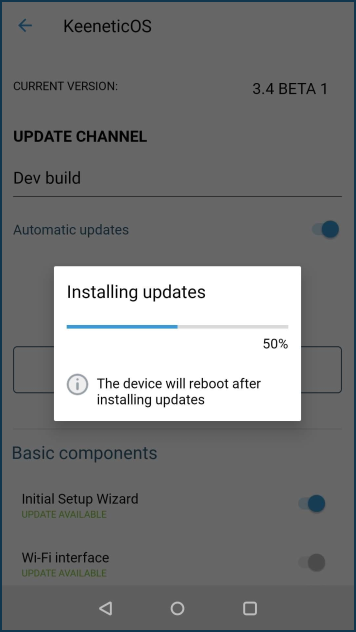
Attendi l'avvio di Keenetic. In
pochi minuti, sarà di nuovo disponibile per la gestione dall'applicazione. Vai alle sue impostazioni.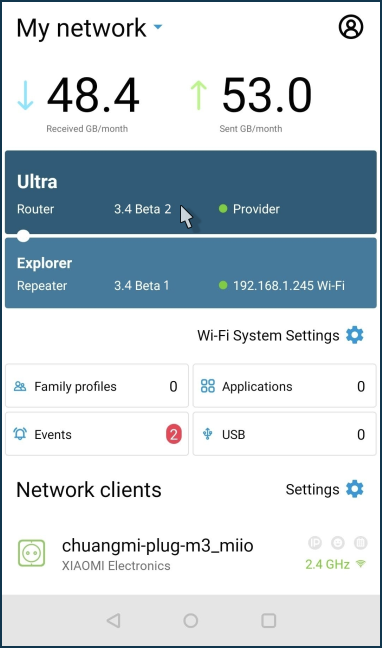
Nella pagina delle impostazioni, visualizzerai la versione corrente di KeeneticOS. Assicurati che il sistema operativo del router sia aggiornato alla versione più recente. Vai alla schermata KeeneticOS e verifica che non ci siano aggiornamenti e che sul dispositivo sia installata l'ultima versione del sistema operativo.
Se non desideri verificare e installare personalmente gli aggiornamenti, si consiglia di abilitare l'opzione Aggiornamenti automatici. In questo caso, sul tuo router sarà sempre installata la versione più recente di KeeneticOS.
Ulteriori informazioni sono disponibili nell'articolo KeeneticOS Aggiornamenti automatici.
È possibile creare una pianificazione per questa funzione in modo che aggiorni automaticamente il sistema operativo. In questo caso, l'aggiornamento automatico avverrà all'ora specificata.