Blocco dell'accesso a Internet tramite l'app Keenetic
Con l'applicazione mobile Keenetic, è possibile limitare l'accesso a Internet a qualsiasi dispositivo sulla rete domestica. Ad esempio, i genitori possono bloccare l'accesso a Internet per computer, tablet o smartphone dei propri figli. Questo può essere fatto sia dalla rete domestica che in remoto tramite Internet.
 |
 |
 |
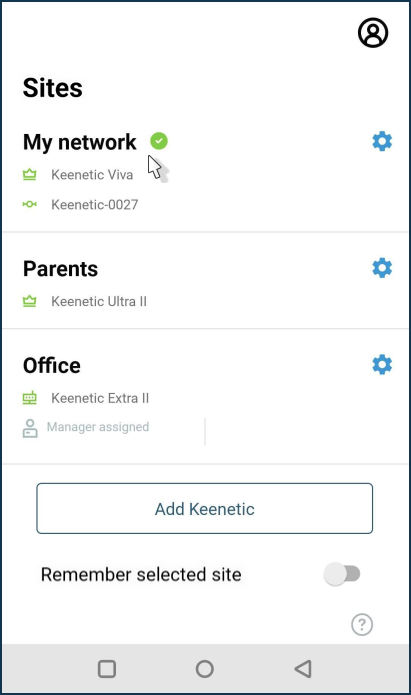
Avviare l'app Keenetic e nella schermata Siti, fare clic sul nome della rete.
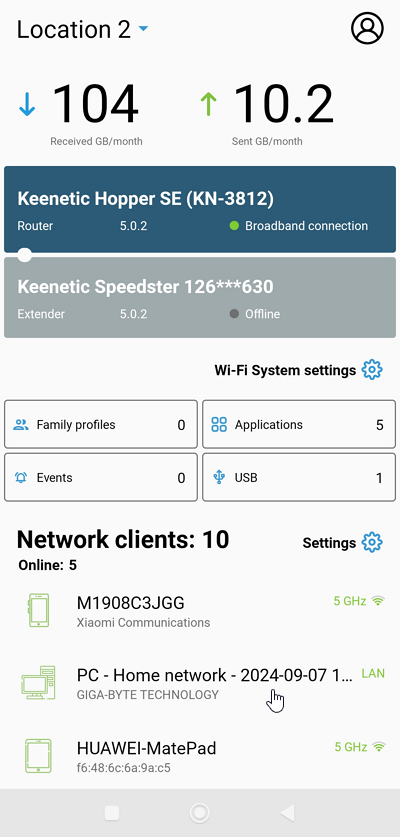
Nell'elenco dei client di rete, fare clic sulla voce del dispositivo per cui si desidera bloccare l'accesso a Internet.
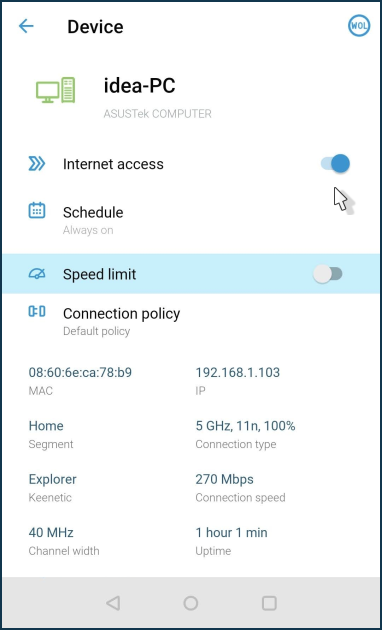
Dalla schermata delle opzioni del dispositivo, impostare lo switch Internet su Off.
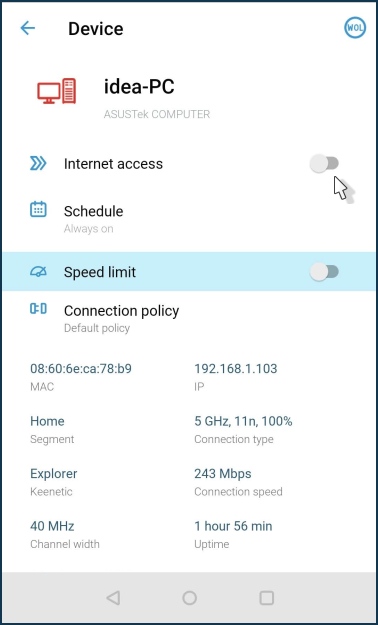
L'accesso a Internet per questo dispositivo verrà bloccato immediatamente. Per ripristinare l'accesso, impostare lo switch Internet su On.
Importante
Se per il dispositivo viene utilizzata una pianificazione, questa darà la priorità al blocco manuale dell'accesso a Internet.
Attualmente è impossibile limitare manualmente l'accesso a Internet se ciò contraddice la pianificazione corrente, al fine di evitare conflitti di regole che si escludono a vicenda per lo stesso dispositivo o gruppi di dispositivi. Se si desidera bloccare l'accesso manualmente, è necessario disabilitare la pianificazione prima di farlo.
Gli sviluppatori hanno in programma di implementare un'impostazione più flessibile nelle versioni future, con la possibilità di un controllo manuale simultaneo in combinazione con la pianificazione corrente.
Se si desidera disabilitare l'accesso a Internet per un gruppo di dispositivi della rete domestica contemporaneamente, utilizzare Profili famiglia.
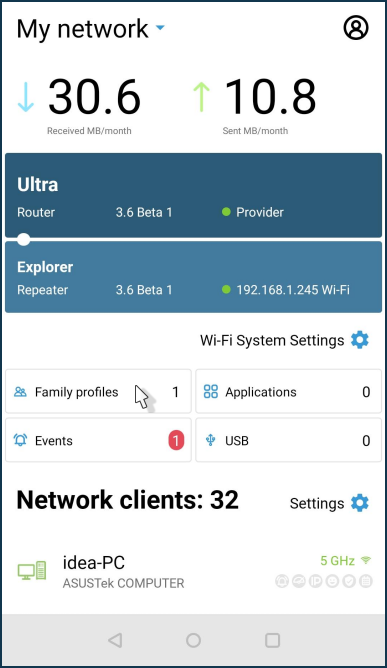
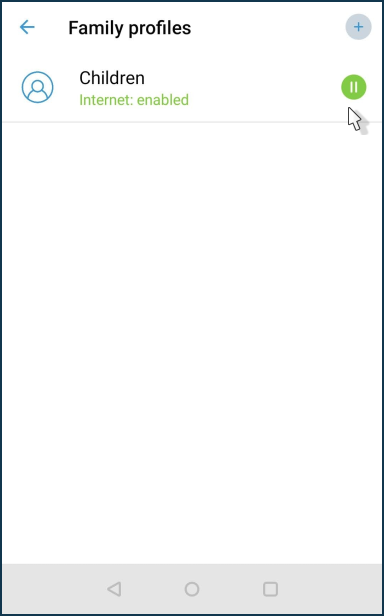
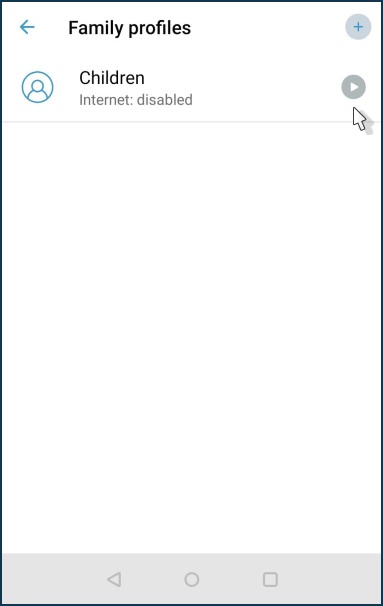
Se si disabilita l'accesso a Internet in un profilo famiglia, la pianificazione smette di funzionare. Nella schermata Profili famiglia, toccare l'icona play per disattivare Internet. Ad esempio:
Importante
La disattivazione di Internet nel profilo famiglia verrà applicata a tutti i dispositivi del profilo corrente.
Premendo di nuovo l'icona pause, si riattiverà Internet sui dispositivi del profilo corrente.
Suggerimento
Se è necessario bloccare l'accesso a Internet per un solo dispositivo nel profilo famiglia, rimuoverlo dal profilo, andare alla schermata Client di rete, trovare il dispositivo, toccare la sua voce, e nella schermata delle impostazioni rimuovere la sua pianificazione, quindi impostare lo switch Internet su Off.
Se si ha spesso la necessità di disabilitare/abilitare l'accesso a Internet per i singoli dispositivi della rete domestica anziché per l'intero gruppo del profilo famiglia, si consiglia di creare un profilo per ogni dispositivo in modo da poter gestire separatamente l'accesso a Internet per un dispositivo specifico.