Rimozione di un elemento dall'elenco dei client
Per impostazione predefinita, l'app mobile Keenetic memorizza tutti i dispositivi client registrati e precedentemente connessi (al router) nell'elenco Client di rete. Se necessario, è possibile rimuovere selettivamente i client da questo elenco. La procedura generale è la seguente: prima è necessario annullare la registrazione di un determinato client, dopodiché verrà spostato automaticamente nell'elenco Cronologia connessioni, e quindi è possibile rimuovere il client da questo elenco o svuotare l'intero elenco.
Mostriamolo con un esempio. Supponiamo di voler rimuovere un dispositivo client denominato Notebook dall'elenco dei client di rete.
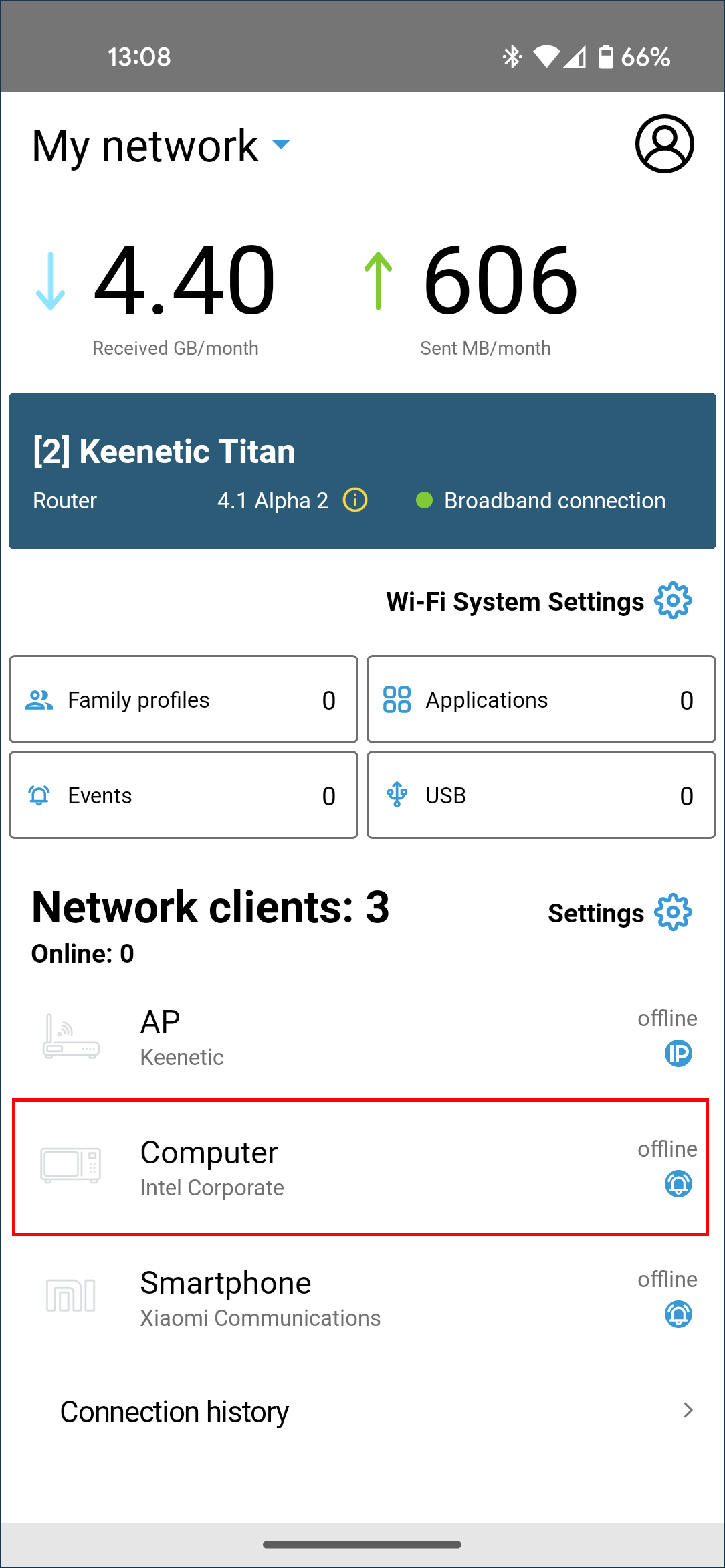
Fai clic sulla voce di questo dispositivo e disabilita la registrazione.
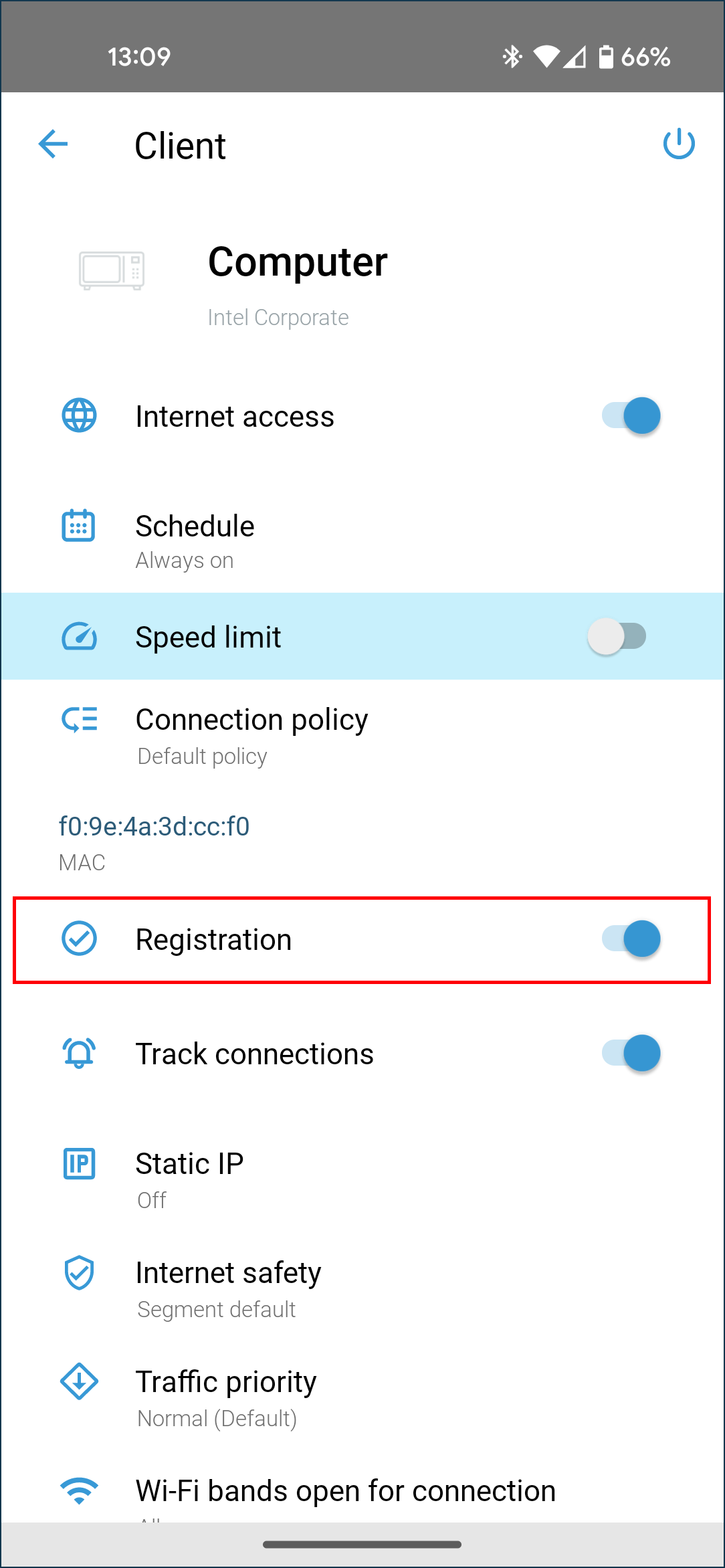
Scorri verso il basso la scheda delle impostazioni del client e fai clic su Annulla registrazione.
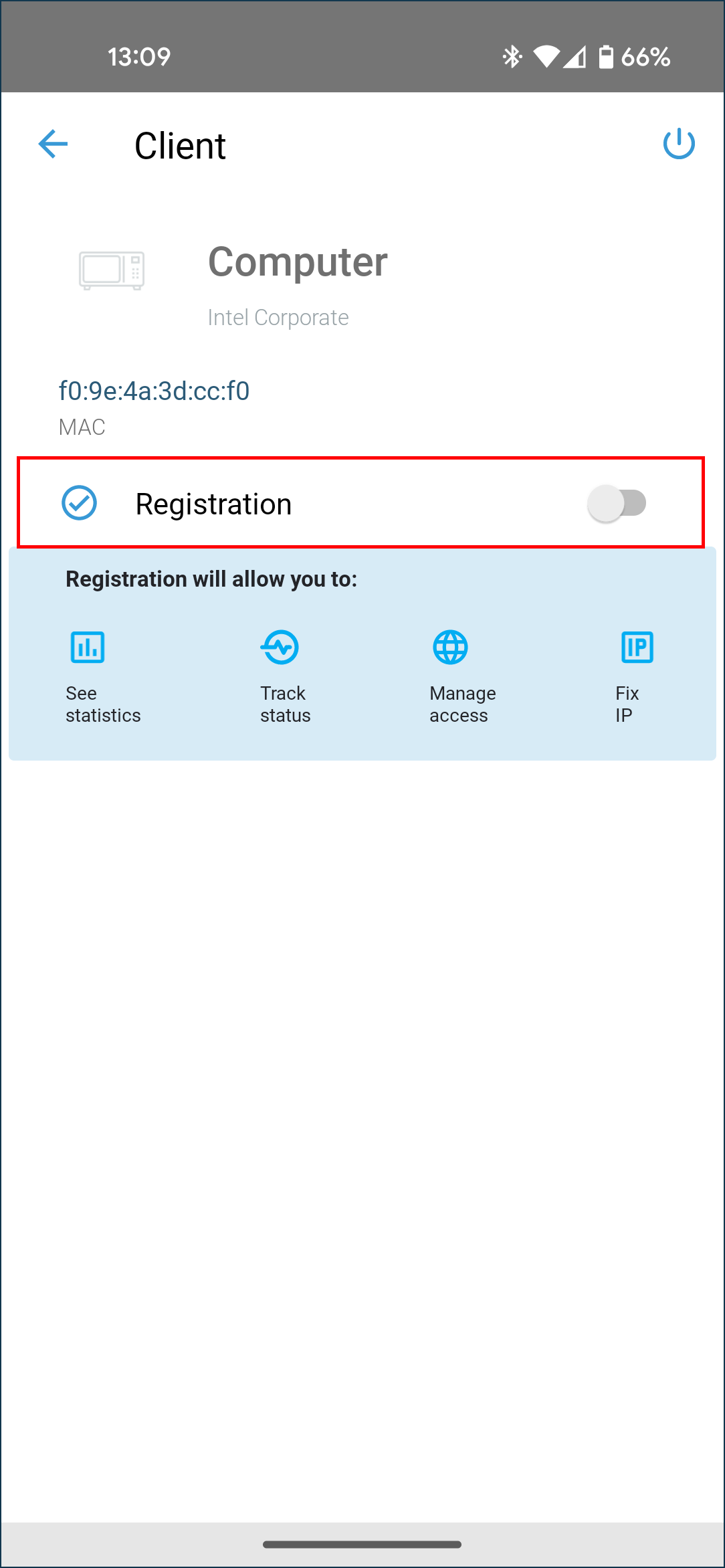
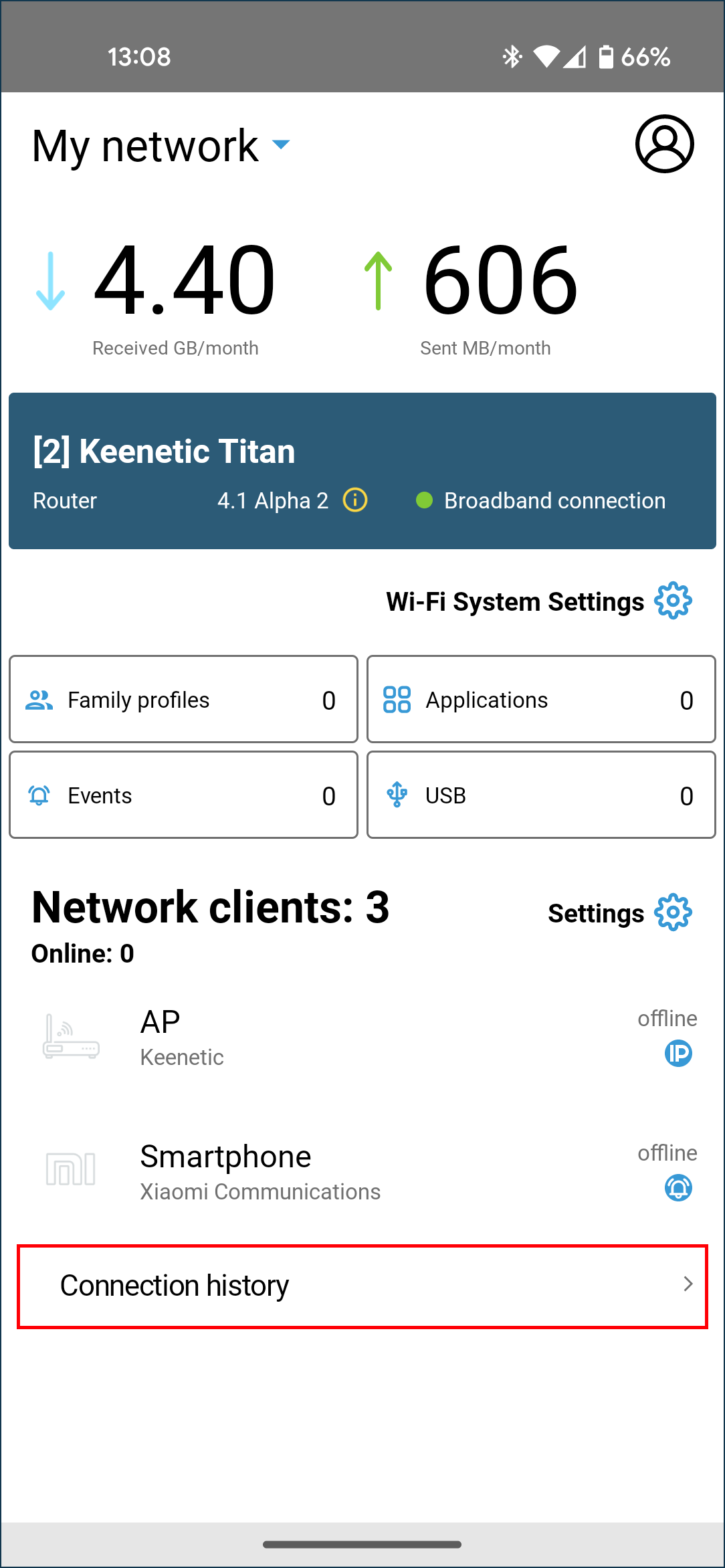
Quindi, apri l'elenco Cronologia connessioni (che si trova in basso sotto l'elenco principale Client di rete), poiché il client si troverà automaticamente in questo elenco dopo l'annullamento della registrazione.
Nell'elenco Cronologia connessioni, sarà possibile rimuovere un client specifico. Per fare ciò, fai clic sulla voce del client e apparirà il pulsante Elimina.
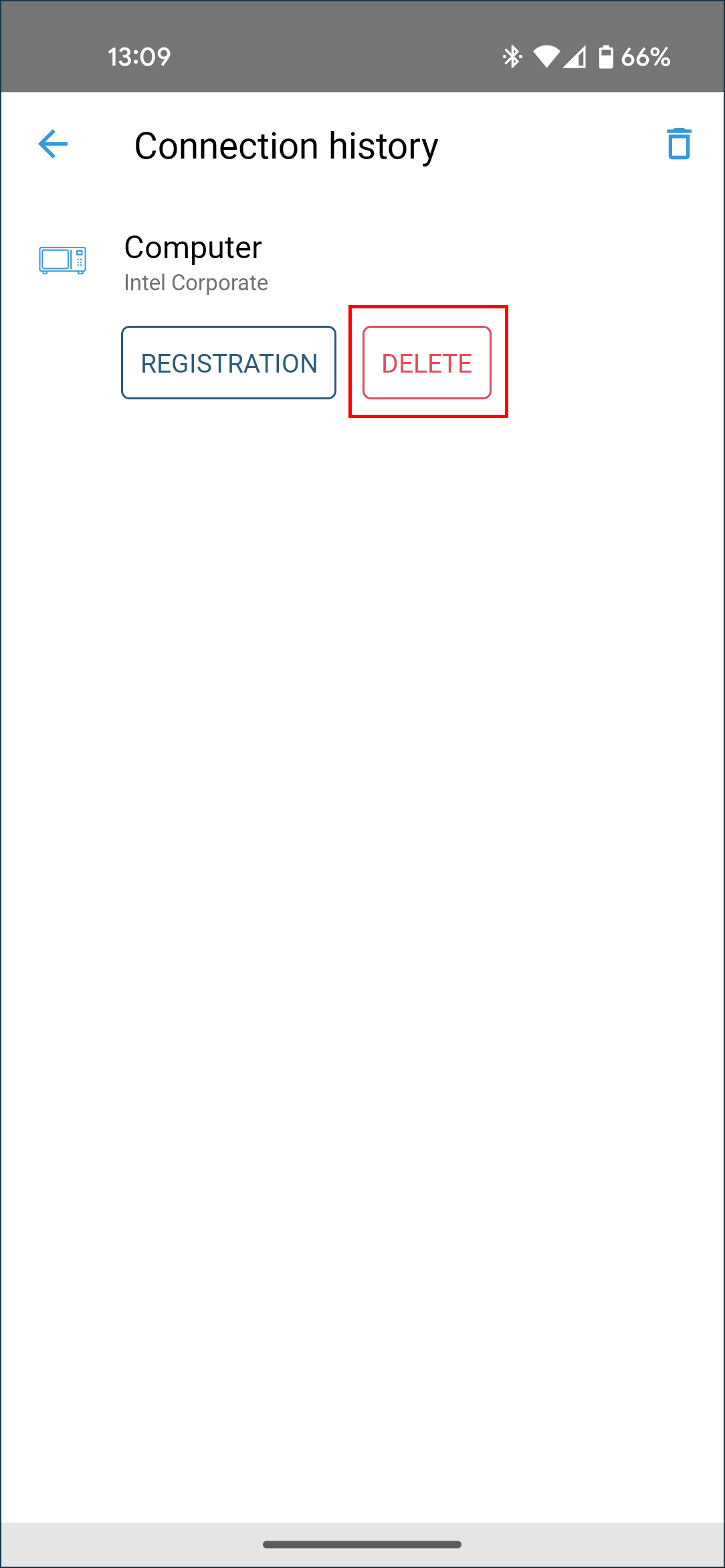
In questa schermata, è anche possibile svuotare l'intero elenco. Per fare ciò, fai clic sull'icona  nell'angolo in alto a destra dello schermo.