Example of connecting networks via the WireGuard VPN server app
Starting with KeeneticOS version 5.0, Keenetic routers include the WireGuard VPN server app — a modern, high-performance VPN solution for secure remote access to your home network using any client. Another Keenetic router can serve as a VPN client.
In this guide, we will provide an example of setting up a secure connection using the WireGuard protocol between two routers, where hosts on each router need to be granted access to the remote local network via a VPN tunnel. This type of connection is also known as a 'site-to-site VPN' or 'network-to-network' connection (for example, an inter-office connection to expand network infrastructure).
For more flexible WireGuard VPN configuration, as well as for setting up complex topologies and 'network-to-network' connections, use the settings on the Other Connections page. For more information, see the guide Configuring a WireGuard VPN between two Keenetic routers.
Important
If you plan to use a Keenetic router as a VPN server, you must first verify that it has a public IP address. If you are using the KeenDNS service, ensure it is operating in Direct Access mode, which also requires a public IP address. If either of these conditions is not met, connecting to this VPN server from the Internet will be impossible.
The addresses of the networks being connected must belong to different subnets!
Let's look at the connection diagram:
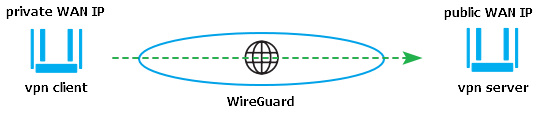
There is a Keenetic router Keenetic with a public WAN IP address for Internet access, on which a WireGuard VPN server will run. Another Keenetic router will establish a VPN connection to it as a VPN client with an IP address from the private range on the WAN interface (the VPN client may have a public IP as well). We need to provide the hosts on each router with access to the remote local network via a VPN tunnel. In our example, we will connect two local networks, 192.168.100.x and 192.168.22.x, via a WireGuard VPN.
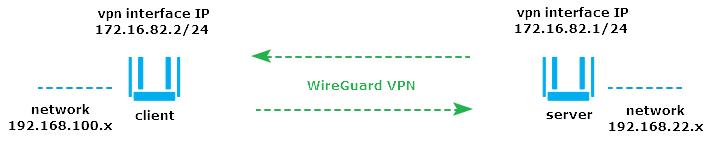
Configuring the WireGuard VPN server
To set up secure connections using the WireGuard protocol, you need to install the WireGuard VPN Server system component. You can do this in the web interface on the System Settings page under the KeeneticOS & Updates tab by clicking Component options.

After that, the WireGuard VPN Server tile will appear on the Applications page. Click the WireGuard VPN Server link to go to the settings.
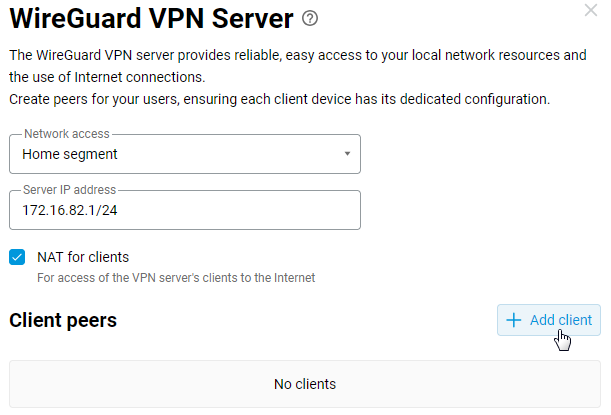
In the Network access field, specify the local network segment to which clients will be granted access.
The Server IP address field contains the VPN server's address. This is the internal IP address of the tunnel interface in the IP/subnet mask format. In our example, this is 172.16.82.1/24, but you can use any subnet from the private range, as long as the address does not overlap with other subnets on the router itself. Clients will be assigned an IP address from the same subnet.
The NAT for clients option is enabled by default. This setting allows VPN clients to access the Internet.
To continue the setup, click the + Add client button.
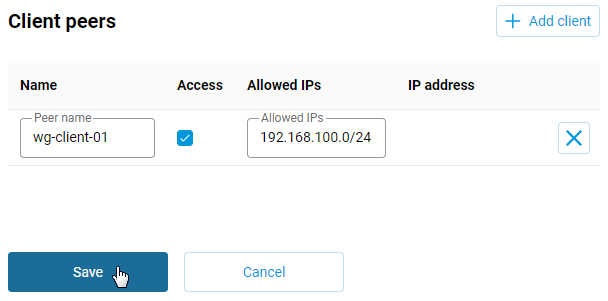
In the Client peers section, enter a name in the Name field and check the Access box.
The Allowed IPs field defines the set of allowed subnets. These are the address ranges from which this peer can receive and send traffic. If you need to configure access from the WireGuard server to a subnet located behind a VPN client, specify the client's subnet—or multiple subnets (separated by commas)—in the Allowed IPs field that you want to allow inside the tunnel. In our example, the remote subnet 192.168.100.0/24 is specified in this field.
Click the Save button.
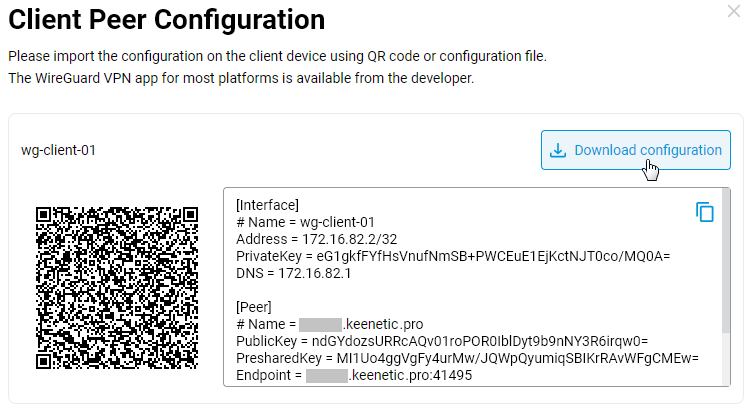
After creating the peer, the Client Peer Configuration window will open automatically. In this window, click the Download configuration button to save the WireGuard connection configuration file. You can then import the resulting file (with the .conf extension) into your VPN client settings.
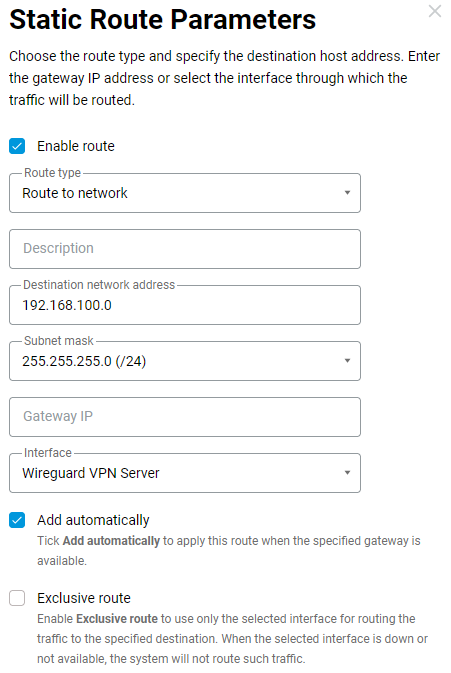
To make resources on the local network behind the VPN client accessible to clients on the VPN server's local network, you need to add a static route. In our example, the local network 192.168.100.0/255.255.255.0 (/24) will be accessible via the WireGuard VPN Server interface.
Go to the Routing page and, in the User-Defined Routes section, click the + Create button. In the Static Route Parameters window that appears, select Route to network in the Route type field, and in the Destination network address field, specify the remote subnet you want to provide access to, which is located on the VPN client side. In the Interface field, select WireGuard VPN Server. When configuring a static route, you should enable the Add automatically option.
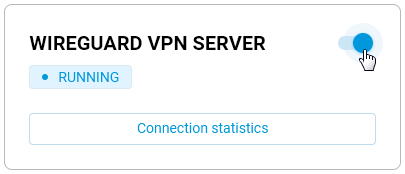
That completes the VPN server setup; all that's left is to enable it. On the Applications page, under the WireGuard VPN Server tile, toggle the switch to On.
Configuring the WireGuard VPN client
In the router's web interface that will act as the VPN client, go to the Other Connections page and, in the WireGuard section, click the Import from a file button.
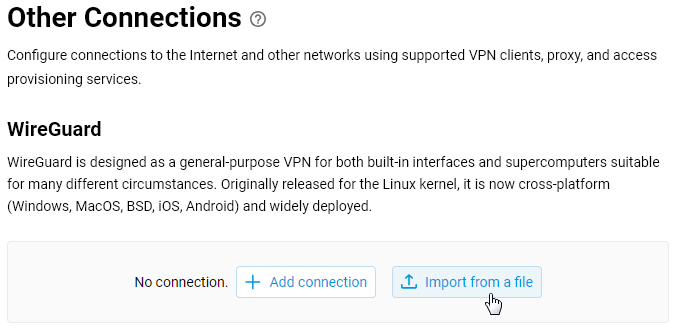
Specify the path to the file with the .conf extension that was previously saved when configuring the WireGuard VPN server, and the connection will then automatically appear in this section.
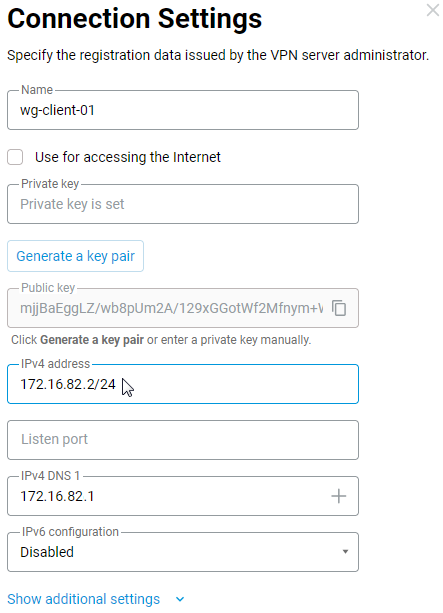
Next, click the connection you created to edit and further configure it in to set up a 'network-to-network' connection, as in our example. In the Connection Settings window, in the IPv4 address field, change the subnet mask from /32 to /24.
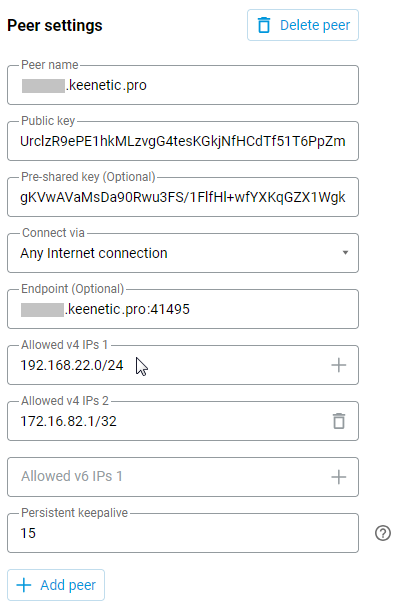
In the Peer settings section, under the Allowed v4 IPs field, you need to add the remote network behind the VPN server and the internal address of the remote end of the tunnel. In our example, the remote network is 192.168.22.0/24 (access to this network must be provided via a tunnel from the VPN client side), and the address of the remote end of the tunnel is 172.16.82.1/32. Save the configuration.
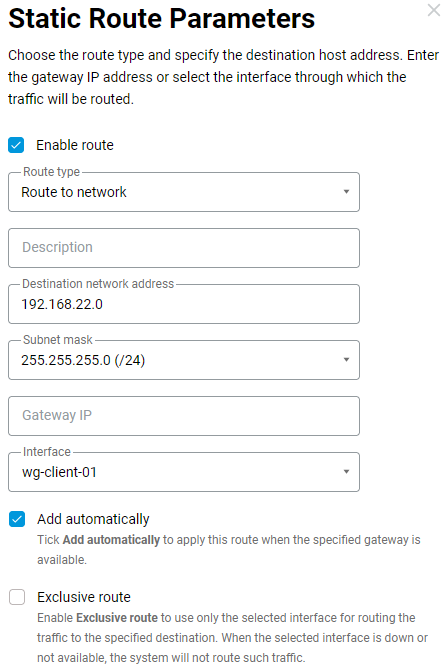
Next, configure the routing and firewall settings on the VPN client router. For the WireGuard connection you created, you need to specify a static route to the remote network and allow incoming traffic.
To send traffic to the remote network through the tunnel, you need to add a static route. Go to the Routing page and, in the User-Defined Routes section, click the + Add button. In our example, in the Static Route Parameters window that appears, select Route to network in the Route type field, specify the remote subnet 192.168.22.0 in the Destination network address field, in the Interface field, select the name of the previously created WireGuard connection wg-client-01, and enable the Add automatically option.
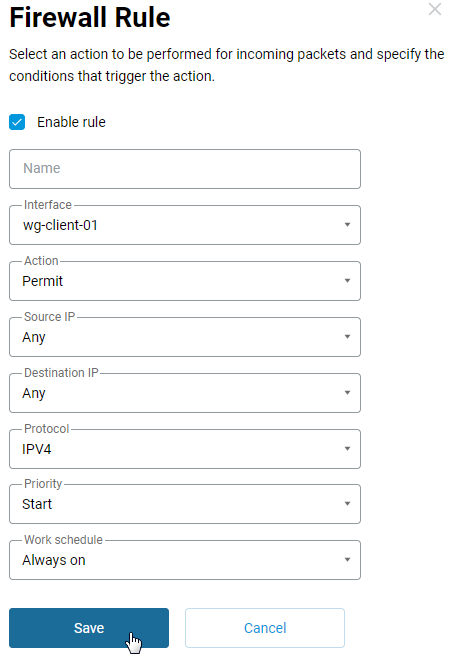
To allow incoming traffic on the client, go to the Firewall page. For the WireGuard connection wg-client-01, add and enable an allow rule for the IPv4 protocol.
Now, enable the connection you created in the VPN client. Go to the Other Connections page and, in the WireGuard section, toggle the switch to On.
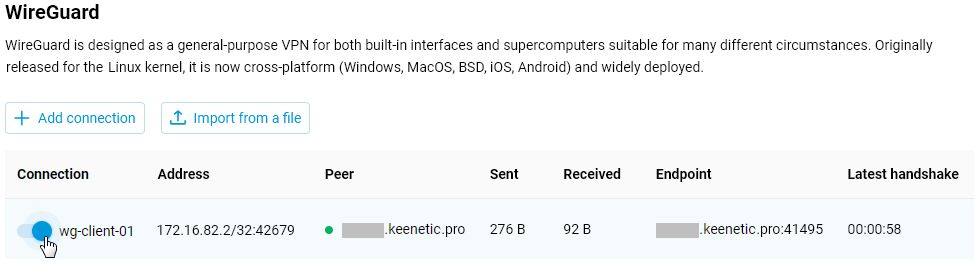
This completes the configuration of the VPN client and VPN server.
To verify the connection, go to the VPN server settings and, in the WireGuard VPN Server tile, click Connection Statistics to view the connection status and additional information about active sessions.
To verify that the VPN tunnel is working, ping the remote router or devices behind the tunnel from hosts or directly from the router.
For example, from a host on the VPN client's local network (from the 192.168.100.x network), ping the VPN server's IP address (in our case, this is 172.16.82.1) and the local IP address of the router in the remote network behind the tunnel (in our example, this is 192.168.22.1). Then, from a host on the VPN server's local network (from the 192.168.22.x network), ping the VPN client's IP address (in our case, this is 172.16.82.2) and the local IP address of the router in the remote network behind the tunnel (in our example, this is 192.168.100.1).
If you are configuring the VPN connection remotely and do not have access to the local network hosts, you can verify the VPN tunnel directly from the router. To do this, go to the Diagnostics page in the web interface and use the Ping utility. Ping the remote router and the devices located behind the tunnel.