Impostazione del server SNMP
KeeneticOS implementa un server SNMP per ottenere informazioni sullo stato del dispositivo Keenetic tramite il protocollo SNMPv1/2c. Per il suo funzionamento deve essere installato un componente speciale, Server SNMP. È possibile installarlo nella pagina Impostazioni di sistema nella sezione Aggiornamento del sistema operativo e opzioni dei componenti facendo clic su Opzioni dei componenti.

Dopo aver installato il componente, è necessario avviare il server SNMP tramite l'interfaccia a riga di comando (CLI) del dispositivo utilizzando il comando service snmp.
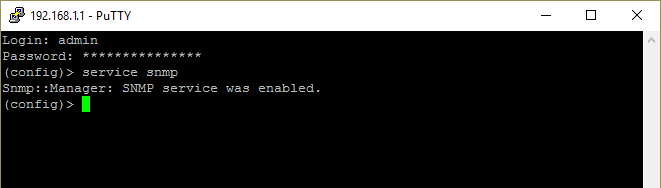
È possibile disabilitare il server con il comando no service snmp

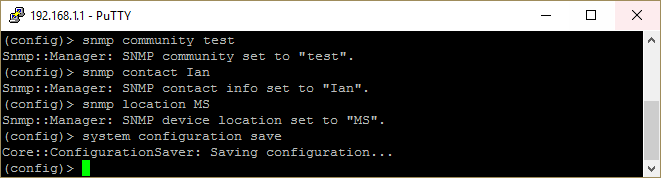
Dopo aver eseguito il comando, è necessario salvare i parametri nella memoria non volatile del dispositivo utilizzando il comando system configuration save

È inoltre possibile specificare i parametri community, contact e location nelle impostazioni del server.
snmp community — imposta un nuovo nome di community SNMP, il valore predefinito è public. La community fornisce una sicurezza e una verifica semplici di questo campo di testo quando vi si accede.
snmp contact — imposta il nome del contatto (non definito per impostazione predefinita). Per comodità, è possibile specificare la persona responsabile di questa apparecchiatura, ad esempio il suo cognome.
snmp location — imposta la posizione dell'apparecchiatura (non definita per impostazione predefinita). Per comodità, è possibile specificare la città, la via, il quartiere, il numero della stanza, ecc.
Verifichiamo il funzionamento di SNMP utilizzando l'applicazione gratuita iReasoning MIB Browser in Windows (nei sistemi operativi Linux, è possibile utilizzare il pacchetto standard snmp). Nelle impostazioni di connessione, è necessario specificare l'indirizzo IP, la porta (predefinita) e la community SNMP (Read Community) — public.

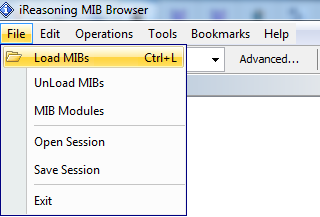
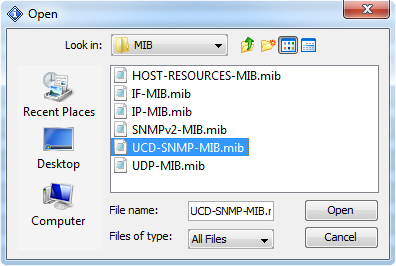
Scaricare i file MIB mancanti. Andare al menu File e fare clic su Carica MIB.
Dopodiché, è possibile provare a richiedere un OID specifico per ottenere informazioni. Ad esempio, verifichiamo le informazioni specificate in Contatto e Posizione e visualizziamo il tempo di funzionamento del dispositivo.
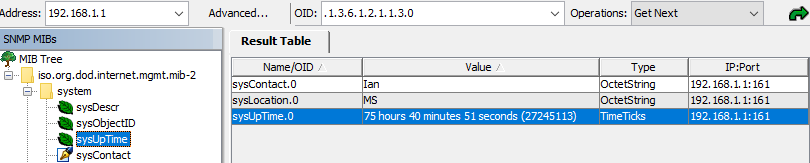
Inoltre, è possibile ottenere tutti i possibili OID supportati dal dispositivo utilizzando la modalità SNMP Walk.

I file MIB supportati si trovano nel file MIBs.zip.
Gli OID disponibili per il dispositivo si trovano nella Guida di riferimento ai comandi CLI, disponibile in Download center.
Si noti che l'esempio precedente riguarda l'accesso al dispositivo da una rete locale. Se si desidera configurare SNMP per ricevere informazioni sullo stato del dispositivo da una rete esterna (Internet), è necessario creare anche delle regole di autorizzazione nel dispositivo per consentire al traffico di passare attraverso la porta 161 TCP e UDP.
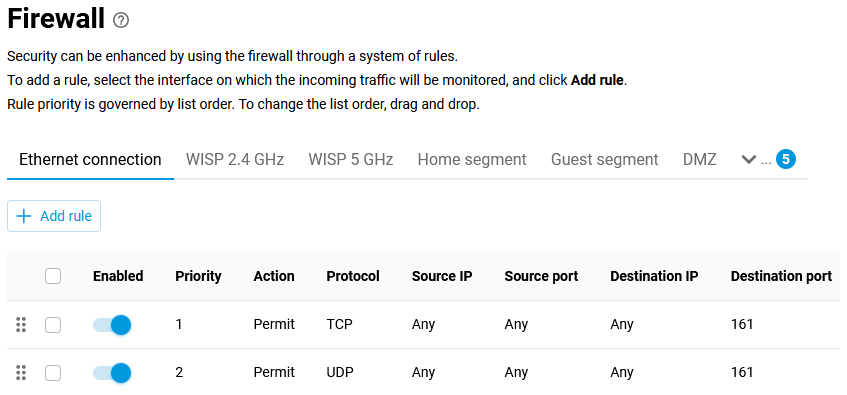
Importante
Assicurarsi di modificare la community SNMP predefinita: public con un altro valore. Ciò è necessario per la sicurezza del dispositivo quando si opera su Internet.
Quindi, eseguire una query per ottenere le informazioni richieste. Ad esempio (query eseguita dal sistema operativo Linux con il pacchetto snmp installato):
~ $ snmpget -v2c -ckeenetic 86.87.88.89 .1.3.6.1.2.1.1.3.0
iso.3.6.1.2.1.1.3.0 = Timeticks: (21111146) 2 days, 10:38:31.46
Per visualizzare tutte le interfacce e i relativi dati, seguire i passaggi riportati di seguito.
In MIB Browser, andare in Albero MIB > mgmt > mib-2 > interfaces > ifTable.
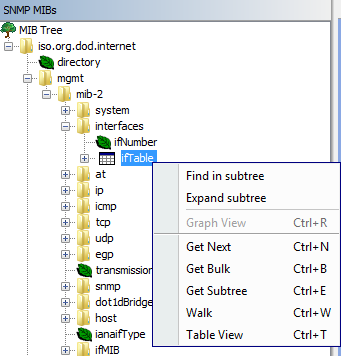
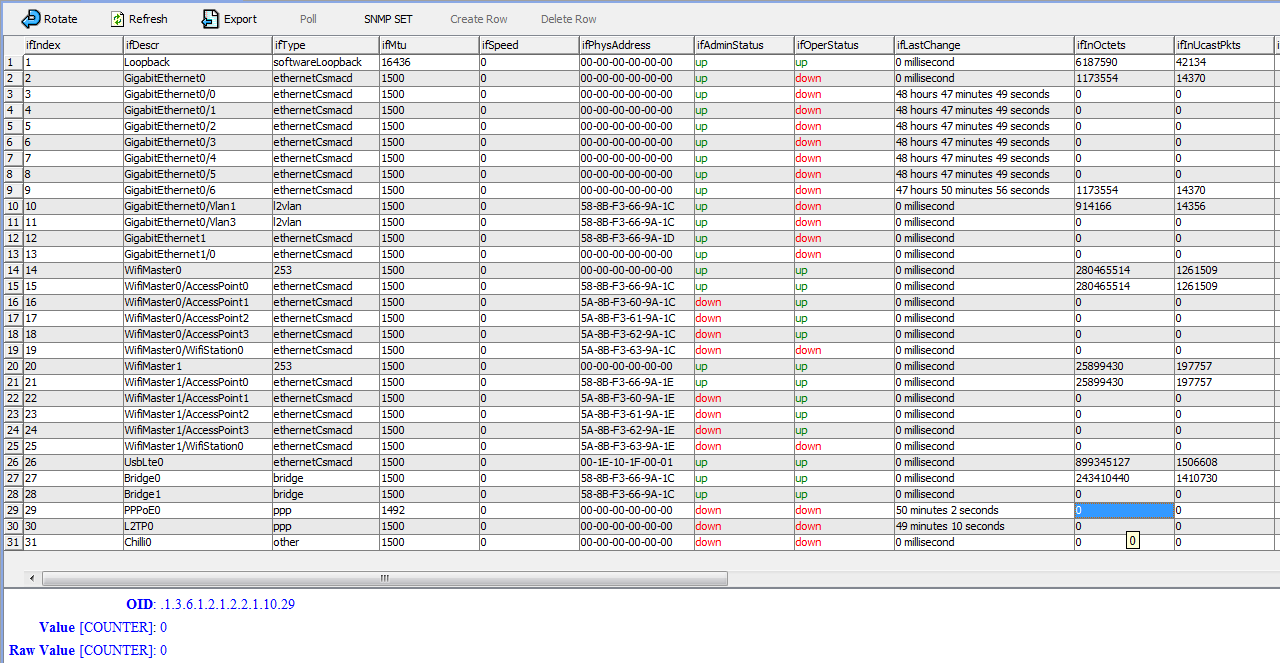
Vengono visualizzate le statistiche per le interfacce. Fare clic con il pulsante destro del mouse su ifTable e quindi selezionare Visualizzazione tabella. Dopodiché, è possibile vedere una tabella completa di tutte le interfacce configurate nel dispositivo e vari contatori di traffico disponibili sul dispositivo. Ad esempio, il traffico è disponibile sia attraverso le porte dello switch integrato che attraverso PPPoE, L2TP e altre interfacce. I nomi di queste interfacce sono disponibili nella colonna ifDescr. Le statistiche sul traffico sono disponibili nelle colonne ifInOctets/ifOutOctets.
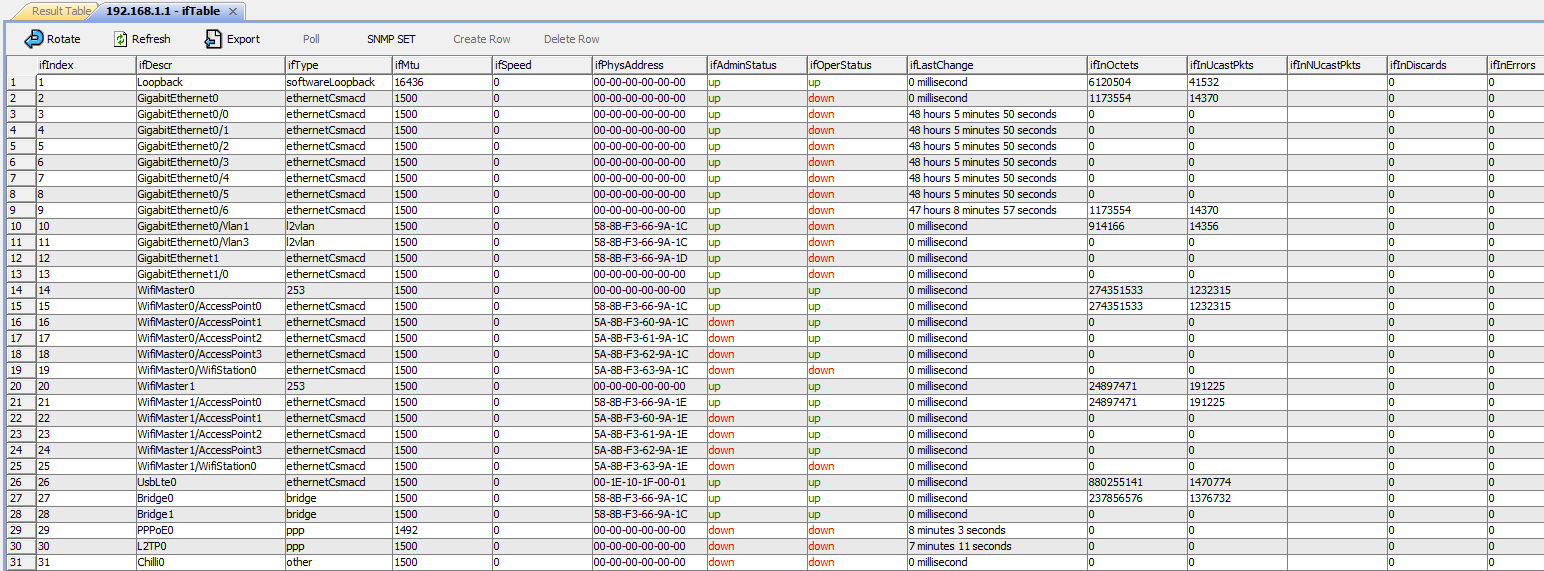
Per trovare l'OID specifico per una particolare interfaccia, individuare la rispettiva cella nella tabella e farvi clic sopra. Dopodiché, l'OID di questo parametro per l'interfaccia desiderata sarà indicato in fondo alla tabella. Di seguito è riportato un esempio per l'interfaccia PPPoE, per il contatore del traffico in entrata (In) ifInOctets (OID .1.3.6.1.2.1.2.2.1.10.29).
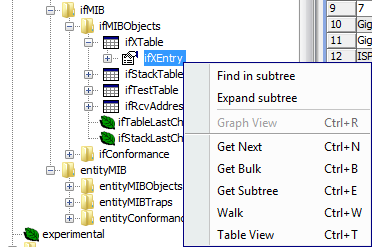
Si noti che il ramo interfaces contiene contatori di traffico a 32 bit che si azzerano al raggiungimento di 4 GB di traffico. C'è un altro ramo che contiene contatori a 64 bit. Andare in Albero MIB > mgmt > mib-2 > ifMIB > ifMIBObjects > ifXEntry.
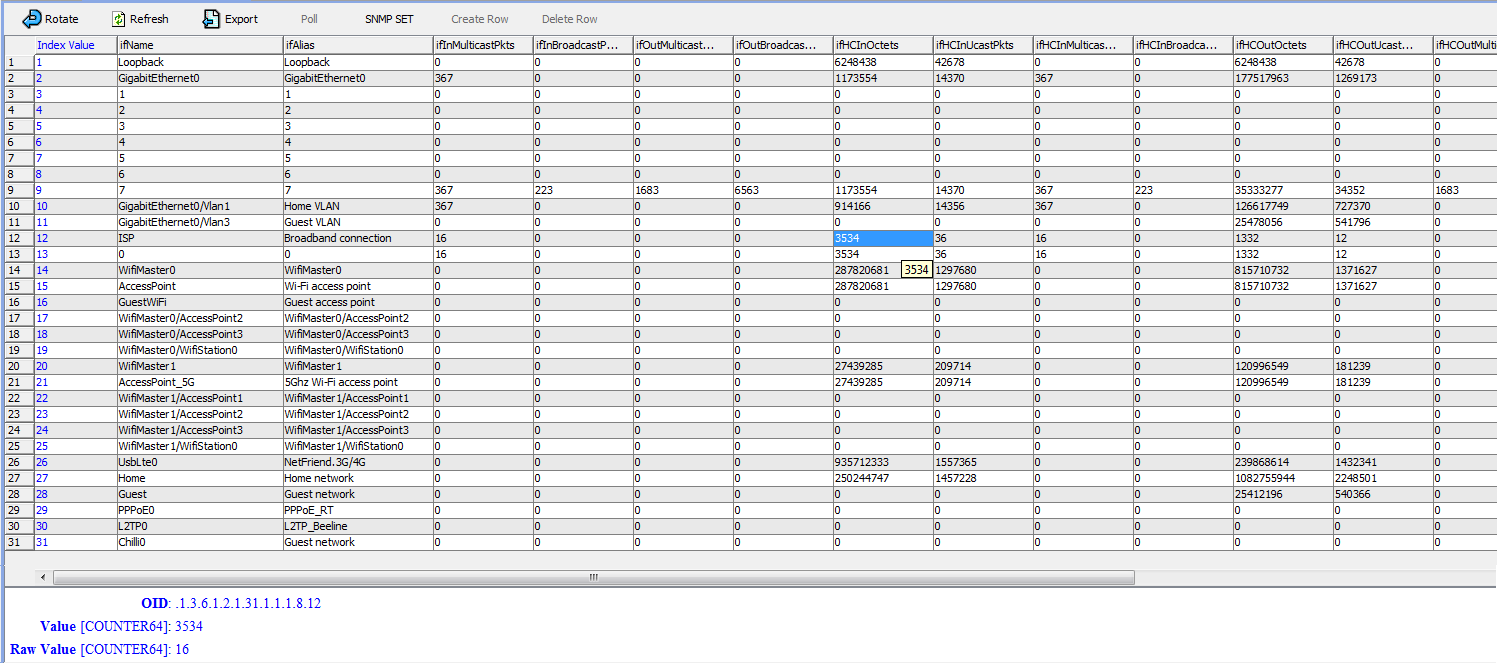
Aprire la tabella di tutte le interfacce e le porte facendo clic su Visualizzazione tabella. Il parametro ifHCInOctets per ISP sarà il valore dei byte in entrata (In) nell'interfaccia (OID .1.3.6.1.2.1.31.1.1.1.8.12) e il parametro ifHCOutOctets sarà per i byte in uscita dall'interfaccia.
È anche possibile visualizzare l'OID dell'interfaccia da un sistema operativo Linux con il pacchetto snmp installato. Ad esempio:
~ $ snmpwalk -v 2c -c public -O fn 192.168.1.1 |grep ISP
.1.3.6.1.2.1.31.1.1.1.1.9 = STRING: ISP