Connecting to an OpenConnect VPN server from Windows
To connect remotely to a router's local network, starting with KeeneticOS 4.2.1, it is now possible to use an OpenConnect VPN tunnel.
First, you need to configure the OpenConnect VPN server in the router, as shown in the article Server VPN OpenConnect, then proceed to configure the VPN client.
Below is an example of how to connect to the server from a Windows operating system.
To establish a connection to the OpenConnect server, you will need to download and install the OpenConnect VPN for Windows software on your computer, which will serve as a VPN client.
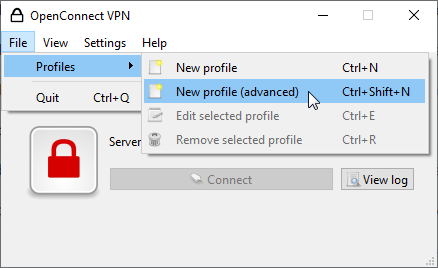
1. Launch the programme. Go to the File > Profiles menu and click on New profile (advanced) to create a new VPN connection profile:
2. In the VPN connection settings, fill in the Name, Gateway, and VPN protocol fields and enable the Disable UDP option:
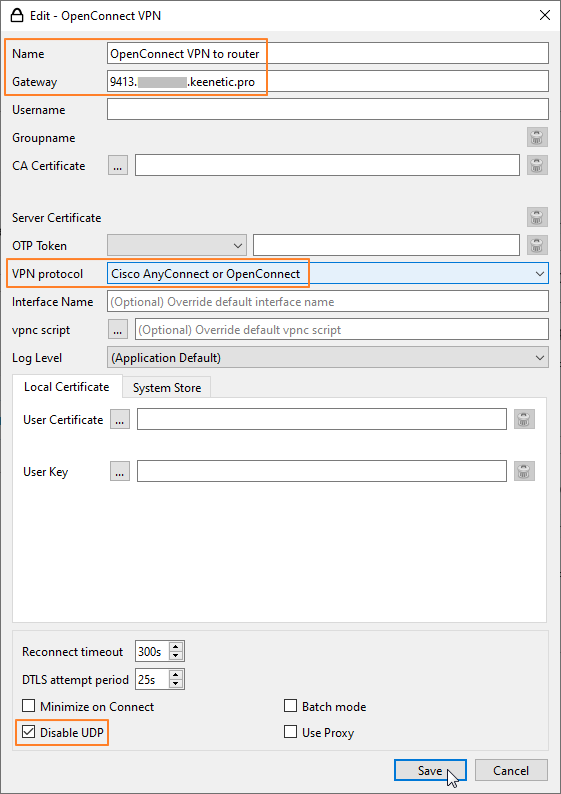
In the Name field, specify the name of the VPN connection. In the Gateway field, enter the VPN server address.
Suggerimento
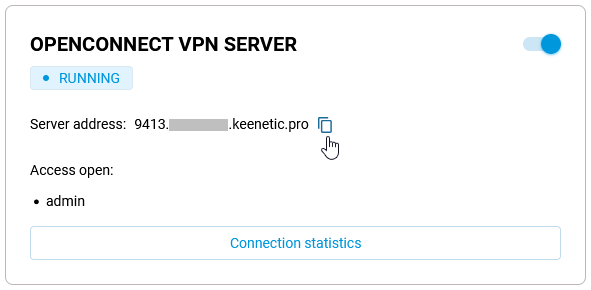
To avoid mistakes when entering the address, we recommend copying it from the web interface of the router on which the VPN server is running (go to the Applications menu and the OpenConnect VPN Server tile will show the Server address). For example:
In the VPN protocol, make sure that Cisco AnyConnect or OpenConnectis selected. Tick the Disable UDP option, as in our case, the UDP protocol is not used, and the VPN connection is established via the TCP protocol.
Click the Save button to save the settings.
3. In the main window of the programme, click Connect to start the VPN connection:
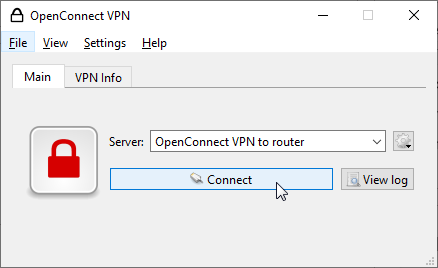
Next, to authorise on the VPN server, enter the username and password of the router account that is authorised to connect to the OpenConnect VPN server in the Username and Password fields, respectively.
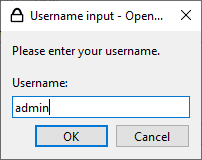
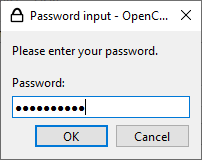
Suggerimento
To connect to the router via third-party applications, we recommend creating a separate user account with access permission only to the OpenConnect VPN server. For security reasons, do not use the router administrator account; specify a user account with limited rights.
If the server address and account are specified correctly, the OpenConnect VPN connection will be established. You will see a message like Welcome to ... in the programme. To continue, click OK or Accept.
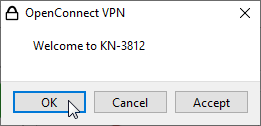
Once the connection is successful, you will see a green icon indicating the VPN status:
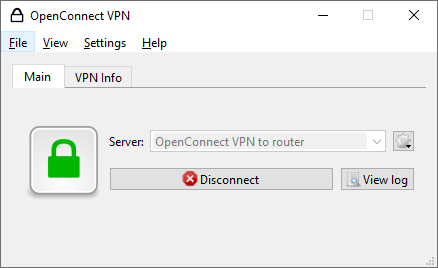
To end the VPN connection, click Disconnect.