What to do if you suspect that your device is faulty?
If you discover a fault with your Keenetic device, please get in touch with our technical support service.
Suggerimento
The warranty period is 3 years from the date of first use of the device.
You can check the warranty expiry date in your Keenetic Account in the ‘Registered devices’ section. For more information, see the article Periodi di garanzia e supporto.
Before contacting support, we recommend that you try the following steps to restore your device to working order:
First, perform a hardware reset of your device to factory settings using the Reset Button.
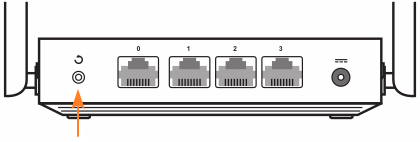
If the hardware reset does not help, try restoring the device's built-in operating system with a special utility called Keenetic Recovery.
If the above steps do not resolve the issue, there may be a hardware malfunction. In this case, please contact our service centre.
If the device does not turn on, ensure the power adapter is functioning properly.
Importante
Only use the power adapter that came with the device. Connect the adapter to a working power outlet with a voltage corresponding to the one indicated on its label. Correct operation is not guaranteed when using a non-standard adapter.
For information on standard power supplies, see the article Caratteristiche degli alimentatori.
If the device turns on, try connecting a home network client to it and then accessing the web interface. If the wireless client fails to connect for some reason, try connecting a wired client (a computer or laptop) with an Ethernet cable.
Update the device's OS to the latest version.
Below are some situations that may indicate a hardware malfunction of the device:
1. When the device is turned on, none of the indicators (LEDs) on the case light up
After turning on a working device with default settings (factory settings), at least two indicators should light up: the Status LED and Wi-Fi LED. If this does not happen, the possible cause is a malfunctioning power adapter or a hardware failure of the device. Check that you are using the power adapter from the package, that it is connected to a functioning power outlet, and that the power cord is securely connected to the ‘Power’ connector on the device.
2. After turning on the device, all indicators except the Status LED start to flash cyclically
A possible cause is a malfunction of the power adapter or a hardware malfunction of the device.
3. Status LED continues to flash two minutes after turning on the device
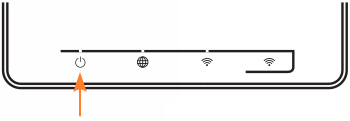
Possible cause: OS failure or hardware malfunction of the device.
4. Only the Status LED is lit during operation; the other indicators are not lit.
Possible cause: hardware malfunction of the device.
5. Wi-Fi LED does not light up during operation, and the status of the access point in the device's web interface is ‘Turned off by a hardware button’ (in this case, Wi-Fi cannot be turned on by the Wi-Fi Button)
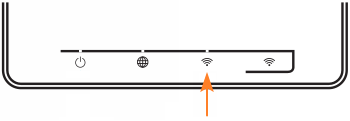
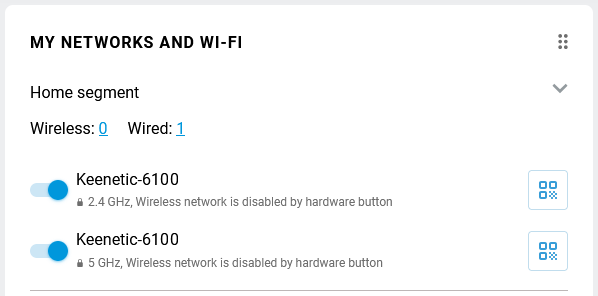
The wireless access point is enabled by default. The wireless network indicator  should be lit when the Wi-Fi network is enabled and should flash when data is being transmitted. If this does not happen, the possible cause is a hardware malfunction of the device (in particular, a malfunction of the wireless module).
6. When the device is in operation, none of the LEDs on the home network (LAN) connector light up when an Ethernet network cable is connected
Some models of routers and access points are equipped with these LEDs. The indicator above the port should light up when a connection to a client is established and flash when data is being transferred.
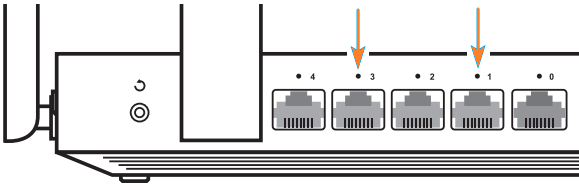
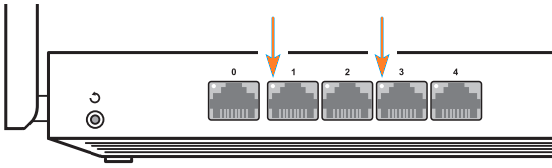
A possible cause is a hardware malfunction of the device (in particular, a malfunction of the built-in network switch).
7. The device does not detect a drive, modem or printer connected to the USB port
Check the device's USB port by connecting a standard USB flash drive or any 5G/4G/3G USB modem from our compatibility list. If the port is working properly, the connected flash drive should appear in the web interface on the main page, in the USB drives and printers section. If the connected device cannot be initialised in the USB port, contact support or an authorized service centre, as there may be a hardware malfunction in the USB port.