USB safe removal
To avoid corrupting the data on the USB storage device, perform a safe disconnect before switching off the router or removing the drive. Do not remove the USB storage device while in use; this may cause data damage or loss.
The disconnection algorithms shown in this article are safe for all USB storage devices in general and are intended to prevent potential data corruption if the device is suddenly removed.
Ejecting the device
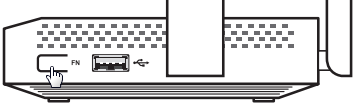
To safely disconnect and unplug a drive, press the FN Button next to the USB port on the router and wait until the FN LED turns off.
With the default setting, the FN Button is specifically for safely removing USB drives from the router.
Tip
When ejecting a hard disk drive (HDD) wait until it stops vibrating. This applies to drives that use magnetic plates and a spindle in their construction.
This advice does not apply to solid-state drives (SSDs or USB flash drives), as they have no moving mechanisms and operate silently.
Important
If several USB storage devices are connected to the router via an external USB hub, pressing the FN Button will disconnect all devices that are connected to the USB port of the router.
You can also safely disconnect and remove a USB stick using the router's web interface.
On the System dashboard page, under USB drives and printers, press the Safe eject button.
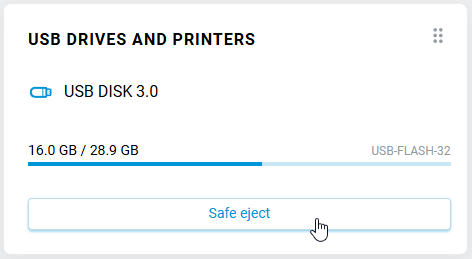
The following message will appear:
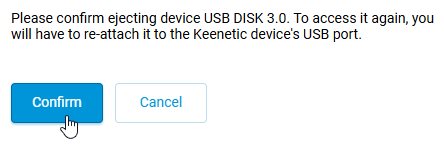
Press Confirm to eject the device. This will disconnect the USB drive completely from the router, namely resetting the cache inside the device to physical media, stopping services running, unmounting file system partitions and (where necessary) parking the HDD heads.
Important
To regain access to the drive, you will need to re-plug it into the Keenetic USB port or restart your router.
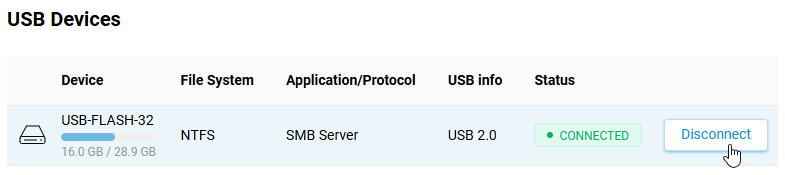
You can also carry out this procedure via the Management menu on the Storage & Devices page.
Unmounting partitions
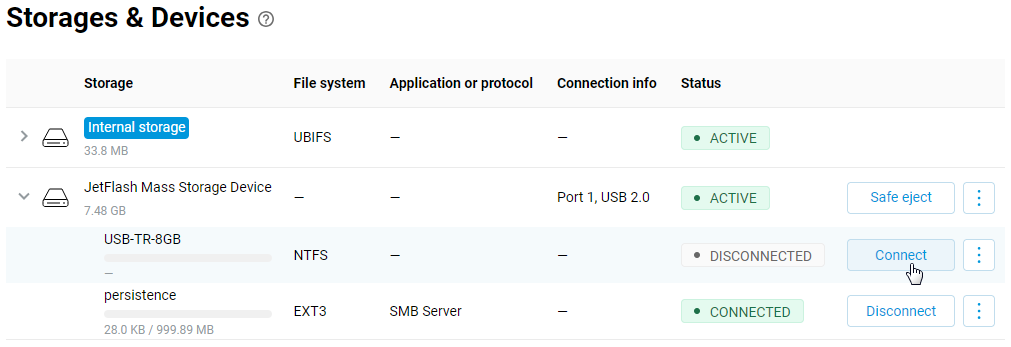
In the web interface, under the Management menu on the Storage & Devices page, you can disconnect (unmount) specific partitions on a USB drive. Clicking the Disconnect button merely stops access to the specific disk partition and unmounts its file system. In this case, the drive is not physically removed (completely disconnected).

After clicking the Disconnect button, the drive partition will be unmounted in the system. A Connect button will appear, and clicking it will mount the partition.
Tip
The Keenetic router has the KeeneticOS automatic updates option enabled by default. This option performs updates without user intervention and can be triggered at any time, leading to a reboot of the device. If essential tasks are performed on Keenetic (or through it) and forced updating or accidental reboot is undesirable, specify a schedule or turn off the Automatic updates option.
In this case, we recommend you periodically check for new updates on the System Dashboard page and install them by clicking the Update KeeneticOS button.
Notice
This article explains how to configure OS versions 5.1 and above. Instructions for earlier OS versions can be found in the article USB safe removal.