Changing Wi-Fi network name and password
The Wi-Fi network name and password (or Network Key) are preset in the factory settings of the router by default. They are printed on the label of the router (on its bottom panel).
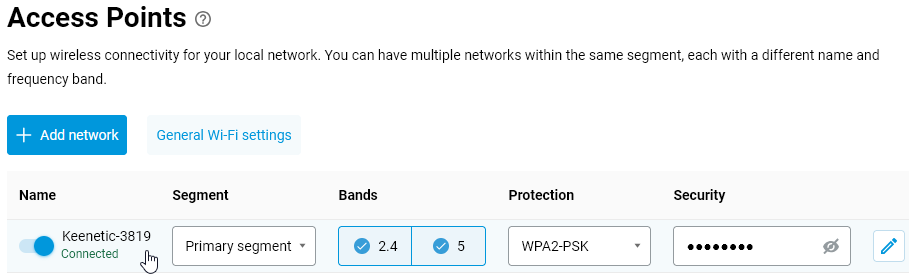
If you wish, you can change the name and/or password for connecting to the router’s Wi-Fi network. You can do this in the web interface under the My Networks and Wi-Fi menu on the Access Points page. To change these settings, click on the relevant access point entry.
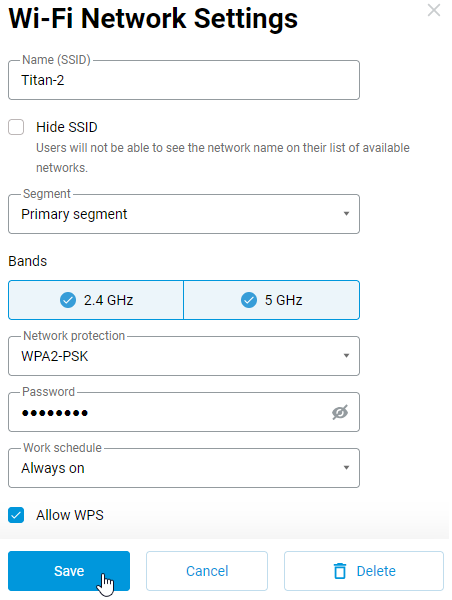
In the Wi-Fi Network Settings window that appears, enter the new name for the Wi-Fi network in the Name (SSID) field. In the Password field, enter the new password for accessing the Wi-Fi network. The new password can be between 8 and 63 characters long. Tap the Show password icon to check that you have entered the password correctly. To save the settings, tap the Save button.
Tip
Use a strong password for your Wi-Fi network. The router has a strong password by default, which is difficult to guess and time-consuming to pick by brute force.
Important
After changing the network name or password, you will need to reconfigure your client device's wireless connection.
Changing the network name in dual-band models (2.4 + 5 GHz)
Dual-band models use the same network names (SSIDs) by default. If necessary, you can set different names for adjacent bands on the router. To do this, on the Access Points page, first disable 5 GHz in the Bands column, leaving only 2.4 GHz for the existing network, and then click the + Add Network button to create a new network.

In the Wi-Fi Network Settings window that appears, enter a new network name in the Name (SSID) field, select 5 GHz only, enable network security, enter a password and click the Add button.
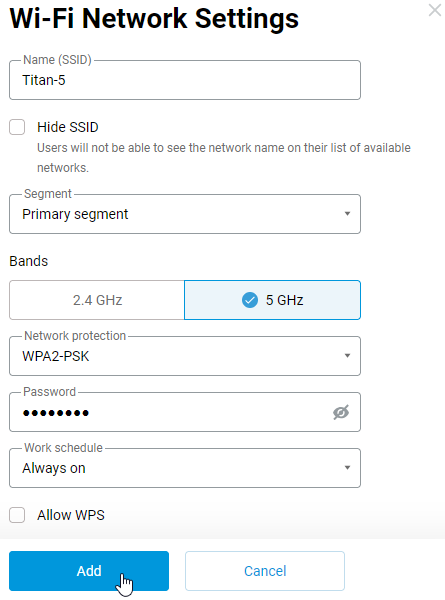
This will create two Wi-Fi networks with different names on the router. One network will operate only in the 2.4 GHz band, whilst the other will operate only in the 5 GHz band.

Notice
This article explains how to configure OS versions 5.1 and above. Instructions for earlier OS versions can be found in the article Changing Wi-Fi network name and password (for OS 5.0 and earlier).