Formatting and checking a file system on a USB drive
From OS version 5.1 onwards, a new Storage & Devices page has been added to the router’s web interface to manage connected USB devices and storage drives, including formatting, checking, disconnecting, and safely removing them.
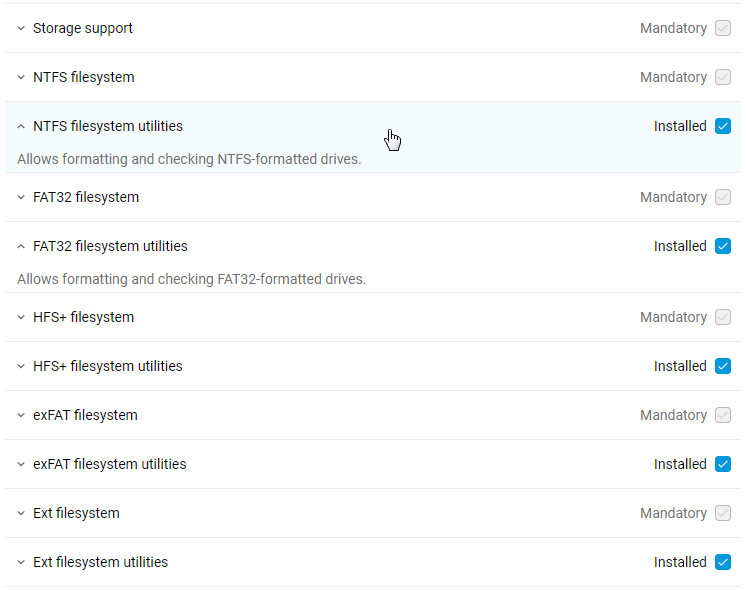
To format and check a connected storage device, you need to install the necessary filesystem utilities components on your Keenetic router. Utilities are available for the NTFS, FAT32, HFS+, exFAT and EXT4 file systems.
Log in to the router’s web interface, go to the Management menu, and on the System Settings page, in the KeeneticOS Updates and Component Options section, click Component options. Install the components for the file systems used on your USB drives (the most common are NTFS, FAT32 and EXT4).
Connect your USB drive to the router, then go to the Management menu, then to the Storage & Devices page. Here you will see a table listing all USB drives connected to the router, showing the partition names, file systems, USB port number and status.
For a specific partition on the drive, you can run a file system check for errors. To do this, click the  button to display additional options, and then select Check.
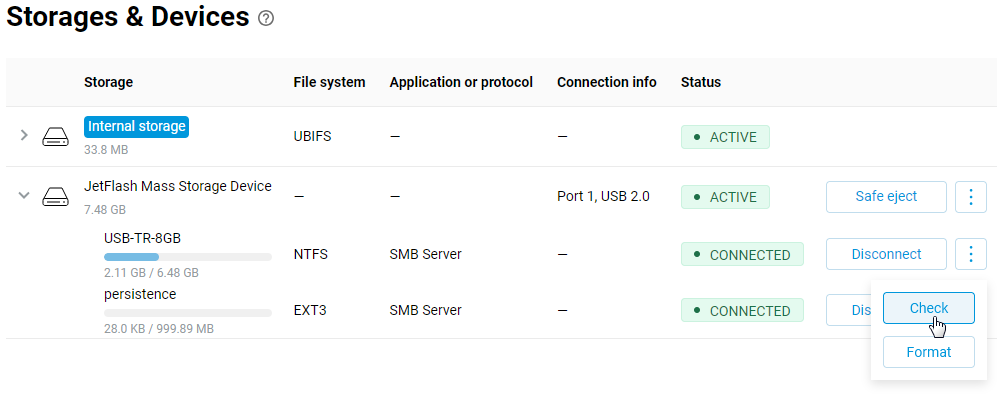
A process will run on the selected partition to check the file system for errors and automatically correct them. This procedure should be run on a connected storage device when its status is Dirty filesystem, which indicates file system errors.
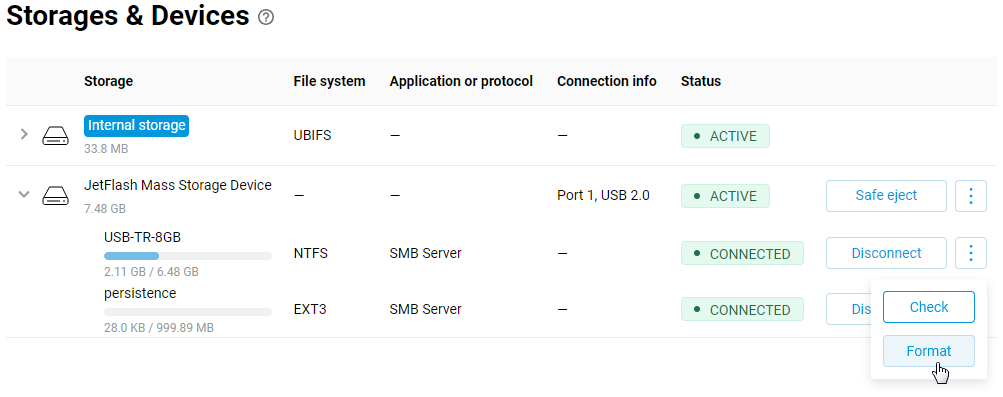
If you need to format a specific partition on the USB drive, click the Format button.
Warning
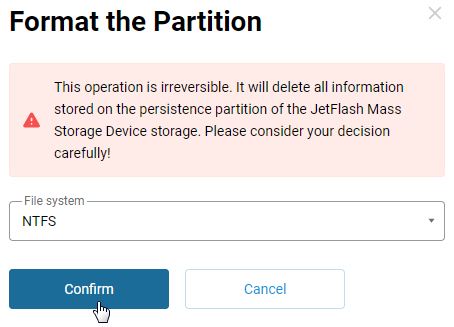
Formatting a partition is irreversible. It will result in the deletion of all data stored on the drive partition. Please consider your decision carefully!
When formatting a partition, the following options are available in the File system field: NTFS, SWAP, exFAT, VFAT, EXT4.
If you want to format the entire drive rather than a specific partition, click the Initialize button. In this case, the drive is fully initialised — the old partition table is cleared, and a new one is created with two partitions: SWAP and NTFS/EXT4, and the partitions are formatted.
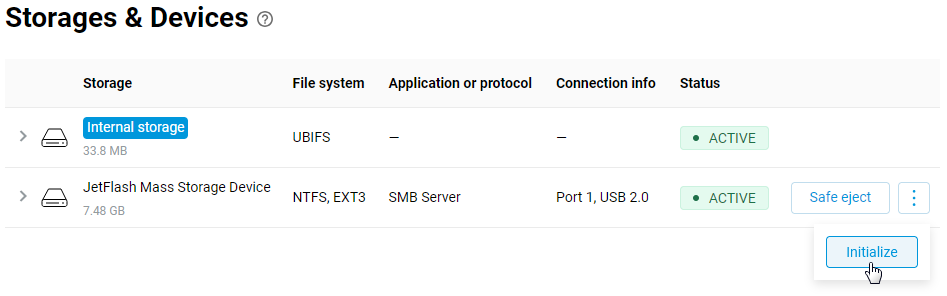
Select the NTFS or EXT4 partition file system, then click Confirm.
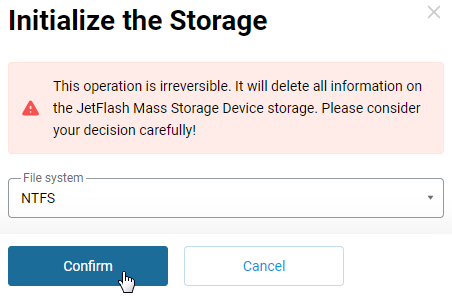
Warning
The drive initialization process is irreversible. It will result in the deletion of all data on the drive. Please consider your decision carefully!
For information on how to safely disconnect and remove a connected drive, please refer to the instruction manual USB safe removal.