Remote access to the router's command-line interface
Important
By default, access to the router’s Command-line interface (CLI) from the internet is blocked. This is done to protect the router and your home (local) network from unauthorized access from the external network. Do not open access to your router’s command-line interface unless absolutely necessary.
Access to the device’s command-line interface via Telnet/SSH from the Internet is only possible if there is a public IP address on its external (WAN) interface, through which the connection is made.
If you are using a private IP address, there is one way to access the router’s command line from the web interface. You will find details in the Note section at the end of this article.
The WAN IP address provided by your ISP can be viewed in the router's Web Interface. It is displayed on the System Dashboard homepage in the Internet section.
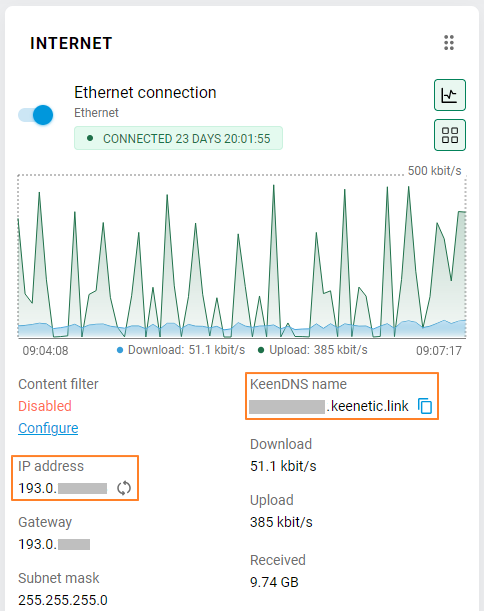
The IP address field displays the WAN address assigned by your ISP to your router for Internet access.
Please refer to the information in the article What is the difference between a public and private IP address?. It lists the ranges of private IP addresses. If your router uses an address from the specified range to access the Internet, this means access is via a private IP address, and in this case, connecting to the router from the Internet via Telnet/SSH will not be possible.
If your device has a public WAN IP address for connecting to the Internet, for convenience, you can use the Keenetic domain name service KeenDNS by configuring it in Direct Access mode. Choose a name for your router and register it. You can find detailed information on configuring a domain name on the router in the instructions KeenDNS service.
As noted above, by default, Internet access to the router’s management via Telnet is disabled. Enable it on the Users and Access page. In the Inbound Management Access section, in the Allow access from the Internet field, enable the via Telnet option.
You can now use a Telnet connection to access the router’s command-line interface (CLI) from the Internet.
Tip
If your computer is running Windows Vista/7/8/10/11, refer to the article Enabling Telnet and TFTP client in Windows (in Windows 2000/XP, this service runs by default).
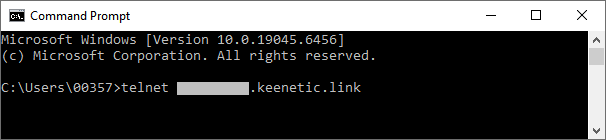
Open the operating system’s command prompt (or Terminal) and enter the following command:
telnet [domain_name_or_router_wan_ip_address]
You can use either the KeenDNS domain name or the router’s WAN IP address. For example:
telnet myrouter01.keenetic.link
telnet 86.87.88.89
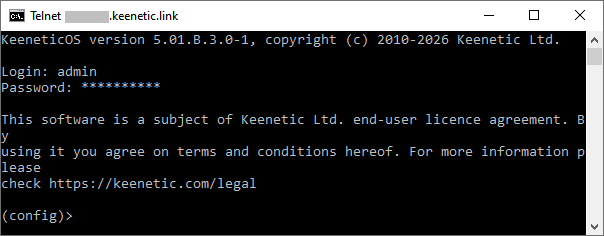
This means that a user (connected to the Internet) will be able to remotely access the router’s management interface via the command line.
Tip
1. Starting with OS version 2.12, an SSHv2 (Secure Shell) server was added, which allows you to connect securely to the router’s command line. You can find detailed information in the guide SSH remote access to the Keenetic command line.
2. This article provides an example of connecting to the command-line interface, which uses the standard (default) Telnet port number 23. If necessary, you can change the standard management port number. It is even recommended that you do this to enhance the device’s security. You can change the port number in the web interface on the Users and Access page under the Administrative Services section. Once the default port has been changed, the router will be accessible via the new port number. To connect via Telnet, simply append the new port number to the address, separated by a space. For example: telnet myrouter01.keenetic.link 2023
Note
There is a way to connect to the router’s command line directly from the web interface. This method will be particularly useful for those who use a private IP address to access the Internet. When using a private address, you cannot connect to the router from the Internet via Telnet/SSH, but you can connect to the web interface. Instructions on how to do this are provided in the guide Remote access to the web interface.
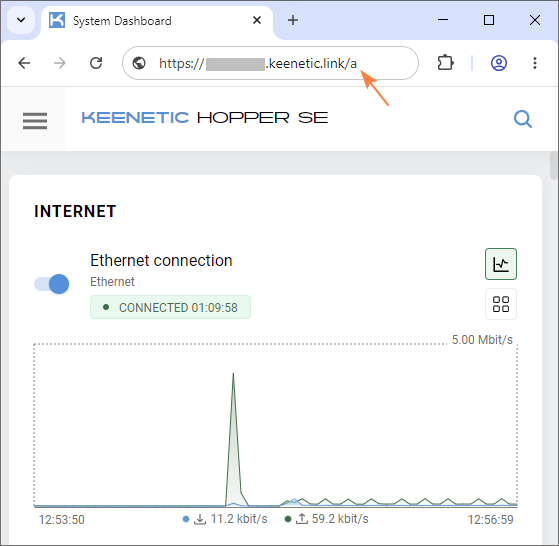
Once you have connected to the web interface, you will see an address in the browser address bar in the format https://domain_name/dashboard
Erase the word dashboard and, after the slash / , add a lowercase letter a from the English alphabet https://domain_name/a
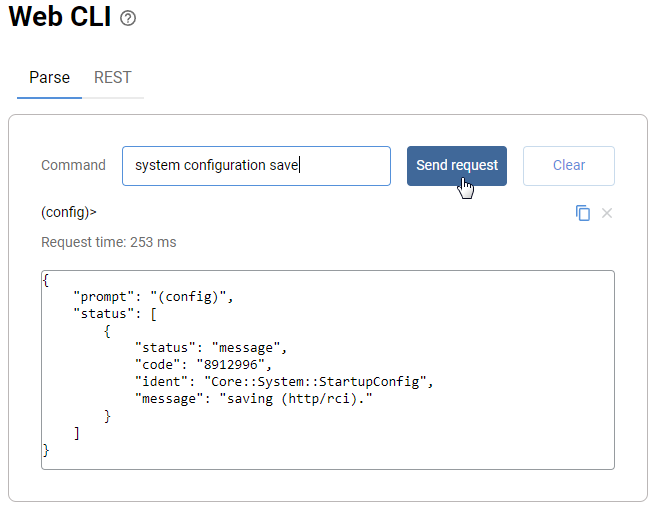
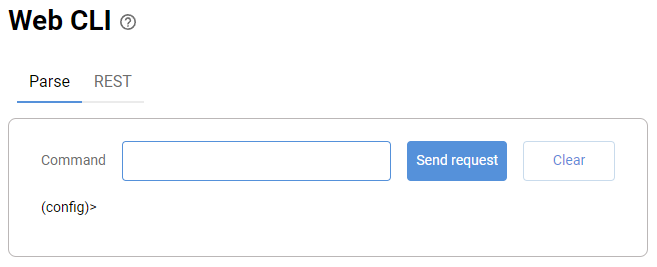
The Web CLI page will open in the web interface, where you can send commands to the router.
Important
The Web CLI is not a full-featured command-line interface. Some commands may not execute here, and the output will differ from what is displayed in the CLI when connected via Telnet/SSH. The auto-completion feature for commands and parameters using the [Tab] key is available starting with OS version 2.15.
For comprehensive router configuration, use only a Telnet/SSH connection to the command-line interface.
The Web CLI is intended for engineers and developers, but in exceptional cases, it may be helpful when the required setting is not available in the web interface and can only be configured by executing a specific command, and access to the CLI is impossible for some reason. Please exercise caution when working in the Web CLI. Careless actions may damage the router’s configuration.
Suppose you need to execute the following commands on the router (via remote access from the Internet):
ip name-server 8.8.8.8 "" on ISP
system configuration save
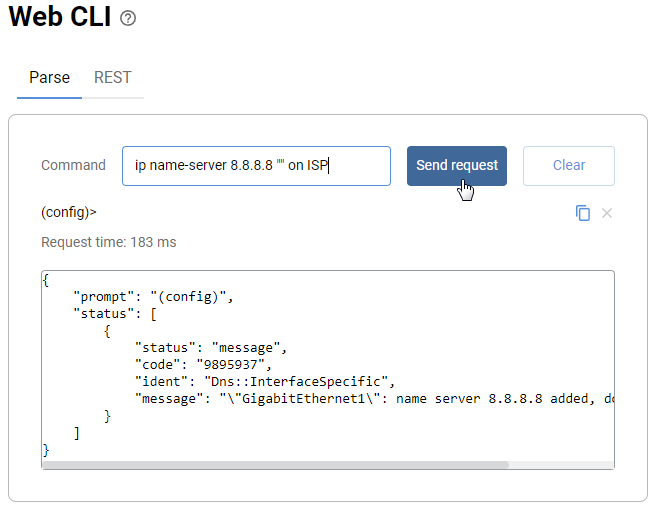
On the Parse tab, enter the command in the Command field and click the Send request button.
Execute the commands in sequence. To save the settings, don’t forget to run the system configuration save command at the end.