Running app diagnostics
If you encounter a problem with remote management of a router or a group of devices whilst using the Keenetic mobile app, a Keenetic technical support representative may ask you to carry out a diagnostic procedure. You can run this from within the app.
Connect the mobile device on which the app is installed to the Keenetic router’s Wi-Fi network. If VPN is enabled on your mobile device, be sure to disable it, as an active VPN connection may affect the diagnostic results.
Launch the app. On the Sites screen, go to the Technical support section.
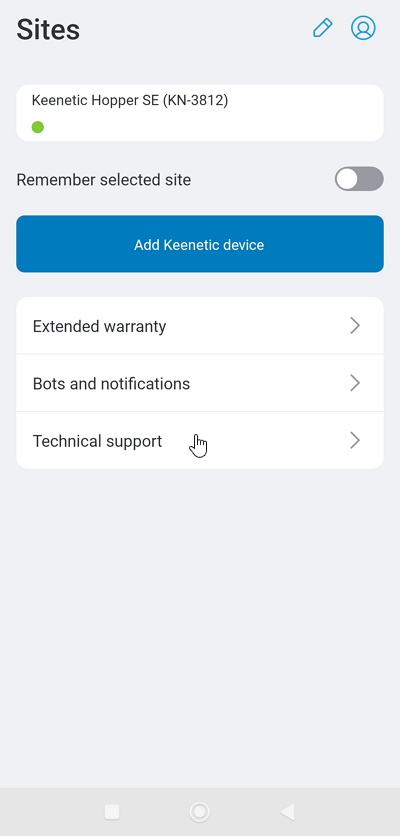
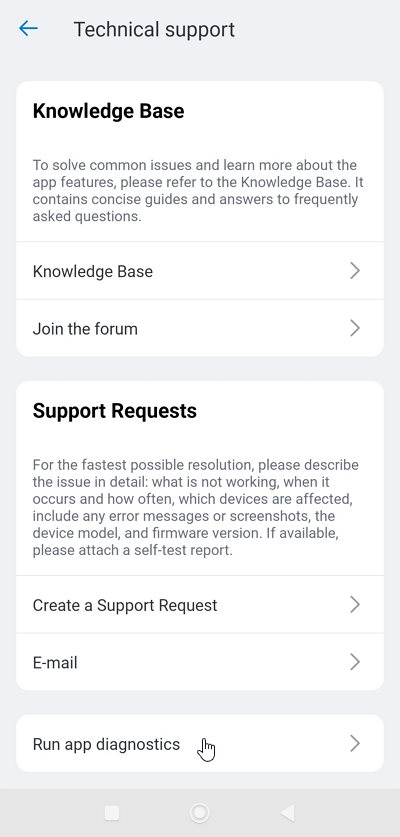
Tap Run app diagnostics. The test will start automatically.
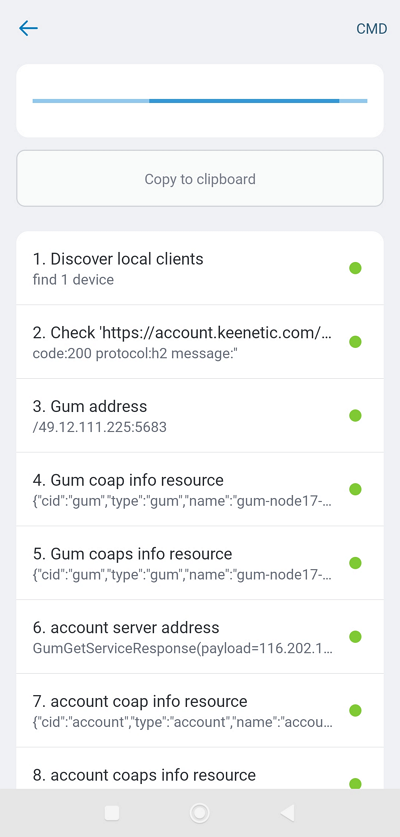
Wait until all the tests have finished.
Once the test is complete, the Copy to clipboard button will become active. Click this button and then paste the contents of the clipboard into your reply to send to technical support.
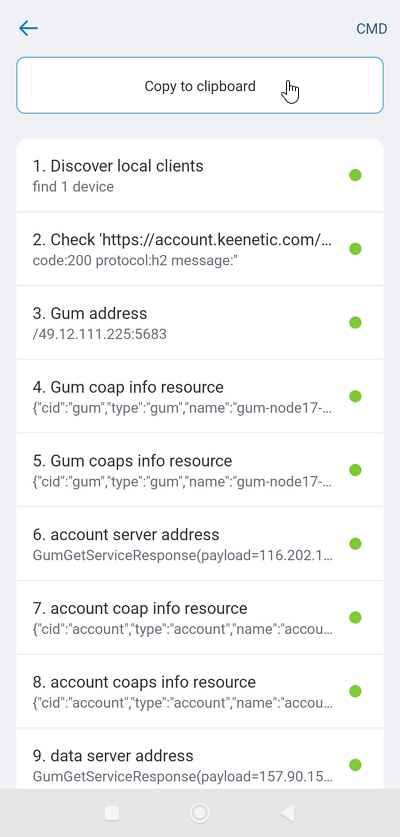
Another option is to create a blank text file on your mobile device, paste the contents of the clipboard into it and save it. You can then attach this file containing the diagnostic results when sending your reply to technical support.