Support for USB-to-serial port converters
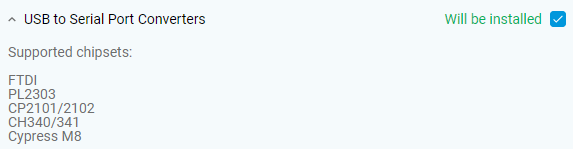
A serial COM port with an RS-232 connector can still be used for configuration or management in various types of equipment. If required, such equipment can be connected to a Keeneticrouter. This feature is only available on models with a USB port. To connect, you will need a special USB–RS-232 adapter with one of the following chipsets: FTDI, PL2303, CP2101/2102, CH340/341, or Cypress M8.
Install the USB to Serial Port Converters OS component. You can do this via the Management menu on the System Settings page, in the KeeneticOS Update and Component Options section, by clicking Component options.
Next, use the OPKG Package Manager. Install OPKG Entware onto the internal memory Installing OPKG Entware in the router's internal memory or an external USB drive, following the instructions Installing the Entware repository on a USB drive.
To connect to the device via the serial COM port, you will need a console programme. Install the specialized minicom package.
Use the PuTTY terminal programme to install and work with this package.
Launch PuTTY, establish a connection to the router via SSH and log in. In the BusyBox shell, run the command to install the minicom package:
opkg install minicomOnce the package has been installed, run the following command to configure it via the graphical menu:
minicom -s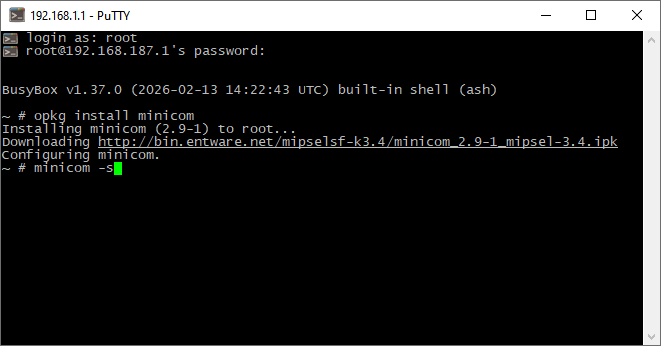
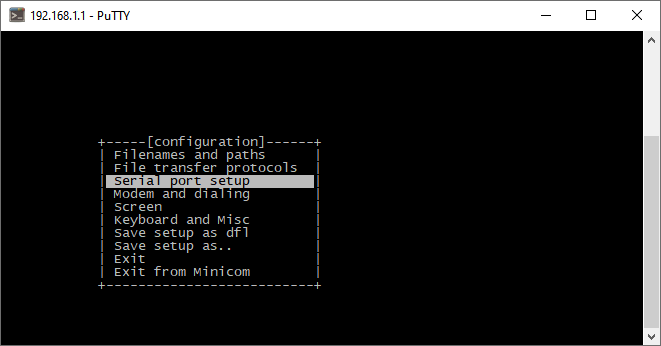
In the menu that appears, navigate to the Serial port setup section to configure the COM port settings:
Press the A key (Serial Device) and edit the value as shown in the screenshot below. You need to specify the file /dev/ttyUSB0 (this is a virtual serial port created automatically by the system when a device with a USB–RS-232 converter is connected).
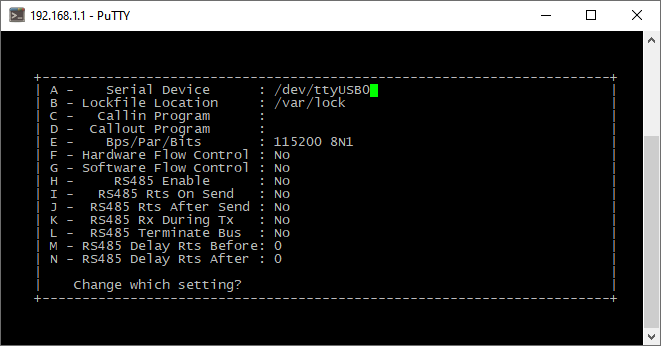
By default, the following COM port settings are preconfigured in minicom: 115200 (baud rate, bits per second), 8 (data bits), N (parity), 1 (stop bit). If you need to change these, press the Е key (Bps/Par/Bits). To find out the exact serial port settings, refer to the documentation for the device you wish to connect to.
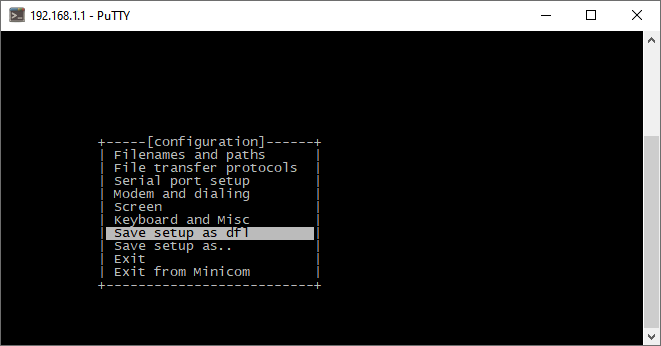
Save the default configuration by selecting Save setup as dfl:
You can now connect to the device via the serial COM port. To run the package, use the command:
minicom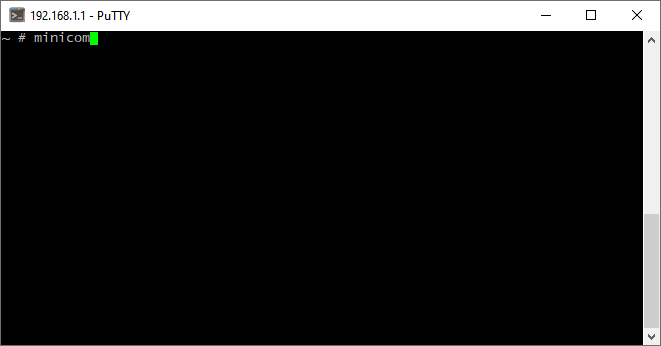
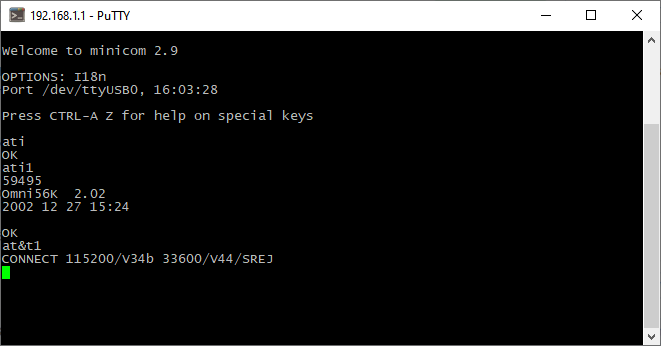
In our example, we are using an Omni 56K Plus modem with an RS-232 port for connection. As shown in the screenshot, the connection to the modem via a USB–RS-232 adapter has been successfully established, and AT commands can now be executed.
Similarly, you can set up a connection via a USB–RS-232 adapter to any other device (for example, a modem, router, switch, controller, smart home device or industrial equipment).