Disabling Internet access for all unregistered clients
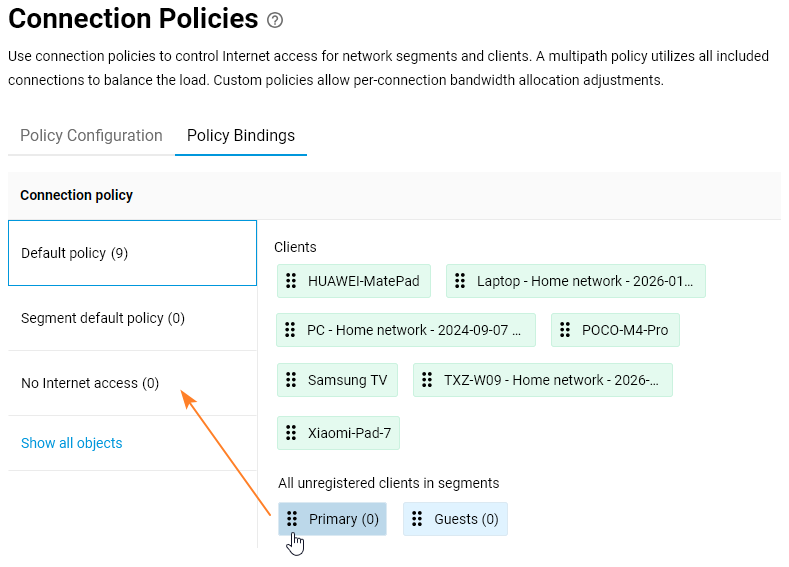
On your Keenetic router, you can block Internet access for all unregistered clients on the local network. To do this, go to the web interface and navigate to the Connection Policies page in the Internet section. Click on the Policy Bindings tab and then on Default Policy. In the All unregistered clients in segments section, drag the Primary segment into the No Internet access policy.
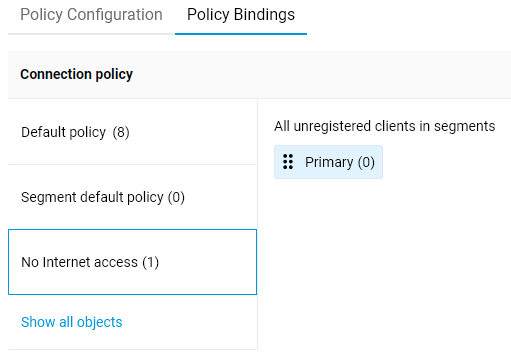
With this setting, only registered clients connected to the Primary segment will be able to access the Internet.
Important
Individual settings for registered clients override the default segment settings.
If, after enabling the access restriction, a registered client is blocked and appears in the Blocked Clients list on the Client Lists page, this means that the Segment default policy is set for that client in the Connection policy field. Set the value to Default policy for this client.
Please note that the configuration described in this article blocks only transit traffic travelling from a client on the local network to a host on the Internet. Proxied DNS traffic is not blocked; however, all metadata is removed from proxied DNS queries, which prevents any response from the Internet from reaching the blocked client.
There is also an alternative way to configure these settings.
You can do the same via the My Networks and Wi-Fi > Segments menu. On the Primaryt tab, go to the Internet Traffic Handling Rules section. In the Connection policy field, select No Internet access.

Tip
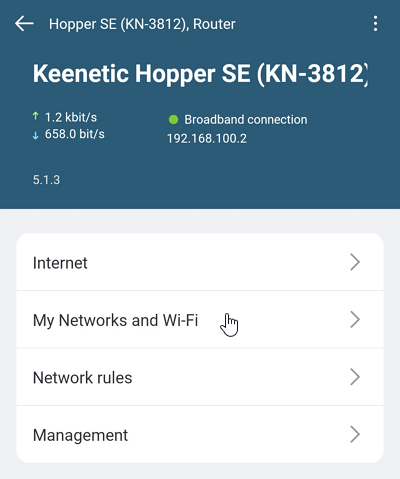
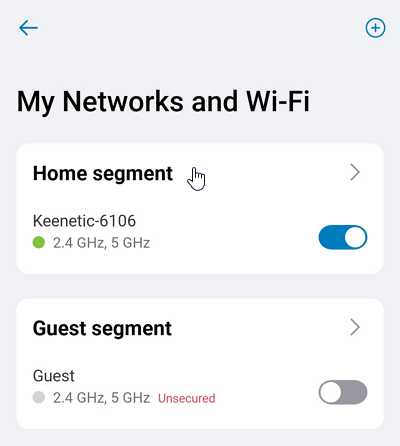
If you are using the Keenetic mobile app, you can configure this setting within the app. To do so, launch the app and go to the router settings. Tap My Networks and Wi-Fi.
Tap Home segment (Primary in newer OS versions).
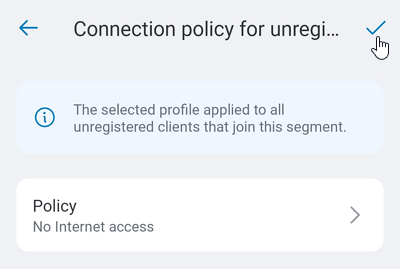
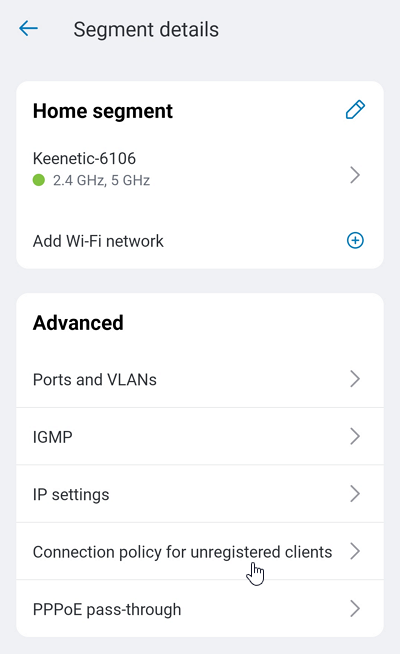
In the Advanced section, click Connection policy for unregistered clients.
Tap Policy and select No Internet access.
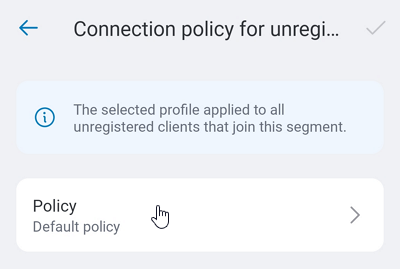
To save your settings, tap the  icon in the top right-hand corner of the screen.