Access points (for OS 5.1 and later)
When switched on for the first time, your Keenetic device sets up a highly secure dual-band Wi-Fi network (2.4 GHz + 5 GHz) for laptops, smartphones, tablets and other wireless devices. A separate Wi-Fi network is provided for guest devices, offering only internet access without access to the home network. The optimal operating channel is selected automatically based on periodic analysis of the radio spectrum. In most cases, no additional configuration of the main Wi-Fi access point is required. All you need to know is the name and password to connect your device to the wireless network (these are shown on a sticker located on the bottom panel of the router’s casing).
Tip
Not all mobile devices can connect to a 5 GHz Wi-Fi network. Only devices (such as smartphones, tablets and laptops) that support this band will be able to do so. If your device does not support the 5 GHz frequency band, it will be able to connect to the 2.4 GHz Wi-Fi network.
You can read about the advantages and disadvantages of each band in the article Differences between the 2.4 GHz and 5 GHz frequency bands.
If necessary, you can configure your wireless network settings yourself. On the Access Points page, you can change the wireless network name, password, and other basic Wi-Fi settings.
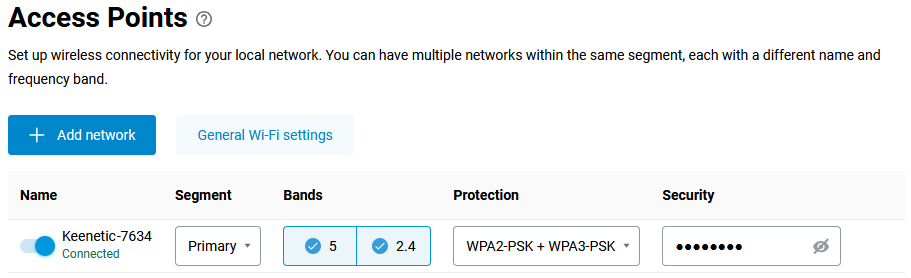
To change the default network name and password, please refer to the article Changing Wi-Fi network name and password.
To ensure the highest level of security for your wireless connection, the Protection setting is set to WPA2-PSK + WPA3-PSK by default.
Important
Using an unsecured, open Wi-Fi network is extremely unsafe. Any client, including a malicious attacker, can connect to such a network without a password.
Wi-Fi network settings
To change the Wi-Fi network settings, tap an access point entry.

In the Wi-Fi Network Settings window that appears, you can change the network name (SSID), security protocol, and connection password.
If you want the wireless network to operate only at specific times, set up a schedule for it. Further information is available in the article A work schedule for network connections.
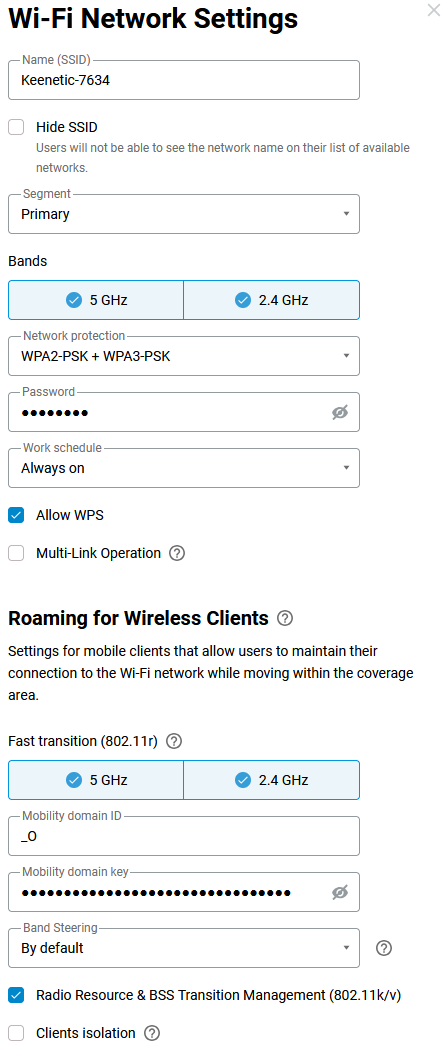
This window also displays the seamless roaming settings for wireless clients. For further information on configuring roaming, please refer to the article Wi-Fi seamless roaming.
For the 5 GHz wireless network, the Band Steering feature is available (enabled by default). Band Steering determines the optimal Wi-Fi band (2.4 or 5 GHz) for each dual-band client on your network. Further information on how Band Steering works can be found in the article Band Steering.
Tip
For Band Steering to work, the names of the 2.4 GHz and 5 GHz Wi-Fi networks must be the same.
On Keenetic devices, the same network name is used by default on both bands. If dual-band mobile devices frequently switch automatically between the 5 GHz and 2.4 GHz networks, causing inconvenience, we recommend setting different names for the wireless networks. You can then connect the client to the desired network.
General Wi-Fi settings
To configure additional general Wi-Fi network settings, click the General Wi-Fi settings button on the Access Points page. You will be automatically redirected to the General System Settings page, on the Wi-Fi tab.
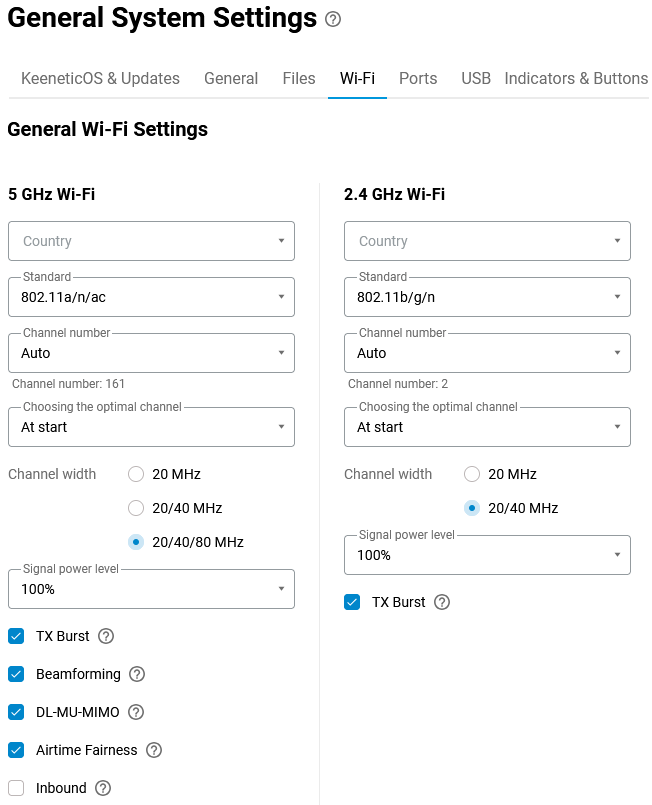
In the Country field, select the country in which you plan to use the device. Different frequency bands and channel numbers are permitted in different countries. For example, in the 2.4 GHz band, wireless channels numbered 1 to 13 are permitted in Ukraine, Belarus and Kazakhstan, whilst 11 channels are permitted in the USA.
The Standard field is set by default to ensure maximum compatibility with various clients, but in some cases, you can specify a particular standard or standards for the device to use.
The Channel field is set to Auto by default. In this case, the device automatically selects the optimal operating channel based on periodic analysis of the radio spectrum.
If necessary, you can set the channel number manually. In the 2.4 GHz band, you can select channels 1 to 13, and in the 5 GHz band, you can select channels 36 to 165. Choose the channel furthest away from other wireless networks, if any are within your access point’s range, to ensure stable Wi-Fi performance. Further information is available in the article How to scan a Wi-Fi network and determine the freest channel?.
The Choosing the optimal channel field is set to At start by default, but you can select Every 6 hours, Every 12 hours, Every 24 hours or Dynamically, where the optimal channel is selected once an hour, provided there is minimal traffic.
For more information about channels in the 5 GHz band, see the article Your mobile device can't see the 5 GHz Wi-Fi network?. We recommend selecting a channel with a lower number within the range of 36 to 64 (the lower the frequency, the better the signal penetration).
In the Signal power level field, you can adjust the power of the Wi-Fi signal emitted by the Wi-Fi transmitter. Further information is available in the article Changing the signal power level in wireless network settings.
In extremely rare cases, a client device may fail to connect to the router’s network. For further details, see the article Why can't my device connect to Wi-Fi with Fast Transition (802.11r) enabled?.