Using two SIM cards
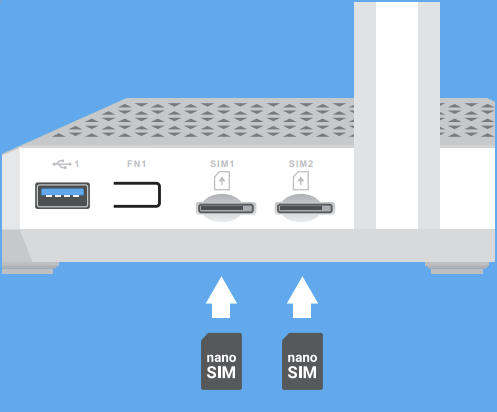
The Keenetic Hero 5G router is equipped with a built-in modem and two nano-SIM card slots. The presence of two SIM card slots allows you to use the networks of two mobile operators and ensure uninterrupted Internet access via automatic fallback to a mobile network connection. You can configure your router to switch automatically between SIM cards if there is no Internet access via the primary connection or when a specified data limit is reached, which is useful with capped data plans. You can also set up a schedule for each SIM card that, for example, allows you to use the connection via the SIM card offering unlimited data at night during its active hours.
Important
To ensure your SIM card works correctly, use a tariff plan designed for use in modems and routers; otherwise, the SIM card may not work in the router.
Keenetic Hero 5G uses a single built-in modem and cannot operate with two SIM cards simultaneously. The device operates them sequentially — one SIM card is active whilst the second is on standby (the second slot is inactive). If the active SIM card loses connection or runs out of data, the router will automatically switch to the standby SIM card.
The device cannot receive SMS messages on the SIM card in the inactive slot. This is only possible on the active SIM card.
When using two SIM cards in the router, two separate connections are created (the UsbLte0 and UsbLte1 interfaces), each with a different priority — one is the primary connection and the other is the backup. Set the priority in the web interface settings on the Mobile Broadband Internet Connections page.
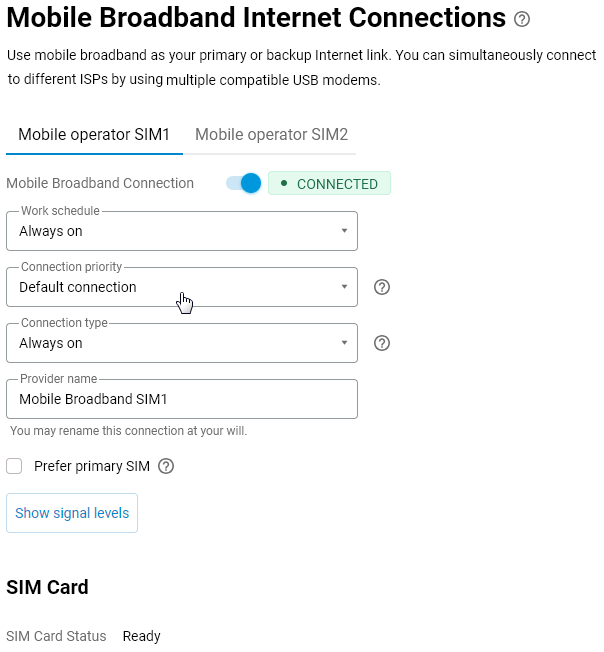
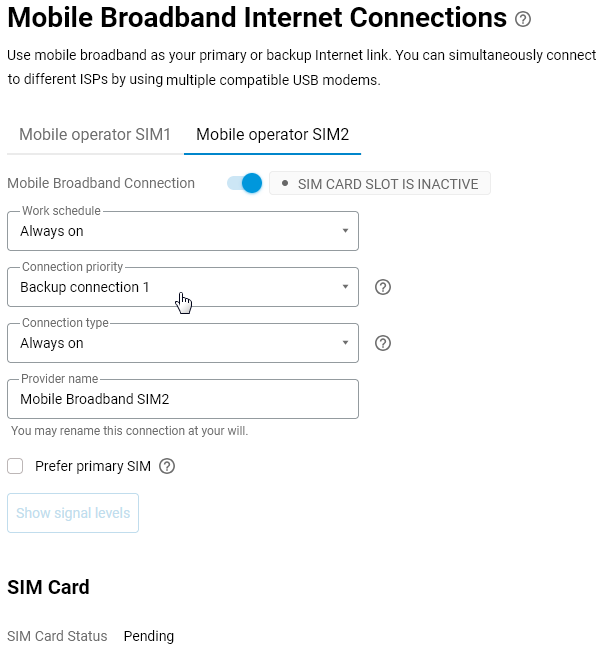
SIM1 and SIM2 are two connections that operate alternately. If the connection on one SIM card is lost, the device will automatically switch to the second one. Switching between SIM cards is not instantaneous; it takes some time — usually between 30 seconds and 1 minute.
To switch manually from one SIM card to another, use the connection on/off toggle in the router settings on the System Dashboard screen. For example, if you switch off the SIM1 connection, the router will automatically switch to SIM2.
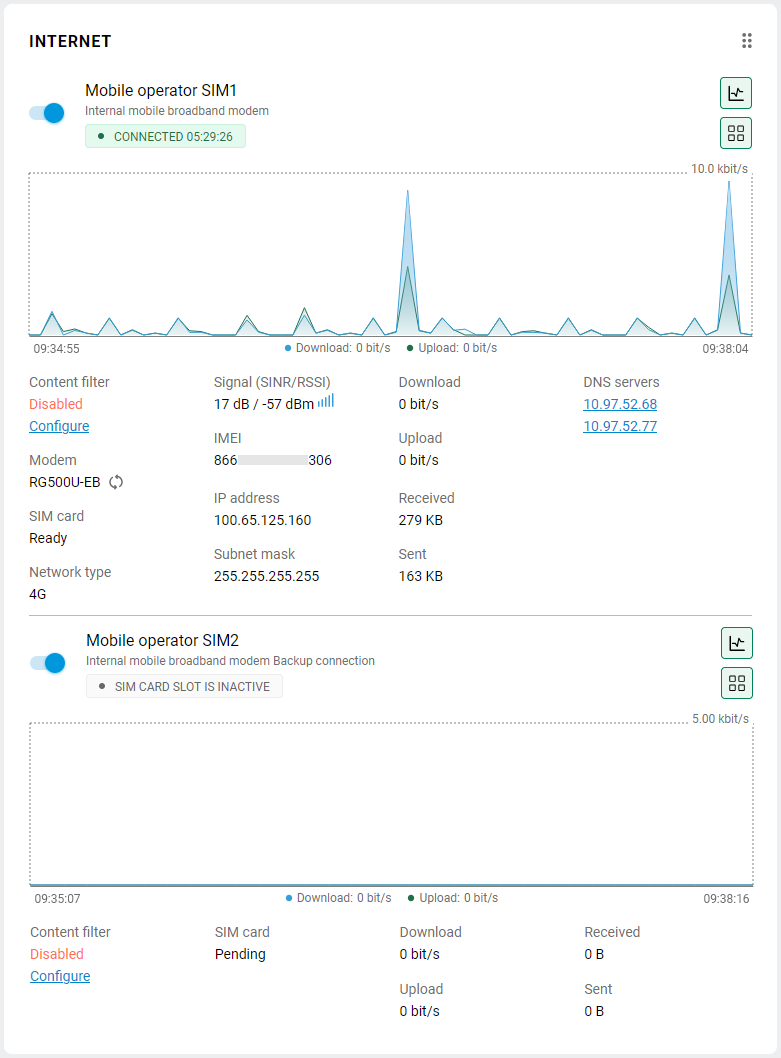
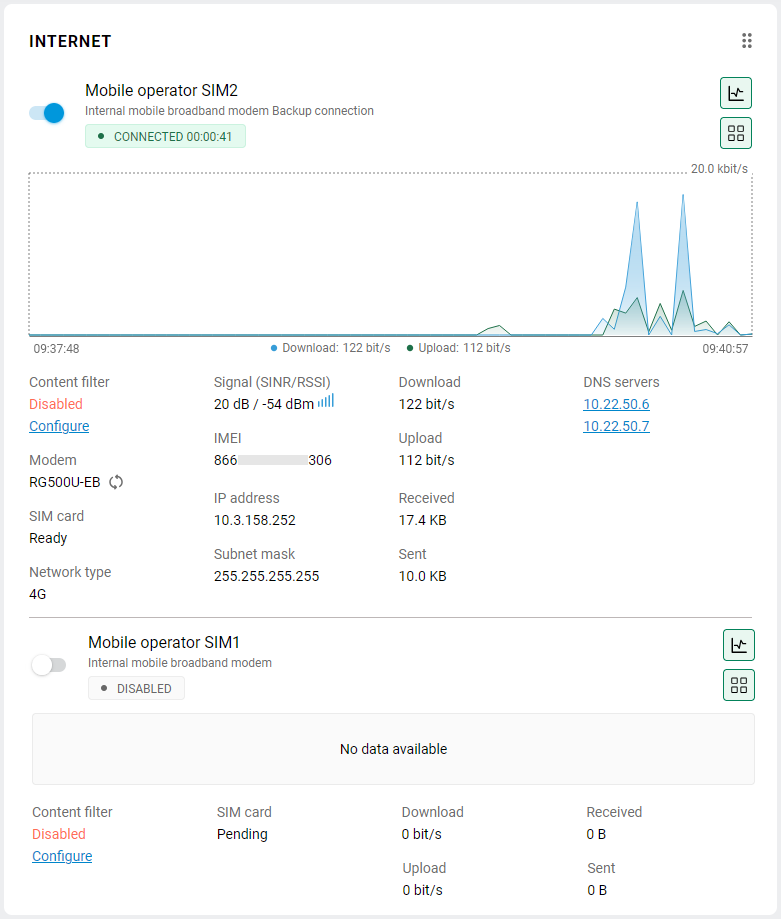
By adjusting the router settings, you can automate the failover process as much as possible when using two SIM cards, thereby eliminating the need for user intervention. For example, you can create a Work schedule for a SIM card so that it operates only during specified hours and then switches off, automatically switching to the other SIM card.
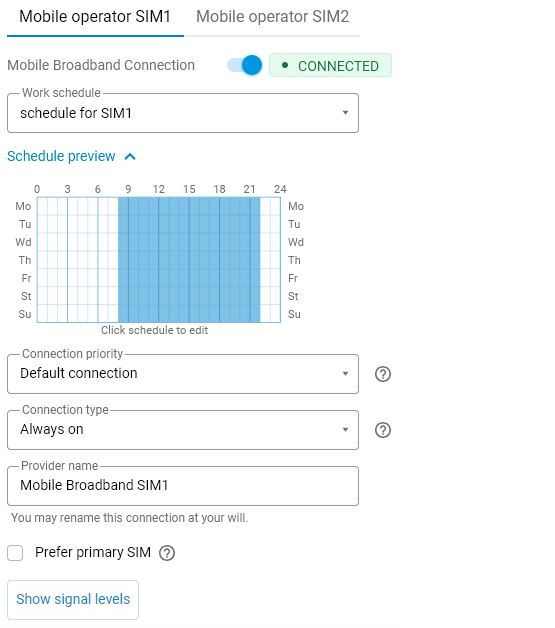
By default, the router switches from the primary connection to the backup connection in the event of a network failure. However, to ensure it subsequently switches back to the primary connection, you need to enable the Prefer primary SIM option, which controls the switch back from the second SIM card connection.
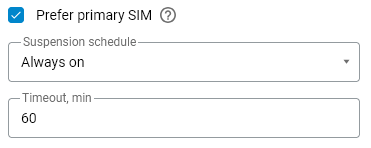
Once the Prefer primary SIM option is enabled, the router will attempt to switch back to the primary SIM card after the connection via the second SIM card has been active for a specified period. During this time, the modem will stop transmitting user traffic for approximately 1 minute. As a result, the backup interface UsbLte1 will be deactivated, and the primary interface UsbLte0 will be activated, after which the modem will attempt a test connection. If this is successful, the UsbLte0 interface will continue to operate as the primary one. If not, it will switch back to UsbLte1.
Failover is also useful when connecting on data-capped tariffs. On the Mobile Data Allowance page, you can configure the SIM card (mobile connection) to be automatically disabled when a specified limit is reached. When the mobile data allowance is exhausted, the router will disable the SIM card and automatically switch to the backup connection.
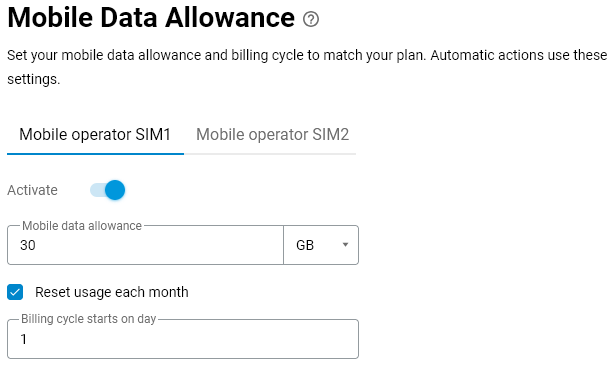
Further information on setting a data limit can be found in the guide Data Usage & Limit.
Automatic switching between SIM cards may also occur when the Ping Check Internet availability check mechanism is triggered. You can enable this on the Mobile Broadband Internet Connections page.

Further information on how Ping Check works and how to configure it can be found in the guide Internet availability checking (Ping Check).
Note
In addition to two SIM card slots, the Keenetic Hero 5G router is equipped with USB ports. If uninterrupted Internet access is a priority for you, this can be achieved via various connection channels. An additional external, compatible 5G/4G/3G modem can be connected to the USB port. In this case, you can use two mobile connections simultaneously (one via the built-in modem, the other via the external one), i.e. set up parallel connections to two different mobile network operators and, if necessary, configure your own access policies for each connection. If one connection is lost, the router will automatically switch to the other, ensuring greater internet reliability.