Configuring notifications in Telegram
You can receive notifications from the online router via the Telegram messenger. To do this, you can connect the Telegram bot (https://t.me/KeeneticNotifierBot) within the Keenetic app.
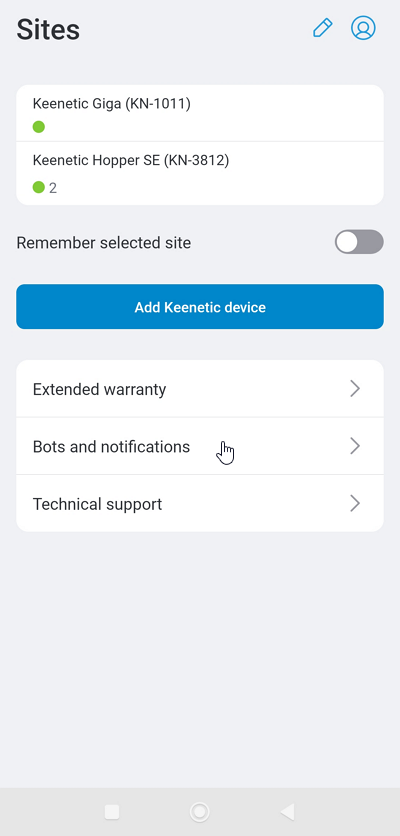
Launch the app. On the Sites screen, go to the Bots and notifications.
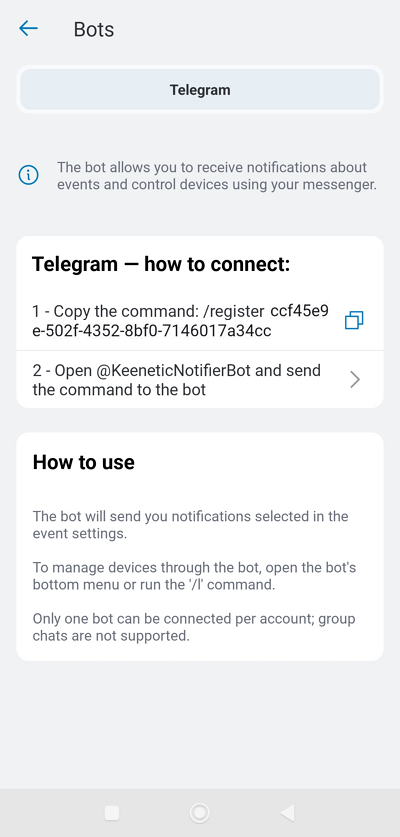
To connect the bot, you’ll need to follow two steps:
1 – Copy the command /register [telegram-code] to the clipboard
2 – Open the bot and send it the command /register [telegram-code]
Tap items 1 and 2 in sequence.
In the Telegram messenger window, paste the /register [telegram-code] command from your clipboard and send it to the bot.
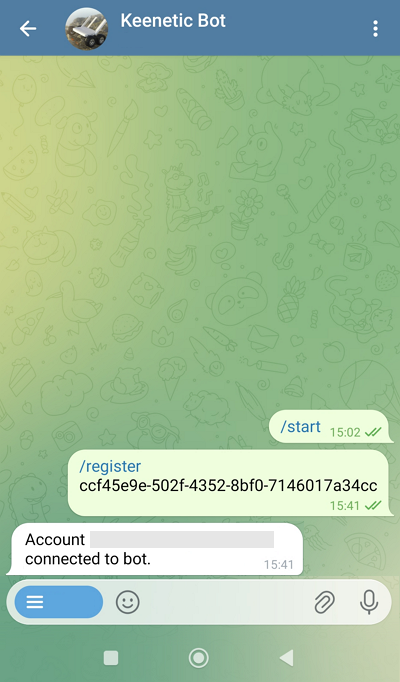
If you are successfully connected, you will see a confirmation message about the registration Account connected to bot.
Important
If you get an invalid code message when registering the key, be sure to run the /unregister command and then register again. Also, make sure you copy the code without any extra characters, such as spaces.
Once you have done this, you will be able to receive notifications in the Telegram messenger about events on your router. In addition to this feature, the Telegram bot also allows you to manage your router's main functions.
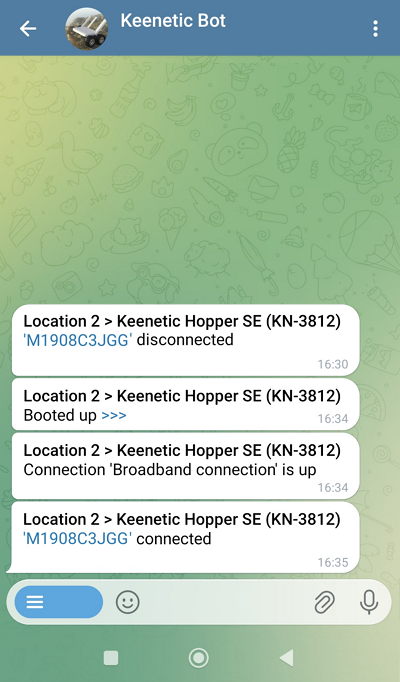
Additional information on setting up notifications can be found in the article Setting up notifications in the app.
There is also an alternative way to connect and set up notifications in the Telegram messenger. This can be done via the Keenetic Cloud.
Note
If you want to make events come to your computer and be displayed in the system tray (notification area) of your Windows operating system, install the Telegram Desktop app on your PC. Event notifications will appear directly on top of open windows. In Telegram, this feature is enabled by default, and notifications appear in the lower right corner of the screen.