Wireless ACL
A Keenetic router allows you to control access to the wireless network in each local network segment by creating an access list based on clients' MAC addresses. You can create either a White or Black access list. Blacklist — blocks the wireless clients included in it. Whitelist — blocks access to all clients not on the list.
Important
Access lists are not a substitute for WPA2 or WPA3 authentication in the wireless network; it is recommended to use them together.
You can configure access lists for the 2.4 and 5 GHz networks on the Wireless Access Control page. MAC address-based access lists are configured for segments and apply to access point interfaces included in the segment. Thus, you will not need to register the same new device on both 2.4 GHz and 5 GHz access points, and when expanding the network with additional Keenetic devices in the Extender, Access Point or Repeater mode on these devices as well. It will be sufficient to register the new device once in the Primary segment tab.
By default, wireless access control is disabled in Keenetic routers.
Important
Only registered devices are shown in the list of available devices. You can register your device on the Client Lists page or add a new device by clicking the Add client button.
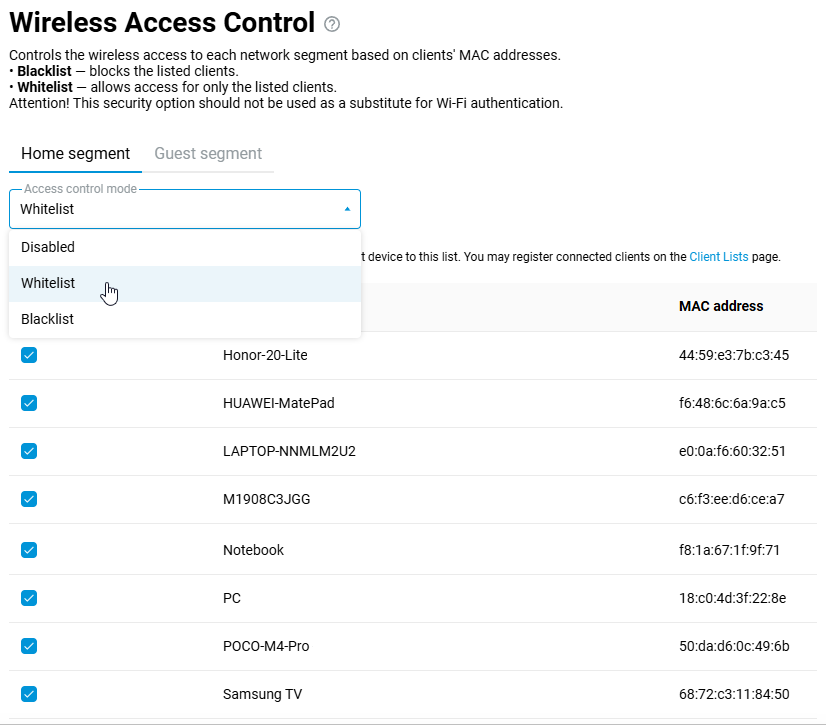
When creating a whitelist, in the Primary tab, select Whitelist in the Access control mode field. When a whitelist is enabled, all devices registered in the router are automatically selected. You can manually manage devices by ticking and unticking them in the list. Press Save.
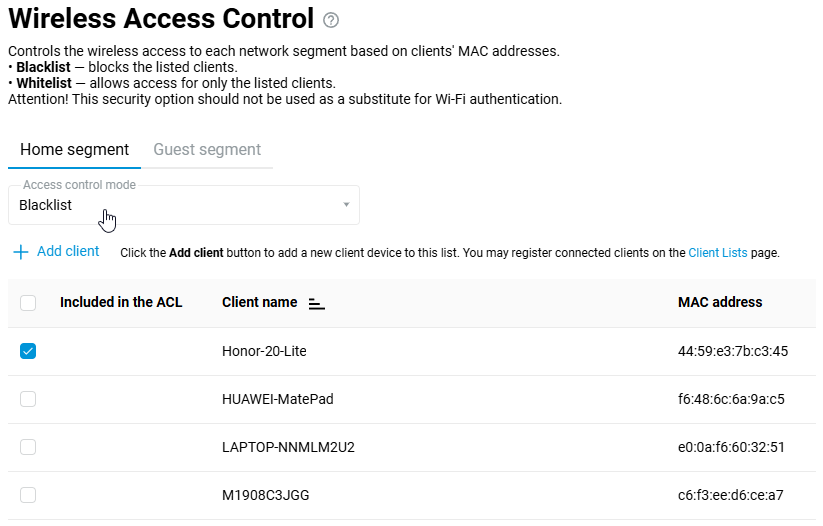
When creating a Blacklist, you need to select the devices by ticking them in the list manually. Press Save.
Access lists for the Guest segment and other custom segments (or additional access points) of the Keenetic router are configured in the same way.
Tip
When using the Whitelist and connecting a new device via Wi-Fi, temporarily disable the whitelist — in the Access control mode field, set it to Disabled. Then, on the Client Lists page, you will see a new unregistered client. Register it and then reactivate the whitelist by adding the new device to the list.
Notice
Starting with KeeneticOS 2.13, the logic for creating access lists has been changed. Now they are created on the basis of already registered clients, and the access list is tied to a network segment, whereas earlier access lists were tied to a specific access point. In subsequent versions, the configuration of individual lists disappeared from the web interface, but if they were previously created and enabled, they continue to work. MAC address access lists configured on access points in the old web interface are in effect until the access list is enabled in the new interface. To disable the old access list and start using the new one, simply enable the access list on the Wireless Access Control page. After that, the old lists will be disabled.
But we recommend turning off the individual access list on the 2.4/5 GHz access point. And in the future, only use the setting via the 'Wireless Access Control' page of the web interface to manage access lists.
From the router's command line interface (CLI), to disable the access list on a 2.4 GHz network, run the commands:
interface WifiMaster0/AccessPoint0 mac access-list type none
system configuration save
To disable the access list on a 5 GHz network:
interface WifiMaster1/AccessPoint0 mac access-list type none
system configuration save